




Google’s Core Web Vitals report flags a huge share of WordPress sites for failing at least one metric, and Largest Contentful Paint is usually the repeat offender. If you want to pass Core Web Vitals in WordPress, you need to fix three specific things: how fast your biggest element loads, how much your layout jumps around, and how quickly your site reacts to a click or tap.
This guide shows you exactly how to Pass Core Web Vitals in WordPress using real plugin recommendations, exact settings, and practical optimization steps. By the end, you’ll know exactly what to change and in what order.
| Important: Core Web Vitals show up differently in lab data (what PageSpeed Insights tests right now) versus field data (real visitors, gathered over 28 days). Fixing your lab score is the first step, but your official pass/fail status in Search Console won’t update until Google collects enough real visitor data. |
What Core Web Vitals Actually Measure
Before fixing anything, it helps to know what you’re actually fixing. Core Web Vitals Optimization comes down to three metrics Google uses to judge real user experience:
- Largest Contentful Paint (LCP): how long the biggest visible element (usually a hero image or headline) takes to load. Google wants this under 2.5 seconds.
- Cumulative Layout Shift (CLS): how much the page jumps around while loading. Google wants a score under 0.1.
- Interaction to Next Paint (INP): how fast the site responds to a click, tap, or keypress. Google wants this under 200 milliseconds.
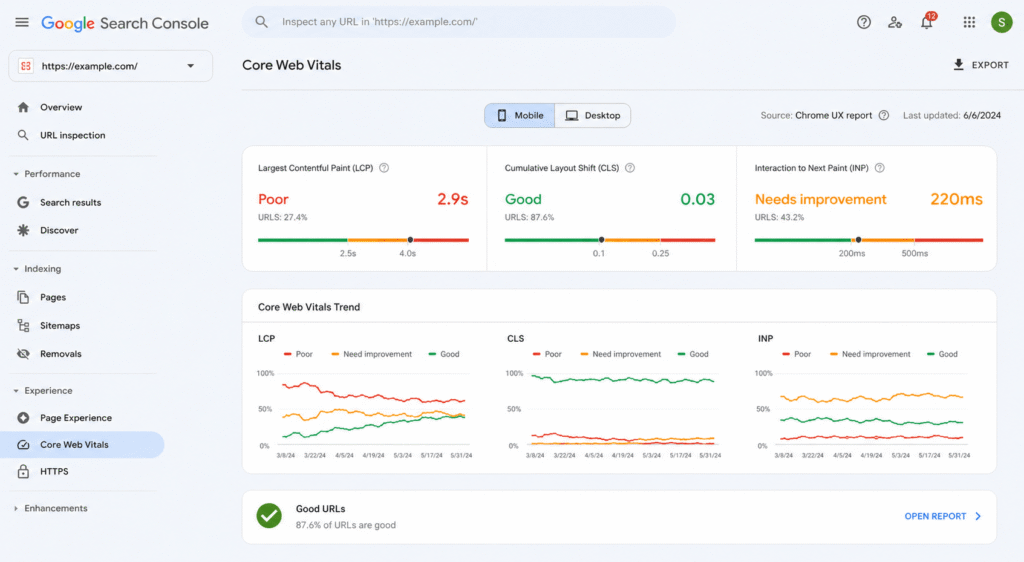
Miss any one of these and your Core Web Vitals status shows as “Needs Improvement” or “Poor” inside Search Console, which is the flag most site owners actually notice first.
How to Improve Largest Contentful Paint in WordPress
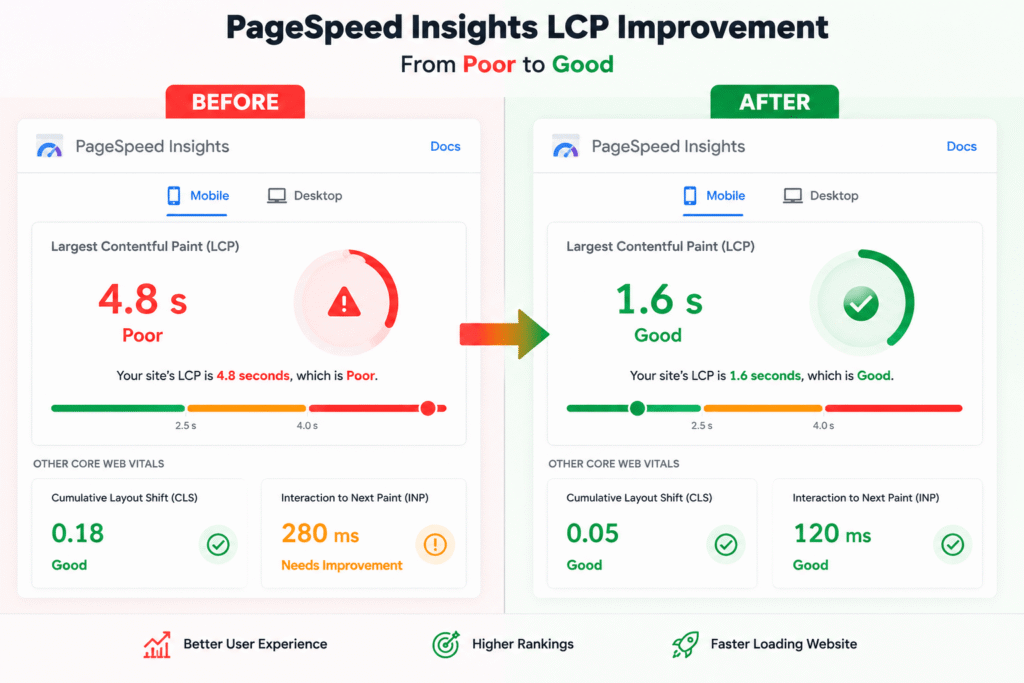
LCP is the metric most WordPress sites fail, and improving it is one of the fastest ways to Pass Core Web Vitals in WordPress. Here’s how to improve Largest Contentful Paint and Pass Core Web Vitals in WordPress step by step:
- Compress and resize images before uploading to help Pass Core Web Vitals in WordPress. Use a plugin like ShortPixel or Imagify to compress automatically, and never upload an image wider than it will actually display.
- Install a caching plugin such as WP Rocket or W3 Total Cache. Caching serves a pre-built version of the page instead of rebuilding it for every visitor.
- Add a content delivery network (CDN) like Cloudflare so images and static files load from a server physically closer to your visitor.
- Preload your hero image with a tag, either added to header.php or through your caching plugin’s preload feature.
- Upgrade your hosting if you’re on cheap shared hosting. A slow server response time (TTFB) drags down LCP no matter what else you fix on the front end.
| Developer Tip: Open your theme’s functions.php and check what’s loading in the . Unnecessary Google Fonts, third-party analytics, or chat widget scripts loading before your content are common, hidden LCP killers. |
Fixing Cumulative Layout Shift
CLS problems almost always trace back to images without set dimensions, ad slots that load in late, or web fonts that swap in and reflow your text.
- Always add width and height attributes to images, even when you’re using responsive CSS to scale them.
- Reserve a fixed-size container for ads and embeds instead of letting them push content down once they load.
- Avoid injecting banners or cookie notices above existing content after the page has already rendered.
- Preload key web fonts or set font-display: optional so text doesn’t jump when a custom font finally arrives.
| Quick Check: Open your homepage in Chrome DevTools, turn on “Layout Shift Regions” under the Rendering tab, then reload the page. Any blue flash you see marks a layout shift worth fixing. |
Fixing Interaction to Next Paint
INP replaced First Input Delay as an official metric, and it measures responsiveness across an entire visit, not just the first click.
- Audit your active plugins, especially ones that load JavaScript on every single page whether it’s needed there or not.
- Turn on “delay JS execution” in your caching plugin to postpone scripts that aren’t needed immediately.
- Break up long-running JavaScript into smaller chunks if you have custom code firing on scroll or click events.
- Remove unused CSS and JS with a plugin like WP Rocket or Perfmatters, which trims code your theme loads but never actually uses on a given page.
Testing with Google PageSpeed Insights
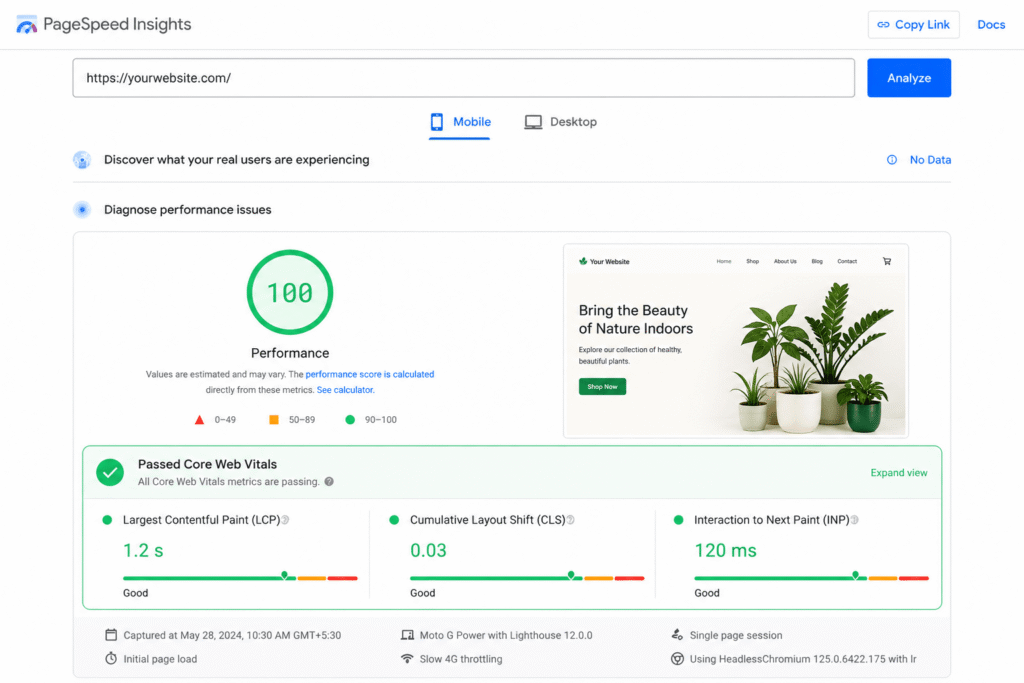
Once your optimizations are complete, test with Google PageSpeed Insights to confirm you’re on track to Pass Core Web Vitals in WordPress.
- Test your homepage and at least one inner page, since results vary significantly by template.
- Pay attention to the field data at the top of the report over time, not just a single lab test.
- Re-test 24 to 48 hours later, since caching plugins need time to rebuild their cache across the site.
WordPress Performance Optimization Checklist
Bring it all together with a quick WordPress Performance Optimization checklist you can run through after every major update:
- Compress and resize all images
- Install and configure a caching plugin
- Serve static assets through a CDN
- Set explicit width and height on every image
- Defer or delay non-essential JavaScript
- Re-test with PageSpeed Insights after every change
When to Get Professional Help
If you’ve worked through this entire checklist and the scores still won’t budge, the problem is probably deeper than a setting: bloated theme code, a hosting plan that can’t keep up, or plugins quietly fighting each other for the same resources. Our WordPress speed optimization work starts with a real diagnosis, not another plugin stack.
| Need a hand?: This is exactly the kind of problem CodeCaste solves every week. If you’d rather hand it off, https://www.codecaste.com/contact-us and we’ll run a free audit of your site’s Core Web Vitals. |
Frequently Asked Questions
1. Why is my WordPress site failing Core Web Vitals even after I installed a caching plugin?
Caching helps but it doesn’t fix everything. If your images are unoptimized, your hosting is slow, or your theme loads heavy JavaScript, caching alone won’t be enough to pass all three metrics.
2. How long does it take for Core Web Vitals to update after I make changes?
Your lab score in PageSpeed Insights updates instantly. Your official field data status in Search Console is based on a rolling 28-day window, so it can take up to four weeks to fully reflect.
3. Which WordPress plugins are best for Core Web Vitals?
WP Rocket, Perfmatters, and ShortPixel or Imagify cover most of the ground: caching, script control, and image compression. Combine two or three rather than relying on just one.
4. Does my WordPress theme affect Core Web Vitals?
Yes, significantly. Heavy page builders and bloated multipurpose themes often load far more CSS and JavaScript than a page actually needs, which directly hurts LCP and INP.
5. Can I Pass Core Web Vitals in WordPress without hiring a developer?
Many non-technical site owners get most of the way there using plugins alone. But if hosting or theme code is the bottleneck, a developer’s help usually gets you across the finish line faster.
The Bottom Line
1. Largest Contentful Paint improves fastest with image compression, caching, a CDN, and better hosting.
2. Cumulative Layout Shift is almost always fixed by setting image dimensions and reserving space for ads and fonts.
3. Interaction to Next Paint comes down to trimming plugins and deferring JavaScript you don’t need immediately.
4. Google PageSpeed Insights should be your recurring check-in, not a one-time test.
Sites that treat Core Web Vitals as an ongoing habit, not a one-time fix, are the ones that keep passing long after Google’s next algorithm update.
Want this handled for you?:
CodeCaste can audit, fix, and monitor your Core Web Vitals so you never have to think about it again. https://www.codecaste.com/contact-us to get started.