





Introduction
WordPress website maintenance is one of those things that’s easy to put off until it becomes impossible to ignore. A missed update here, a backup that was never tested, a contact form quietly failing for three weeks. These small issues compound into expensive emergencies, often at the worst possible moment and turn the panic mode on for most founders.
For agency founders managing multiple client sites, or WordPress freelancers and developers running their own online presence, neglected maintenance creates risk at every level — from breaching the security of the site to taking a toll on rankings. Slowly, they lead to a nightmare that hurts their business more than they think.
This guide covers the 10 most critical warning signs that your WordPress site needs immediate attention, along with concrete, actionable fixes for each one, so you leave with more than just a checklist.
1: Your Site Is Loading Slowly
Page speed has a direct, documented relationship with both user behaviour and Google rankings. Don’t take our words, but Google’s own research shows that as page load time increases from 1 to 3 seconds, the probability of a user bouncing increases by 32%. Beyond 5 seconds, that probability jumps to 90%.
Since 2021, Google has used Core Web Vitals as a confirmed ranking signal.
These three metrics define what “fast” actually means:
- LCP (Largest Contentful Paint): How quickly your main content loads. Ideal Time: under 2.5 seconds.
- INP (Interaction to Next Paint): How responsive your page is to user input. Ideal Time: under 200ms. This replaced FID as a Core Web Vitals metric in March 2024.
- CLS (Cumulative Layout Shift): How much content moves around during load. Ideal Time: under 0.1 seconds
How to fix it:
- Identify bloated plugins: Go to your WordPress dashboard, install the Query Monitor plugin (free), and reload your site. It shows you exactly which plugins are generating slow database queries and how long each takes. Any plugin adding more than 100–200ms is worth investigating. Cross-reference with Plugin Performance Profiler (P3) for a visual breakdown of which plugins eat the most load time.
- Compress and convert images: Images are the most common cause of slow LCP. Convert to WebP format using ShortPixel or tools like TinyPNG; both have free tiers and run compression automatically on upload.
- Enable caching: Install WP Rocket, W3 Total Cache, or use your managed host’s built-in page caching. Caching alone can cut load times by 50–70% for content that doesn’t change on every request.
- Benchmark and monitor: Run your URL through Google PageSpeed Insights (free) and check Google Search Console > Experience > Core Web Vitals for real-user field data. Lab scores and field data often differ; both matter.
| Pro tip: The Core Web Vitals report in Google Search Console shows real-user data aggregated over 28 days, far more useful than a single PageSpeed score taken at one moment in time. |
2: You Have a Backlog of Plugin or Theme Update Notifications
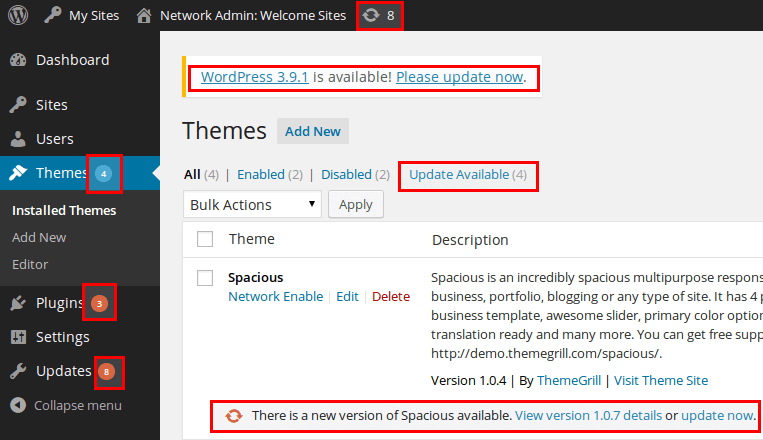
Outdated plugins are consistently the leading attack vector for WordPress compromises. Wordfence’s annual WordPress security report confirms that vulnerable plugins and themes rank as the top attack vector, not brute-force password attacks, not WordPress core vulnerabilities. If your dashboard is showing a queue of pending updates, each unpatched plugin is a potential open door.
That said, blindly updating without a process is its own risk. A plugin update that conflicts with your theme can break your homepage just as effectively as an attacker can. The answer is a reliable update workflow, not avoidance.
How to fix it:
- Use a staging environment first: Never push updates directly to production. WP Engine, Kinsta, and Cloudways all offer one-click staging. Apply updates there, test core functionality navigation, forms, checkout, then deploy to live.
- Identify conflicting plugins before they cause problems: Install the Health Check & Troubleshooting plugin (free, made by the WordPress core team). It lets you enable troubleshooting mode, which disables all plugins for your session only so you can isolate conflicts without affecting visitors.
- Set a weekly update schedule: Not daily (update fatigue leads to skipped steps) and not monthly (security patches need faster turnaround). Weekly is the right cadence for most sites.
Handle major plugins manually: Auto-updates are acceptable for small, stable plugins. Keep auto-updates off for WooCommerce, page builders (Elementor, Divi), and SEO plugins. Always test those manually on staging first.
| Important: Updating without a staging environment and a tested rollback plan is almost as risky as not updating at all. Both the update and the recovery path matter. |
3: Your Browser or Hosting Panel Is Showing Security Warnings
A browser security warning or hosting panel malware alert is not a future risk; it’s an active incident. Every hour your site shows a Google Chrome warning or appears on the Google Safe Browsing blacklist, you are losing visitors, damaging your brand, and potentially affecting your search rankings.
What to look for:
- Google Chrome’s “Deceptive site ahead” or “Site may be hacked” warning
- Unexpected redirects, especially on mobile devices or in incognito mode
- New admin users in your WordPress dashboard that you didn’t create
- Hosting provider suspending or flagging your account for malware
How to fix it:
- Run an external scan immediately: Sucuri SiteCheck is free and scans what the public actually sees, including malicious scripts, blacklist status, and injected content. Wordfence Security (free plugin) scans your server-side files and database.
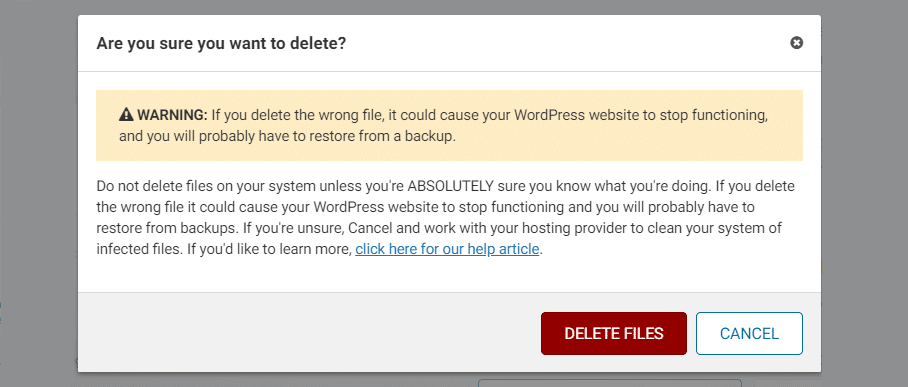
- If malware is confirmed: Use Sucuri’s malware removal service or check whether your managed host includes it (WP Engine and Kinsta both do). Do not attempt manual cleanup on a production site without a verified clean backup to restore from.
- Harden after cleanup: Change all admin passwords, enable two-factor authentication via a plugin like WP 2FA, and add login attempt limiting via Limit Login Attempts Reloaded.
- Request Google review: Once clean, submit a reconsideration request via Google Search Console > Security Issues. Google typically re-evaluates within 24–72 hours.
| Don’t wait on this one: Security warnings are P1 incidents. Every hour counts both for user trust and for your ranking recovery timeline. |
4: You Have Broken Links or 404 Errors
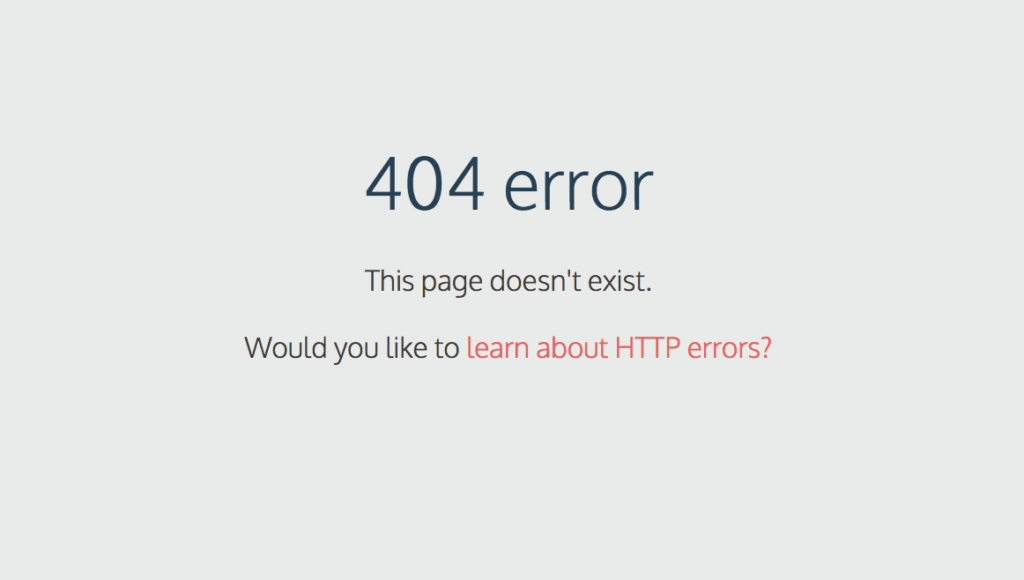
Broken links create a poor experience for visitors and signal to search engines that your site is poorly maintained. More concretely, a pattern of broken links creates crawl waste Google’s crawl budget gets spent on dead ends instead of indexing your real content, particularly on larger sites.
How to fix it:
- Audit your site regularly: Screaming Frog SEO Spider (free up to 500 URLs) crawls your entire site and flags broken internal links, external links, and redirect chains. For larger sites or ongoing monitoring, Ahrefs Site Audit runs on a schedule and sends alerts when new broken links appear.
- Fix broken internal links: Update the URL directly in the content, or add a 301 redirect from the broken URL to the correct one using a plugin like Redirection (free).
- Handle broken external links: Check whether the destination page has moved (try searching for the updated URL) or remove the link if it’s no longer relevant. Broken outbound links have less SEO impact than broken internal links, but they still harm credibility.
- Create a useful 404 page: Don’t leave users at a blank error screen. Your 404 page should include a search bar, links to key pages, and a clear path back to your homepage.
SEO note: Broken links on high-value pages (homepage, service pages, ranking blog posts) should be fixed immediately. Broken links in old, low-traffic posts are lower priority but worth cleaning quarterly.
5: Your Site Is Crashing or Going Offline
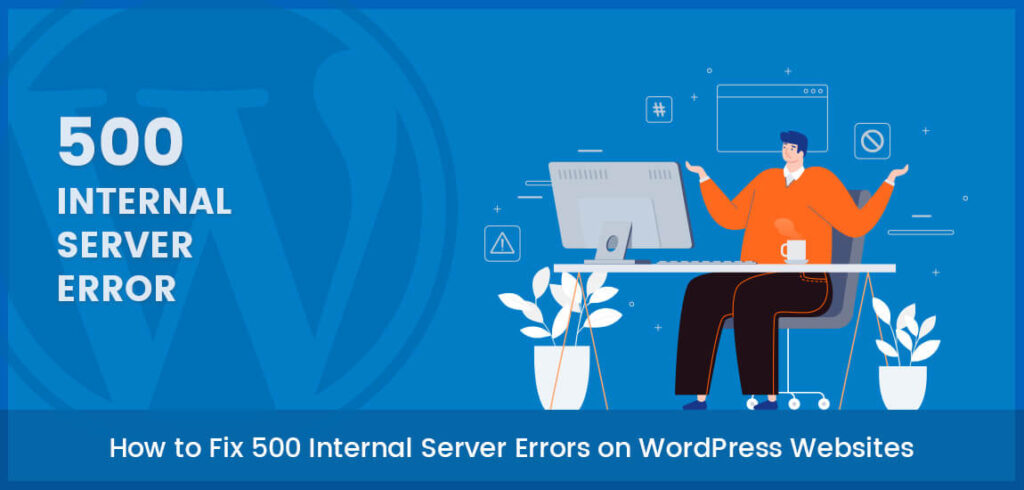
Unplanned downtime is one of the most damaging issues in WordPress website maintenance. If your site goes offline and you don’t know about it for hours, you’re losing traffic, leads, and revenue with no way to recover that time.
Common root causes:
- Outdated PHP: PHP 7.x reached end-of-life in December 2022 and no longer receives security patches. WordPress officially recommends PHP 8.2+, with PHP 8.3 being the current stable release. Old PHP versions are not just a security risk they also cause crashes when plugin code uses modern PHP syntax.
- Plugin or theme conflicts: Especially common immediately after an update to WordPress core, a page builder, or WooCommerce.
- Memory exhaustion: WordPress defaults to a low PHP memory limit (often 64MB or 128MB). Complex sites with many plugins regularly exceed this.
How to fix it:
- Check your PHP version: Go to Dashboard > Tools > Site Health > Info > Server. If you’re below PHP 8.1, upgrade via your hosting control panel immediately. This is a two-minute change with a significant impact.
- Set up uptime monitoring: UptimeRobot (free) checks your site every 5 minutes and alerts you by email or SMS the moment it goes down. You should never hear about downtime from a client or visitor first.
- Increase your memory limit: Add define(‘WP_MEMORY_LIMIT’, ‘256M’); to your wp-config.php file to give WordPress more room before it crashes.
- Debug crashes safely: Enable WP_DEBUG in your staging environment never on production, to see the specific PHP error causing the crash instead of a blank screen.
| As of 2025: If you’re running PHP 7.x, your site is operating on end-of-life software that receives zero security patches. This should be treated as a critical maintenance issue, not a nice-to-have upgrade. |
6: You Can’t Confirm When Your Last Backup Was
WordPress has no native backup system. None. If you haven’t installed and configured a dedicated backup solution, your site has no recovery path if something goes wrong. And if you have a plugin installed but haven’t tested restoration, you have an assumption, not a backup.
The 3-2-1 backup rule (the industry standard for data protection):
- 3 copies of your data (the live site + 2 backups)
- 2 different storage types (e.g., your server + cloud storage like Google Drive, Dropbox, or Amazon S3)
- 1 copy offsite, completely off your web server, so a server compromise doesn’t take your backups with it
How to fix it:
- UpdraftPlus is the most widely used WordPress backup plugin. The free version supports scheduled automatic backups to Google Drive, Dropbox, or Amazon S3. Set it to daily backups with at least 30 days of retention.
- BlogVault is the stronger choice for agencies managing multiple client sites it includes backup, staging, and a malware scanning layer in one dashboard.
- Verify your backups actually work: Restore a recent backup to your staging environment at least once per quarter. A backup you’ve never restored is a backup you don’t actually have.
- Check what’s included: Always confirm your backup includes both the database (posts, settings, users) and the file system (theme files, uploads, plugins). Database-only backups will leave you with a partial restore.
| Critical: The worst time to discover your backup is broken or incomplete is during a recovery situation. Test it before you need it. |
7: Your WordPress Admin Dashboard Feels Sluggish
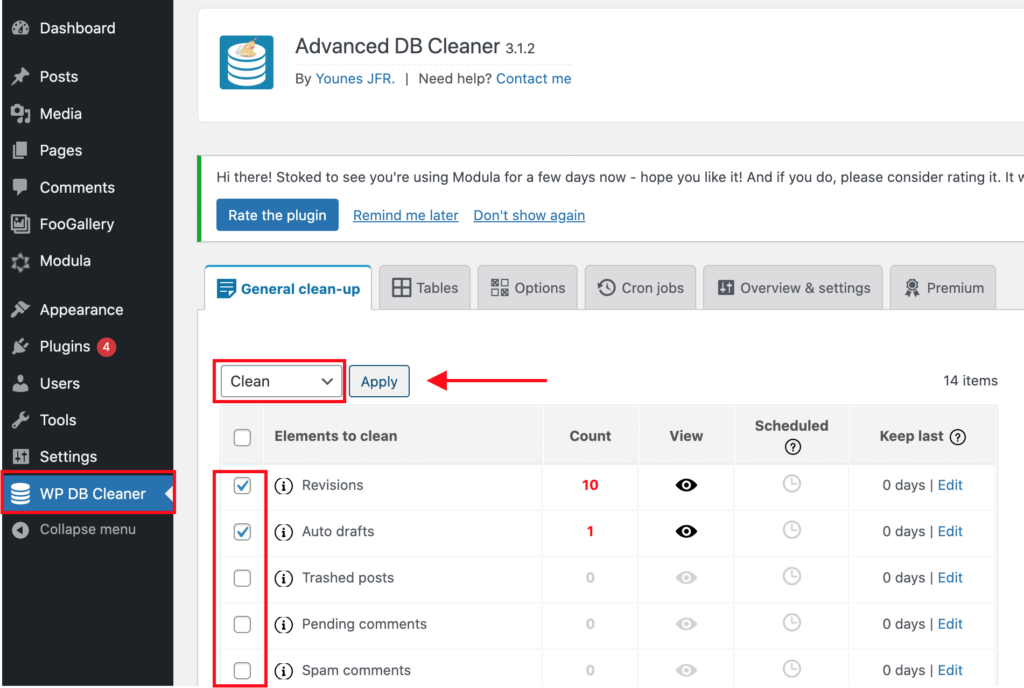
A slow admin panel is a backend symptom of frontend bloat. The same database tables and stored data that slow down your dashboard also affect your site’s performance for visitors. WordPress website maintenance includes keeping the backend just as clean as the frontend.
What causes backend slowness:
- Post revision accumulation WordPress saves a new revision on every save, and the default has no limit. A frequently edited page can have hundreds of revisions stored in the database.
- Spam and unapproved comments clogging the wp_comments table
- Orphaned database tables left behind by deleted plugins
- Autoloaded options that grow over time as plugins store data
How to fix it:
- Diagnose what’s bloating your database: Install WP-Optimize (free) and go to Database > Tables. It shows you exactly how much space post revisions, spam, transients, and orphaned tables are consuming before you clean anything.
- Limit future revisions: Add define(‘WP_POST_REVISIONS’, 5); to your wp-config.php. This caps revisions at 5 per post going forward. Combined with a one-time cleanup, it prevents bloat from accumulating again.
- Delete, don’t just deactivate: When removing a plugin, deactivating it leaves its database tables behind. Delete it fully via Dashboard > Plugins > Delete. Then use WP-Optimize to clean up any orphaned tables the plugin left.
- Run a database cleanup quarterly, or monthly for high-traffic sites with frequent content changes.
| Agency tip: For client sites on a maintenance retainer, include revision limits and quarterly database cleanups as a standard scope item. It prevents this issue from ever becoming a complaint. |
8: You’re Running an Outdated WordPress Core Version
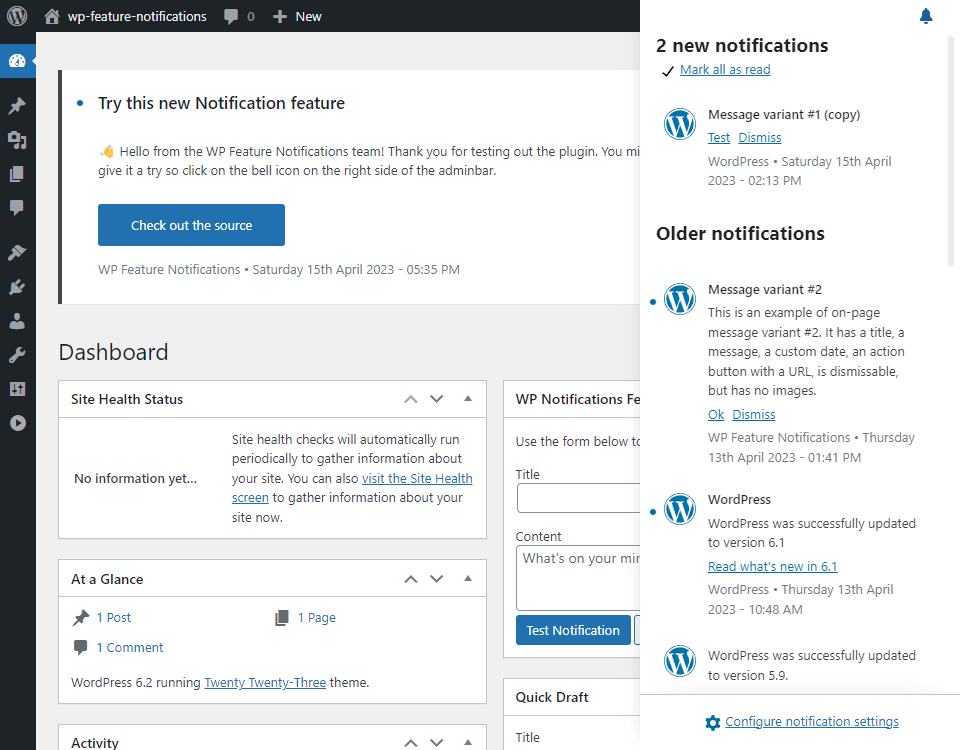
Every WordPress core release changelog is public. This means that the moment a new version is released, anyone can read exactly which security vulnerabilities the previous version contained. Running an outdated WordPress core version is essentially announcing to attackers what your site is vulnerable to.
How to fix it:
- Check your version: Dashboard > Updates. If you’re more than one major version behind, this is urgent.
- Minor updates are safe to auto-apply: Minor releases (e.g., 6.4.1 → 6.4.2) are security and bugfix patches. Enable them automatically via wp-config.php: define(‘WP_AUTO_UPDATE_CORE’, ‘minor’);
- Test major updates on staging: Major releases (e.g., 6.4 → 6.5) can introduce theme and plugin compatibility changes. Always test on a staging copy before deploying to production.
- Pair with a PHP version check: Each WordPress major release has a recommended PHP version. As of 2025, WordPress 6.x recommends PHP 8.2+. Check Dashboard > Tools > Site Health > Info > Server.
| Current status: WordPress 6.x is the current major release line as of 2025. Sites running WordPress 5.x or earlier are not receiving core security patches and should be considered a maintenance emergency. |
9: Your SEO Rankings Are Dropping Without an Obvious Reason
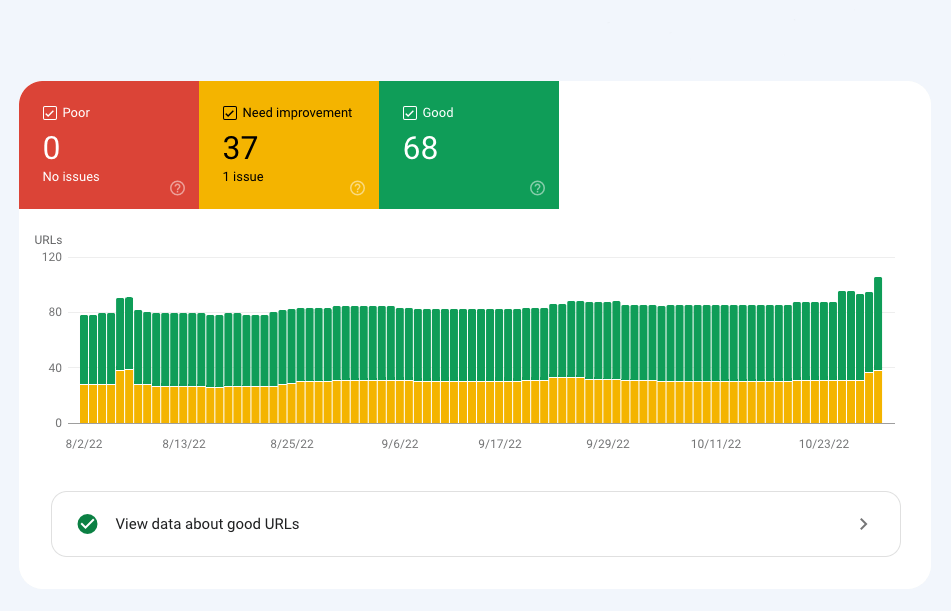
If your rankings are declining without any obvious content change or algorithm announcement, your WordPress website maintenance health is worth examining before you start changing content strategy. Technical issues and SEO performance are deeply connected.
Maintenance issues that directly affect SEO:
- Core Web Vitals failures: LCP, INP, and CLS are confirmed Google ranking signals via the Page Experience update. Pages that fail these thresholds are disadvantaged in ranking against pages that pass.
- Mobile usability problems: Google uses mobile-first indexing your mobile version is the version Google evaluates for rankings. A site that’s broken or slow on mobile is being ranked primarily on those broken/slow characteristics.
- Crawl errors: 5xx server errors, redirect chains, and broken links consume crawl budget without generating indexed pages.
- Security flags: Sites on Google’s Safe Browsing blacklist experience near-complete organic traffic loss until the issue is resolved and the site is reviewed.
How to diagnose and fix it:
- Start in Google Search Console: Check Coverage > Errors, Core Web Vitals, and Mobile Usability. These three reports cover the vast majority of maintenance-related ranking drops.
- Use the URL Inspection tool: Test individual URLs to see how Googlebot renders your pages and whether indexing issues are page-specific or site-wide.
- Cross-reference with your update timeline: If rankings dropped after a plugin or core update, that’s the most likely cause. Check your update history in Dashboard > Updates and test a rollback on staging.
| Resource: Google Search Central documentation is the authoritative source for understanding exactly how technical maintenance decisions affect search rankings. It’s free and regularly updated. |
10: Your Contact Forms or Checkout Process Has Stopped Working
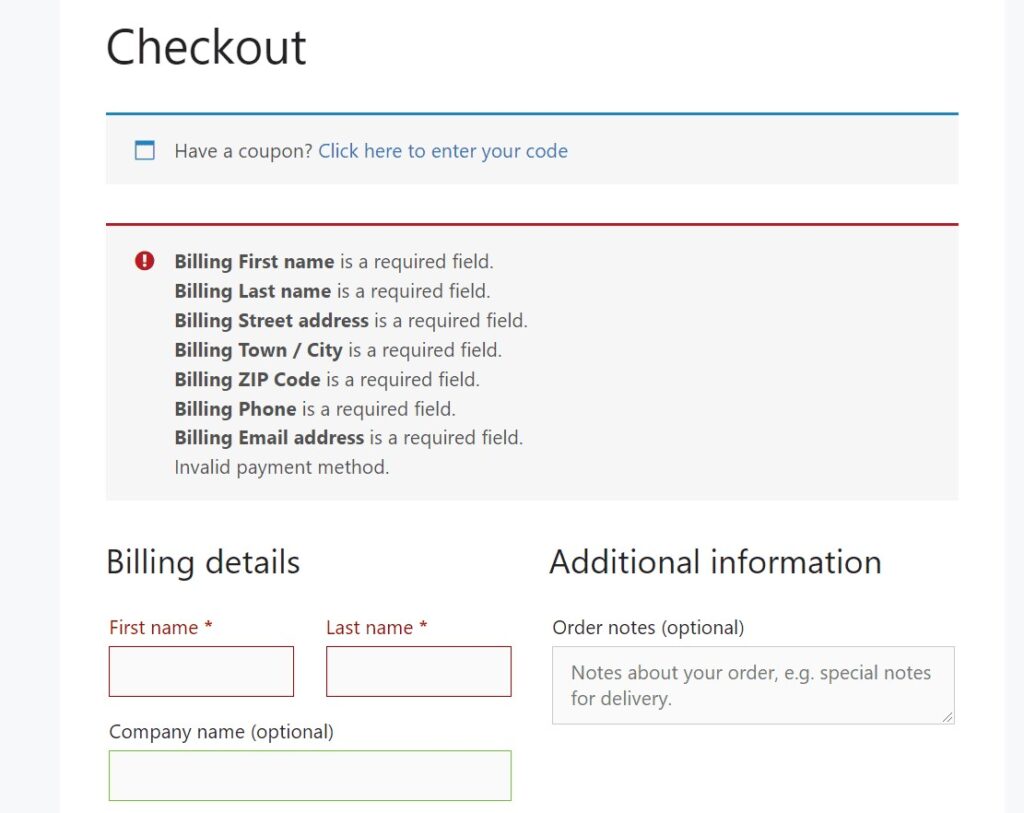
This is the most directly revenue-damaging issue on this list and often the hardest to notice. WordPress doesn’t notify you when a form submission silently fails. Leads can disappear for days or weeks before anyone catches it.
What can break silently:
- Contact forms not sending email confirmations typically caused by email deliverability issues triggered by a PHP or server configuration change
- WooCommerce checkout failing at payment or confirmation stage after a plugin or payment gateway update
- Form submissions not saving to the database even when the success message shows
- CRM or email marketing integrations (HubSpot, Mailchimp, ActiveCampaign) breaking after a plugin update
How to fix and prevent it:
- Fix WordPress email delivery at the root: Install WP Mail SMTP (free) and connect it to a transactional email provider like SendGrid or Mailgun. This solves 90% of WordPress email delivery failures and is one of the highest-ROI configuration changes you can make.
- Test forms weekly actually submit them: Don’t just look at your form. Submit a real test entry and verify it arrives in your inbox. Set a 5-minute recurring reminder. It takes less time than explaining to a client why their leads went missing for two weeks.
- For WooCommerce: After any update touching payments, run a test transaction through your payment gateway’s sandbox mode. Stripe and PayPal both support test mode without charging real cards.
- Monitor form notifications: Gravity Forms, WPForms, and most premium form plugins support email notifications on each submission. If you stop receiving them, something broke. Treat a missing form notification as a bug report.
| Revenue impact: A broken contact form during a paid campaign or a failed checkout after a product launch can cost more in a single afternoon than a year’s worth of WordPress website maintenance retainer. |
Frequently Asked Questions
1. How often should WordPress website maintenance be done?
Updates should be monitored weekly and applied after staging tests. Security and performance audits should run monthly. Full database cleanups and backup restoration tests should happen quarterly. The right cadence also depends on site activity a WooCommerce store processing daily transactions needs more frequent attention than a static informational site.
2. Is WordPress website maintenance necessary for small or low-traffic sites?
Yes. Small sites are often targeted specifically because owners assume they’re too low-profile to bother with. Attackers use automated scanning tools that scan millions of sites simultaneously looking for specific vulnerable plugin versions they don’t filter by traffic volume. A neglected small site is a high-value, low-effort target.
3. Can I maintain my WordPress site myself?
Basic updates are manageable if you have a staging environment and a tested backup process in place. But thorough WordPress website maintenance covering security monitoring, performance optimisation, database management, uptime monitoring, and Core Web Vitals tracking requires significant time investment or professional tooling. Agency founders managing multiple client sites will almost always find a maintenance retainer more cost-effective than handling it manually.
4. Does maintenance directly improve SEO?
Yes, materially. Core Web Vitals are confirmed ranking signals. Mobile usability affects how Google evaluates pages under mobile-first indexing. Security issues can trigger complete removal from search results. Crawl errors prevent Google from properly indexing your content. A well-maintained WordPress site has a structural SEO advantage over a neglected one independent of content quality.
5. What PHP version should my WordPress site be running?
As of 2025, WordPress officially recommends PHP 8.2 or higher. PHP 8.3 is the current stable release. PHP 7.x reached end-of-life in December 2022 and receives no security patches. Check your version in Dashboard > Tools > Site Health > Info > Server, and upgrade through your hosting control panel.
Conclusion : The Cost of Waiting Is Always Higher Than the Cost of Maintenance
Every warning sign on this list starts small. A missed update, a form nobody noticed had stopped sending, a PHP version that hasn’t been touched in three years. Individually, they’re manageable. Together, they create the conditions for a compromised site, a lost ranking, or a missed revenue opportunity at the worst possible moment.
Thorough WordPress website maintenance isn’t a task to squeeze in when there’s spare time; it’s the operational baseline that everything else runs on. The good news is that with the right tools and a consistent process, most of these issues are entirely preventable.
If you’ve identified one or more of these warning signs in your own site, the right time to act is now, before a small issue becomes a client-facing emergency.
Want professional support? Codecaste provides WordPress website maintenance services covering security monitoring, performance optimisation, managed updates, and backup management so agency founders and developers can focus on growth instead of firefighting.
Get in touch to learn more.