





You type in your URL, expecting your site, but what you see stops you cold. A browser warning. Strange content where your homepage used to be.
You try to log in, but your password fails. In that moment, you realise something’s very wrong.
It’s a gut-wrenching moment. We know.
Before anything else, know this: your situation is 100% fixable.
If your WordPress site got hacked, you are far from alone. WordPress powers over 43% of all websites on the internet, which makes it the single most targeted platform by hackers worldwide.
Approximately 13,000 WordPress sites are compromised every single day. Not because the owners were reckless, but because automated bots constantly scan millions of sites looking for any known weakness.
This guide is your step-by-step WordPress hacked fix from the moment you discover the breach all the way to locking your site down so it doesn’t happen again.
We’ll cover both the path for non-technical site owners and the deeper technical steps for developers.
| Before you start: If your site handles customer payments or personal data and you believe sensitive information may have been exposed, contact your payment processor and hosting provider before taking any other steps. |
Step 1: How to Detect a Hack?
Not every strange website behaviour is a hack.
A broken plugin or a failed update can cause your site to act up, too. So before you spiral, take a moment to confirm what you’re actually dealing with.
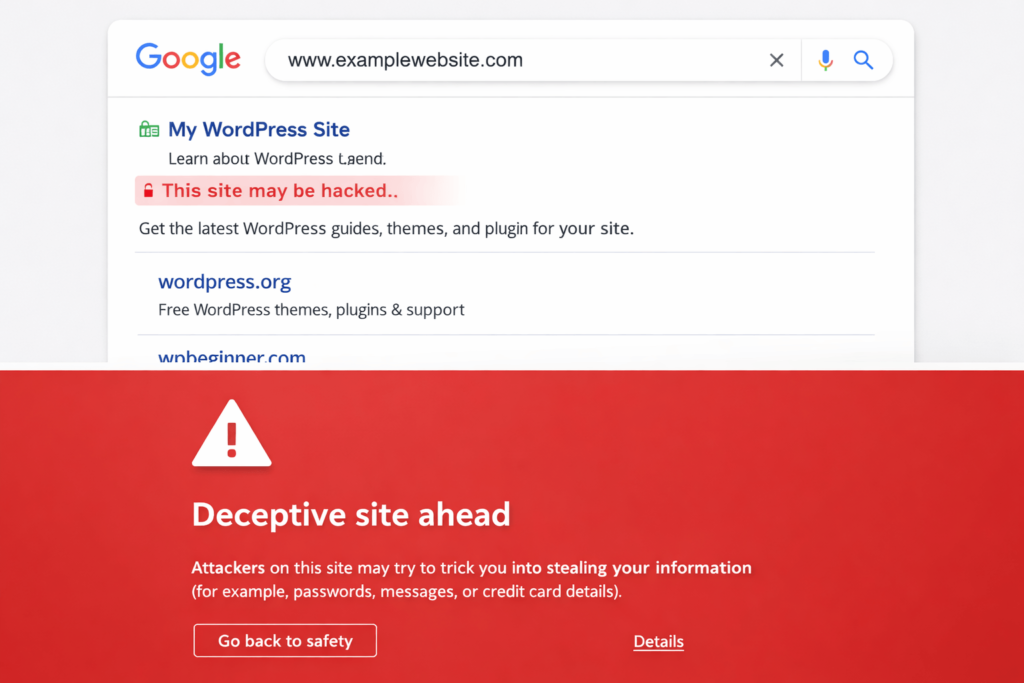
Here are the most common signs of a genuine security breach:
- Your browser or Google Search Console is showing a malware warning when visitors try to open your site
- Your homepage has been replaced or modified with content you didn’t write. Often spam, gambling links, or foreign language text
- You’re being automatically redirected to a completely different website when you visit your site
- You’re locked out of the WordPress admin area even though you’re sure your password is correct
- There are new admin user accounts in your dashboard that you never created
- Your hosting provider sent a warning email or suspended your site
- Google Search Console flagged your site under Security Issues
- Visitors are complaining about being taken to spam pages or seeing unexpected pop-ups
If you’re seeing any combination of these, treat it as a confirmed breach and move to the next step.
| Quick Check: Run your URL through Sucuri SiteCheck (sitecheck.sucuri.net) or Google Safe Browsing (transparencyreport.google.com/safe-browsing/search). Both are free and will tell you instantly if your site has been blacklisted or flagged for malware. |
Step 2: Limit the Damage First
The moment you confirm a hack, your priority is stopping it from spreading too far.
The longer a compromised site stays online, the more it can infect visitors with malware, send spam, or slip further into Google’s blacklist.
This step is essential for any WordPress site to stop further damage.
1. Put Your Site Into Maintenance Mode
If you can still log into your WordPress admin, install a maintenance mode plugin like WP Maintenance Mode or Coming Soon page by SeedProd, and activate it immediately. This takes your site offline for visitors while you work behind the scenes.
If you can’t access the dashboard, contact your hosting provider immediately and ask them to restrict public access or redirect traffic temporarily. Most hosts can do this within minutes.
2. Back Up the Hacked Site Before Doing Anything Else
This sounds counterintuitive, but it’s important. Take a full backup of everything, even in its current compromised state.
If you accidentally delete something during cleanup and need to go back, this is your safety net.
Label it clearly, something like ‘HACKED_BACKUP_[DATE]‘ so you never accidentally restore it to a live environment.
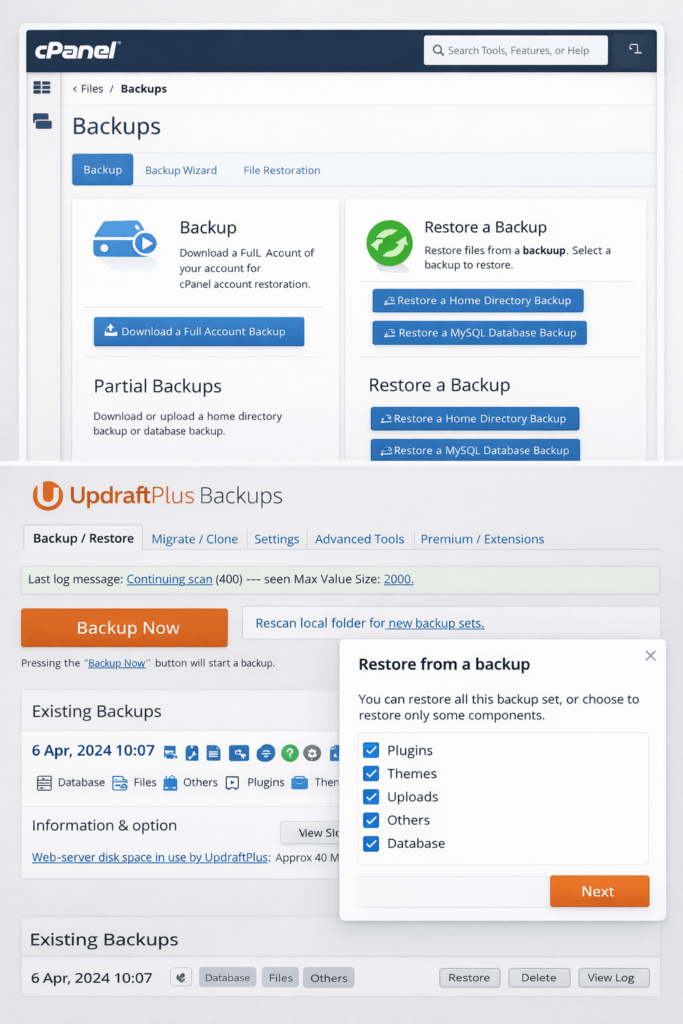
3. Check If Your Host Has a Backup.
Before you dive into technical cleanup, contact your hosting provider first. Many managed hosts keep daily or weekly server-level backups for 7 to 30 days.
Ask them: “Do you have a backup from before [date]?”
“Can you restore it to a staging environment first so I can verify it’s clean?”
If they have a clean backup from before the hack, restoring from that can save hours of manual work.
Step 3: Lock Down Your Accounts
Before touching a single file, assume the hackers may have your login credentials.
Change every password associated with the site, not just your WordPress login.
Change the passwords for the following:
- WordPress admin password for every account with admin access
- Hosting control panel password
- FTP and SFTP account passwords
- The database password you will need to update this in wp-config.php afterwards
- Email address and password linked to your admin account
- Any connected third-party tools like Google Analytics, Mailchimp, or Cloudflare
Use a password manager like Bitwarden or 1Password to generate strong, unique passwords of at least 16 characters for every account. Do not reuse passwords across accounts.
Remove Unknown Admin Users
Go to your WordPress dashboard, navigate to Users, and look for any accounts you don’t recognise, particularly those with Administrator-level access. Delete them immediately.
Hackers routinely create a hidden admin account as a backdoor so they can get back in even after you change your password. This is one of the most commonly missed steps during a recovery, and it’s why some sites get re-infected within days.
| Document everything: Keep a record of every account you delete and every password you change. If this incident escalates legally or requires insurance involvement, this log will matter. |
Step 4: WordPress Hacked Fix – Malware Removal Process
Now it’s time to find exactly what was planted and where. This is the core of your recovery process.
The WordPress malware removal process can be done in two ways: using a security plugin that automates most of it, or manually reviewing files.
For most site owners, start with the plugin route.
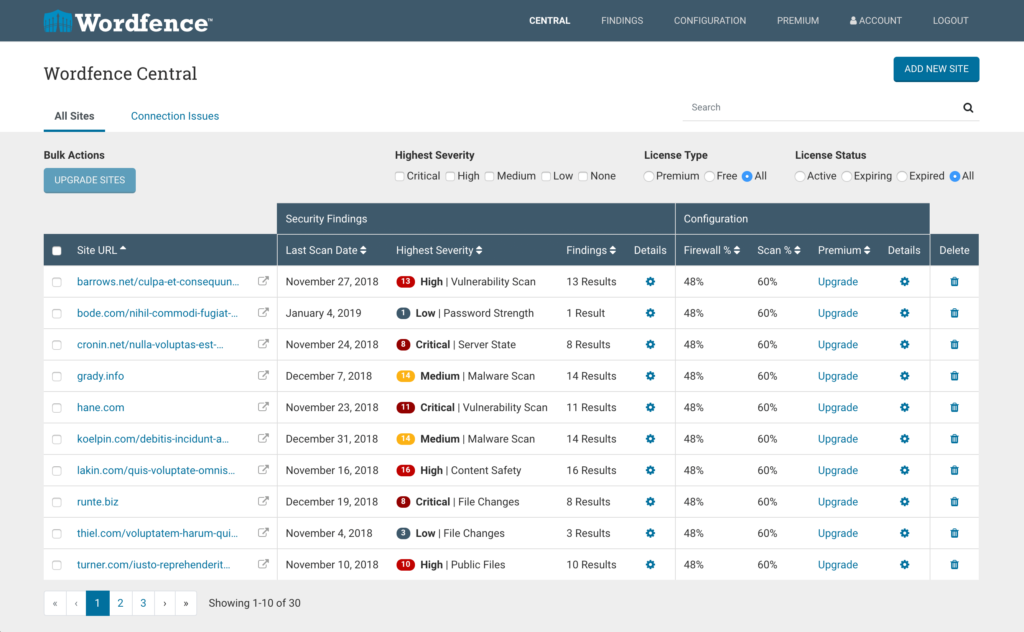
1. Using a Security Plugin (Recommended for Most Users)
Install one of the following trusted plugins and run a full site scan immediately:
- Wordfence Security: Compares every file on your site against the clean versions in the official WordPress repository. It flags anything that was modified, added, or doesn’t belong there. The free version handles most infection scenarios well.
- MalCare: Known for catching deeply hidden malware that other scanners miss. Good for stubborn or complex infections where Wordfence may return a clean result, but something still feels off.
- Sucuri Security: Offers both a site scanner and a web application firewall, making it a strong choice for cleanup plus ongoing protection.
When the scan finishes, you’ll see a list of infected or suspicious files.
Review each one before taking action. Do not click ‘Fix All’ without reading what’s being changed. Some flagged files may be legitimate customisations to your theme or child theme.
2. What to Look for in Your Files? (For Developers)
If you have FTP or File Manager access through your hosting panel, sort all files by the ‘Date Modified’ column. Anything recently changed that you didn’t touch is a red flag.
Pay close attention to these locations:
- wp-config.php: Contains your database credentials. Any unauthorised modification here is serious.
- index.php in the root folder and inside /wp-includes/
- Theme files: Particularly functions.php, header.php, and footer.php
- /wp-content/uploads/: Hackers often hide PHP scripts here, disguised as image files. Look for ‘.php’ files where there should only be images
A common injection signature looks like a single line of scrambled text starting with eval(base64_decode). If you see that anywhere in a PHP file, that’s malware. Remove the entire line.
| Developer tip: When you find a corrupted core WordPress file, don’t manually edit it unless you’re confident about what you’re removing. Download a fresh copy of the same WordPress version from WordPress.org and replace the file entirely. |
3. Clean the Database (For Developers)
Malware doesn’t only hide in files. Hackers can inject harmful code directly into your WordPress database, particularly in post content, widget settings, or theme option fields.
Use a plugin like WP-Optimise to clean the database after your scan safely. Also, open phpMyAdmin and check the wp_options table for any suspicious redirect URLs or unfamiliar settings that were recently added. Look through wp_posts for content containing <script> tags you didn’t write.
Step 5: Update Everything to Close the Door on Future WordPress Security Recovery Issues
Once infected files are cleaned, the next important action is closing the vulnerability that lets hackers in.
This is how you avoid having to go through a WordPress security recovery all over again next month.
Over 91% of WordPress vulnerabilities in 2025 were found in plugins and themes, not in WordPress core.
Outdated plugins are the single biggest door hackers walk through.
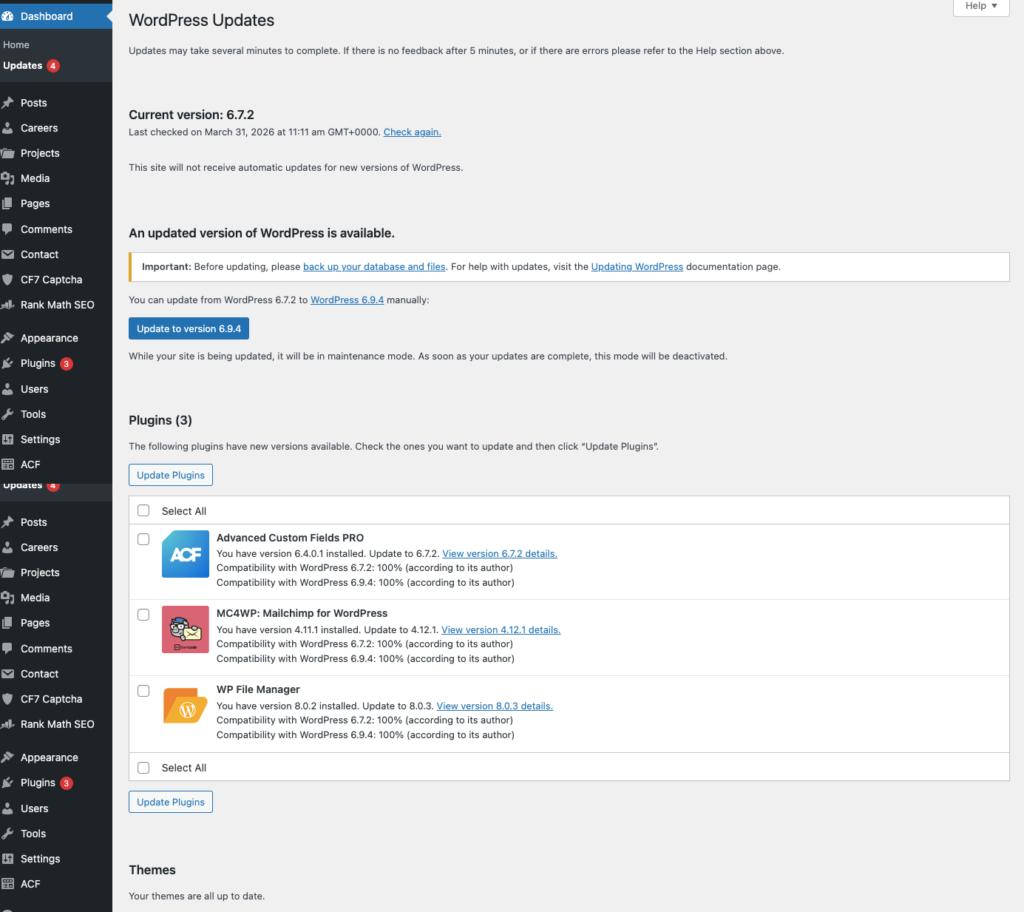
Update the following right now:
- WordPress is core to the latest version
- Every installed plugin, including ones you rarely open
- Every installed theme, including inactive ones
- Your PHP version, if your hosting panel allows it (check with your host if unsure)
After updating, go through your plugin and theme list and delete anything you are not actively using.
An inactive plugin that hasn’t been updated in two years is just as vulnerable as an active one, and there’s zero reason to keep it installed.
Step 6: Verify Your Site Is Actually Clean
Many site owners stop after a plugin scan says ‘no threats found’ and call it done. That’s a mistake. Some malware is specifically designed to hide from single-tool scans.
Run at least two different scanners after the cleanup. Wordfence and Sucuri SiteCheck together are a reliable combination. I
f both come back clean, you’re in good shape to bring the site back live. This is what properly cleaning a hacked WordPress site looks like—verification isn’t optional.
Also, do these manual checks:
- Open your site in an incognito browser window as a regular visitor would. Does it load normally? Any unexpected redirects or popups?
- Check Google Search Console under Security and Manual Actions. Are there any active alerts?
- Ask someone on a different device and network to open the site. Some hacks are designed to show malicious content only to visitors arriving from Google search, not to the logged-in admin, so your own browser may show a clean site while visitors see something else
If Google blacklisted your site, you need to formally request a review.
In Google Search Console, go to Security Issues and click Request Review after confirming the site is clean. This process typically takes a few days, but it is necessary to remove the ‘This site may be hacked’ warning from search results.
This step ensures your WordPress hack fix is complete and your site is fully clean.
Step 7: WordPress Hacked Fix – Secure Your Site
Recovery is only half the job. The sites that get hacked twice are almost always the ones that went back online without fixing what made them a target in the first place.
1. Enable Two-Factor Authentication on All Admin Accounts
Two-factor authentication (2FA) means that even if someone gets your password, they still cannot log in without a second code sent to your phone or generated by an authenticator app.
Install a plugin like WP 2FA or Google Authenticator by MiniOrange and enable it for every account with admin access. This one change blocks the vast majority of brute-force login attacks automatically.
2. Install a Web Application Firewall
A firewall sits in front of your site and blocks malicious traffic before it even reaches your server. Wordfence has a solid free tier that works well for most sites. For higher-traffic or business-critical sites, Sucuri’s firewall or Cloudflare’s WAF offer more robust protection at the network level.
3. Disable PHP Execution in Your Uploads Folder
Your uploads folder is where WordPress stores images and media files. It should never run PHP code. Hackers know this and often hide malicious scripts in there, disguised as images.
You can block PHP from running in that folder by adding a small .htaccess file to your /wp-content/uploads/ directory with these two lines:
<Files *.php> deny from all </Files>
If you’re not comfortable doing this yourself, ask your developer or hosting provider to set it up for you.
4. Set Up Automated, Offsite Backups
A backup that lives on the same server as your site is not a real backup. If the server is compromised or goes down, you lose both.
Use a plugin like UpdraftPlus or BlogVault to schedule daily backups and automatically send them to a separate location, such as Google Drive, Dropbox, or Amazon S3.
Set it up, test a restore once to confirm it works, and then let it run in the background.
5. Change Your WordPress Login URL
By default, every WordPress site’s login page sits at yoursite.com/wp-admin.
Every automated hacking bot on the internet knows this and hits it daily with login attempts.
A plugin like WPS Hide Login lets you change this URL to something custom, like yoursite.com/team-portal.
It doesn’t make your site bulletproof, but it dramatically cuts the volume of automated attacks targeting your login page.
When to Stop the DIY Fix and Call a WordPress Expert?
There’s no shame in knowing when a situation needs more than a solo effort.
Here’s when you should bring in a professional:
- Malware keeps coming back within days of cleaning: This typically means a backdoor is still active somewhere. An experienced developer knows where to look, including obscure locations like wp-cron injections and database triggers that automated scanners miss.
- You’re completely locked out with no backup: Recovering file access without admin credentials requires direct server-level work that most site owners don’t have the setup or comfort level for.
- Your site processes customer payments or holds sensitive user data: Every hour of delay increases your exposure and liability. Fast, professional cleanup is worth the cost.
- The infection has been active for weeks or months: Older infections often go deeper, with multiple backdoors, database injections, and sometimes even nested WordPress installations that are also infected.
Professional WordPress security cleanup typically runs between $200 and $500 for straightforward infections, and $500 to $2,000 for complex recoveries involving multiple backdoors, full database cleaning, and security hardening.
Most reputable service providers complete the work within 24 to 48 hours.
| Looking to hire an agency instead? A good WordPress development agency won’t just clean the site. They’ll identify what went wrong, fix the root cause, and set up a maintenance plan so this doesn’t happen again. That combination of cleanup plus prevention is what separates a one-time fix from actual long-term security. |
Frequently Asked Questions
1. Can I Fix a Hacked WordPress Site Myself Without a Developer?
Yes, in many cases you can especially if you catch it early and the infection is limited to plugin or theme files. Using a plugin like Wordfence or MalCare handles most of the heavy lifting without needing to write code. However, if malware keeps returning, if you’re fully locked out, or if the infection has been running for a while, bring in a professional. Recurring infections almost always mean there’s a backdoor that automated tools didn’t find.
2. How Long Does It Take to Clean a Hacked WordPress Site?
For a straightforward infection caught early, a full cleanup using security plugins takes between 2 and 6 hours. A complex recovery involving multiple backdoors, database injections, and full hardening can take 12 to 48 hours. Professional services typically complete the job within 24 hours.
3. Can restoring a backup fix a hacked WordPress site?
It can but only if the backup is from before the infection happened. A backup taken after the hack is already infected and restoring it puts you right back where you started. Even after restoring a clean backup, you still need to update every plugin and theme and change all passwords, because the vulnerability that allowed the original hack still exists and will be exploited again.
4. Why Does My WordPress Site Keep Getting Hacked After I Clean It?
This almost always means a backdoor was not removed during the cleanup. Hackers often plant multiple entry points hidden files in the uploads folder, injected code in the database, or rogue admin users so they can get back in even if you find one. If your site keeps getting re-infected, run a second scanner (MalCare if you used Wordfence first), check your database for unknown admin accounts, and inspect the uploads folder for any PHP files that don’t belong there.
5. How Do I Remove the "This Site May Be Hacked" Warning From Google?
First, confirm your site is fully clean by running two separate malware scanners and checking manually. Then log into Google Search Console, go to the Security Issues section, and click ‘Request Review’. Write a brief explanation of what you found and removed. Google typically takes 1 to 3 days to re-crawl and clear the warning. You cannot speed this up, so submit the request as soon as you’re confident the site is clean.
6. Do I Need to Tell My Users if My WordPress Site Was Hacked?
It depends on what data the hack exposed. If your site collects personal information names, emails, passwords, payment details and that data may have been accessed, you are likely required by law to notify affected users (GDPR in Europe, state laws in the US). When in doubt, consult a legal advisor. Even outside of legal requirements, proactively informing your audience is better for long-term trust than them finding out another way.
7. How secure is WordPress, really?
WordPress core is actually well maintained and regularly updated by a dedicated security team. The security problem rarely comes from core WordPress itself. The real risk comes from third-party plugins and themes outdated ones, abandoned, or downloaded from untrusted sources. Over 91% of WordPress vulnerabilities in 2025 were found in plugins and themes. Keeping everything updated and removing unused extensions is the single most impactful thing you can do for your site’s security.
8. What's the Difference Between a Malware Scan and a Security Audit?
A malware scan checks your site’s current files and database against known threat signatures it tells you if something malicious is there right now. A security audit is a broader, manual review of your entire site setup: server configuration, user permissions, plugin risk levels, login security, backup systems, and firewall settings. A scan is reactive (finding existing infections). An audit is proactive (finding the weaknesses before hackers do). If you’ve just recovered from a hack, doing both is the right move.
Conclusion
Getting your WordPress site hacked is stressful but it’s recoverable. The key is acting quickly, being thorough, and not going back online until you’ve addressed what made the site vulnerable in the first place.
Here’s the full recovery process at a glance:
- Confirm the hack using Sucuri SiteCheck or Google Search Console
- Put your site into maintenance mode immediately
- Take a backup of the hacked site, then check if your host has a clean pre-hack version
- Change every password linked to the site and delete unknown admin accounts
- Run the WordPress malware removal process using at least two separate scanners
- Update WordPress core, every plugin, and every theme
- Verify the site is genuinely clean before taking it back live
- Add 2FA, a firewall, offsite backups, and a custom login URL to prevent re-infection
Most sites that get hacked a second time skipped steps or rushed through the prevention phase.
If you follow this process completely, you’ll come out of this with a site that’s actually more secure than it was before the attack.
Security doesn’t have to be complicated. It mostly comes down to staying updated, removing what you don’t need, and having the right safeguards in place before something goes wrong not after.
You can also explore more WordPress tips and guides on our blog here.
Need hands-on help? If your site is hacked and you need expert support fast, our team handles emergency WordPress recoveries.
We’ll have your site cleaned, hardened, and back online quickly and we’ll walk you through exactly what went wrong so it doesn’t happen again.