901, Shapath V, Sarkhej - Gandhinagar Hwy, opp. Karnavati Club Road, Prahlad Nagar, Ahmedabad, Gujarat 380015.
Call On Mail UsYou type in your URL, expecting your site, but what you see stops you cold. A browser warning. Strange content where your homepage used to be.
You try to log in, but your password fails. In that moment, you realise something’s very wrong.
It’s a gut-wrenching moment. We know.
Before anything else, know this: your situation is 100% fixable.
If your WordPress site got hacked, you are far from alone. WordPress powers over 43% of all websites on the internet, which makes it the single most targeted platform by hackers worldwide.
Approximately 13,000 WordPress sites are compromised every single day. Not because the owners were reckless, but because automated bots constantly scan millions of sites looking for any known weakness.
This guide is your step-by-step WordPress hacked fix from the moment you discover the breach all the way to locking your site down so it doesn’t happen again.
We’ll cover both the path for non-technical site owners and the deeper technical steps for developers.
| Before you start: If your site handles customer payments or personal data and you believe sensitive information may have been exposed, contact your payment processor and hosting provider before taking any other steps. |
Not every strange website behaviour is a hack.
A broken plugin or a failed update can cause your site to act up, too. So before you spiral, take a moment to confirm what you’re actually dealing with.
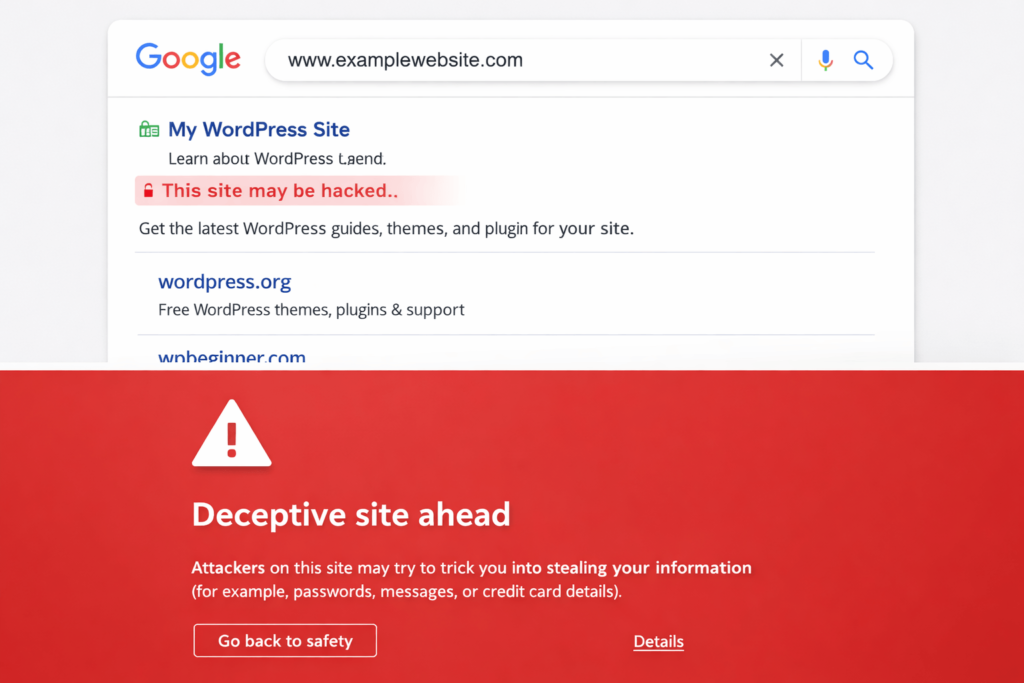
Here are the most common signs of a genuine security breach:
If you’re seeing any combination of these, treat it as a confirmed breach and move to the next step.
| Quick Check: Run your URL through Sucuri SiteCheck (sitecheck.sucuri.net) or Google Safe Browsing (transparencyreport.google.com/safe-browsing/search). Both are free and will tell you instantly if your site has been blacklisted or flagged for malware. |
The moment you confirm a hack, your priority is stopping it from spreading too far.
The longer a compromised site stays online, the more it can infect visitors with malware, send spam, or slip further into Google’s blacklist.
This step is essential for any WordPress site to stop further damage.
If you can still log into your WordPress admin, install a maintenance mode plugin like WP Maintenance Mode or Coming Soon page by SeedProd, and activate it immediately. This takes your site offline for visitors while you work behind the scenes.
If you can’t access the dashboard, contact your hosting provider immediately and ask them to restrict public access or redirect traffic temporarily. Most hosts can do this within minutes.
This sounds counterintuitive, but it’s important. Take a full backup of everything, even in its current compromised state.
If you accidentally delete something during cleanup and need to go back, this is your safety net.
Label it clearly, something like ‘HACKED_BACKUP_[DATE]‘ so you never accidentally restore it to a live environment.
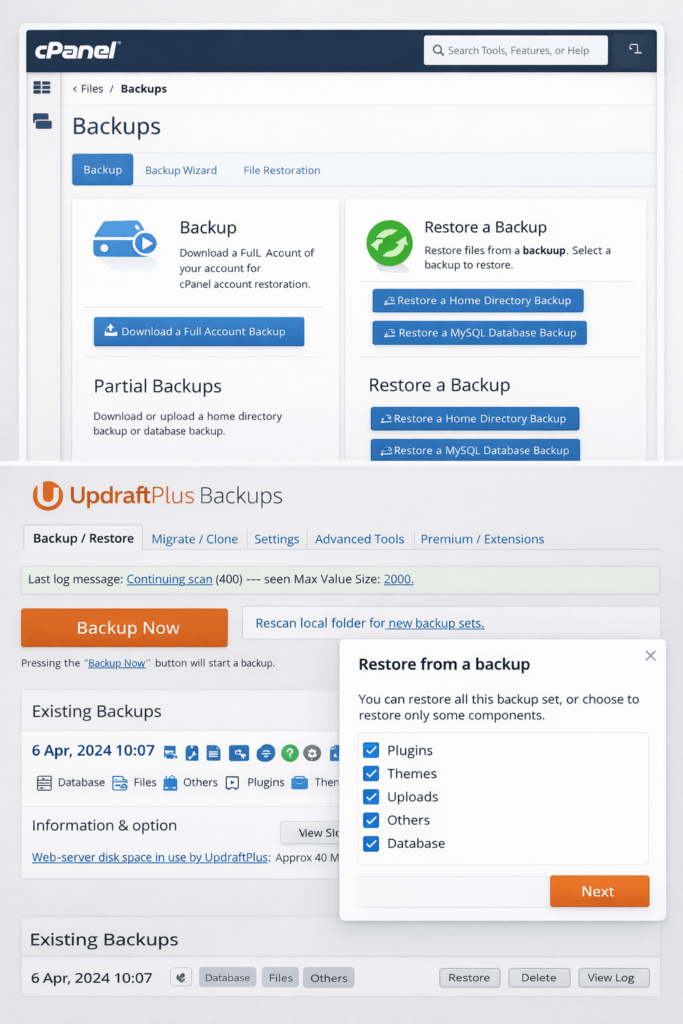
Before you dive into technical cleanup, contact your hosting provider first. Many managed hosts keep daily or weekly server-level backups for 7 to 30 days.
Ask them: “Do you have a backup from before [date]?”
“Can you restore it to a staging environment first so I can verify it’s clean?”
If they have a clean backup from before the hack, restoring from that can save hours of manual work.
Before touching a single file, assume the hackers may have your login credentials.
Change every password associated with the site, not just your WordPress login.
Change the passwords for the following:
Use a password manager like Bitwarden or 1Password to generate strong, unique passwords of at least 16 characters for every account. Do not reuse passwords across accounts.
Go to your WordPress dashboard, navigate to Users, and look for any accounts you don’t recognise, particularly those with Administrator-level access. Delete them immediately.
Hackers routinely create a hidden admin account as a backdoor so they can get back in even after you change your password. This is one of the most commonly missed steps during a recovery, and it’s why some sites get re-infected within days.
| Document everything: Keep a record of every account you delete and every password you change. If this incident escalates legally or requires insurance involvement, this log will matter. |
Now it’s time to find exactly what was planted and where. This is the core of your recovery process.
The WordPress malware removal process can be done in two ways: using a security plugin that automates most of it, or manually reviewing files.
For most site owners, start with the plugin route.
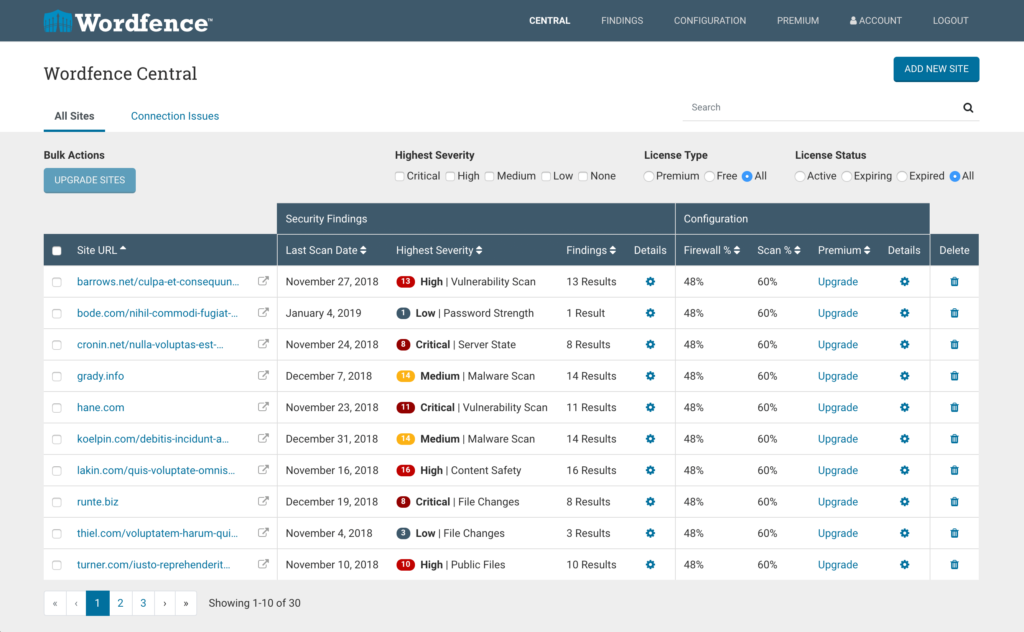
Install one of the following trusted plugins and run a full site scan immediately:
When the scan finishes, you’ll see a list of infected or suspicious files.
Review each one before taking action. Do not click ‘Fix All’ without reading what’s being changed. Some flagged files may be legitimate customisations to your theme or child theme.
If you have FTP or File Manager access through your hosting panel, sort all files by the ‘Date Modified’ column. Anything recently changed that you didn’t touch is a red flag.
Pay close attention to these locations:
A common injection signature looks like a single line of scrambled text starting with eval(base64_decode). If you see that anywhere in a PHP file, that’s malware. Remove the entire line.
| Developer tip: When you find a corrupted core WordPress file, don’t manually edit it unless you’re confident about what you’re removing. Download a fresh copy of the same WordPress version from WordPress.org and replace the file entirely. |
Malware doesn’t only hide in files. Hackers can inject harmful code directly into your WordPress database, particularly in post content, widget settings, or theme option fields.
Use a plugin like WP-Optimise to clean the database after your scan safely. Also, open phpMyAdmin and check the wp_options table for any suspicious redirect URLs or unfamiliar settings that were recently added. Look through wp_posts for content containing <script> tags you didn’t write.
Once infected files are cleaned, the next important action is closing the vulnerability that lets hackers in.
This is how you avoid having to go through a WordPress security recovery all over again next month.
Over 91% of WordPress vulnerabilities in 2025 were found in plugins and themes, not in WordPress core.
Outdated plugins are the single biggest door hackers walk through.
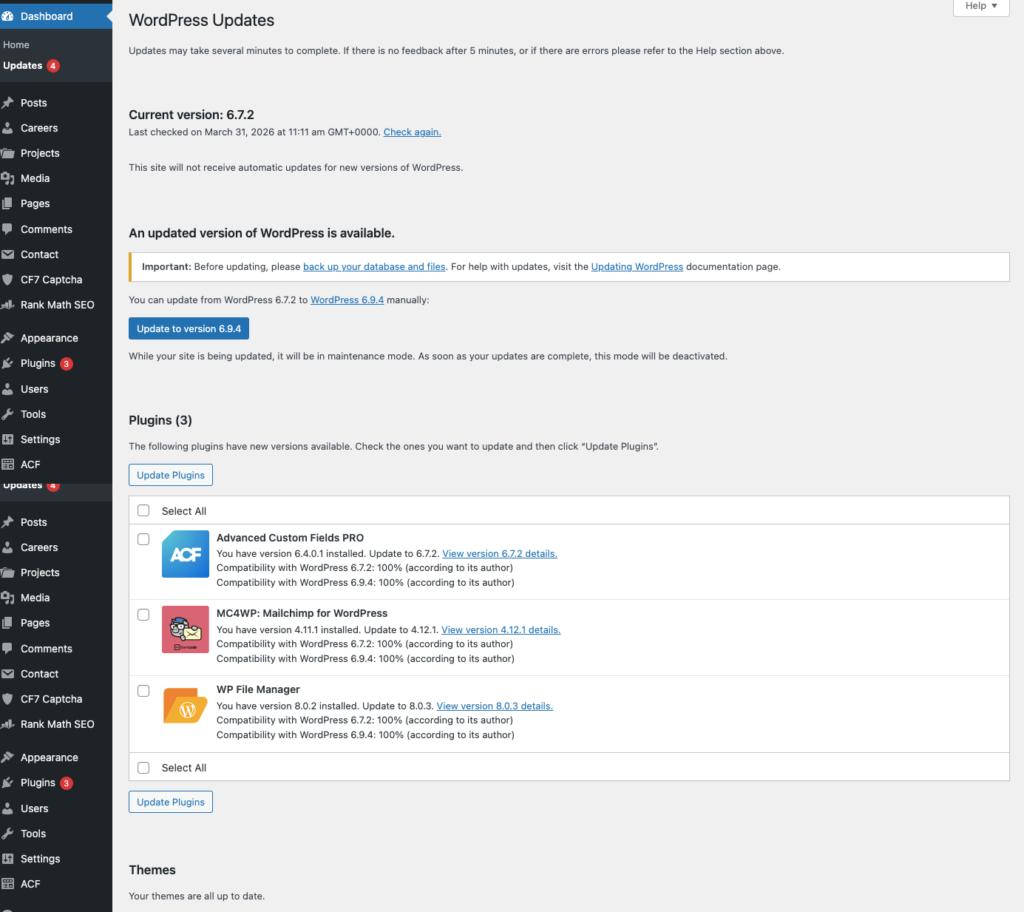
Update the following right now:
After updating, go through your plugin and theme list and delete anything you are not actively using.
An inactive plugin that hasn’t been updated in two years is just as vulnerable as an active one, and there’s zero reason to keep it installed.
Many site owners stop after a plugin scan says ‘no threats found’ and call it done. That’s a mistake. Some malware is specifically designed to hide from single-tool scans.
Run at least two different scanners after the cleanup. Wordfence and Sucuri SiteCheck together are a reliable combination. I
f both come back clean, you’re in good shape to bring the site back live. This is what properly cleaning a hacked WordPress site looks like—verification isn’t optional.
Also, do these manual checks:
If Google blacklisted your site, you need to formally request a review.
In Google Search Console, go to Security Issues and click Request Review after confirming the site is clean. This process typically takes a few days, but it is necessary to remove the ‘This site may be hacked’ warning from search results.
This step ensures your WordPress hack fix is complete and your site is fully clean.
Recovery is only half the job. The sites that get hacked twice are almost always the ones that went back online without fixing what made them a target in the first place.
Two-factor authentication (2FA) means that even if someone gets your password, they still cannot log in without a second code sent to your phone or generated by an authenticator app.
Install a plugin like WP 2FA or Google Authenticator by MiniOrange and enable it for every account with admin access. This one change blocks the vast majority of brute-force login attacks automatically.
A firewall sits in front of your site and blocks malicious traffic before it even reaches your server. Wordfence has a solid free tier that works well for most sites. For higher-traffic or business-critical sites, Sucuri’s firewall or Cloudflare’s WAF offer more robust protection at the network level.
Your uploads folder is where WordPress stores images and media files. It should never run PHP code. Hackers know this and often hide malicious scripts in there, disguised as images.
You can block PHP from running in that folder by adding a small .htaccess file to your /wp-content/uploads/ directory with these two lines:
<Files *.php> deny from all </Files>
If you’re not comfortable doing this yourself, ask your developer or hosting provider to set it up for you.
A backup that lives on the same server as your site is not a real backup. If the server is compromised or goes down, you lose both.
Use a plugin like UpdraftPlus or BlogVault to schedule daily backups and automatically send them to a separate location, such as Google Drive, Dropbox, or Amazon S3.
Set it up, test a restore once to confirm it works, and then let it run in the background.
By default, every WordPress site’s login page sits at yoursite.com/wp-admin.
Every automated hacking bot on the internet knows this and hits it daily with login attempts.
A plugin like WPS Hide Login lets you change this URL to something custom, like yoursite.com/team-portal.
It doesn’t make your site bulletproof, but it dramatically cuts the volume of automated attacks targeting your login page.
There’s no shame in knowing when a situation needs more than a solo effort.
Here’s when you should bring in a professional:
Professional WordPress security cleanup typically runs between $200 and $500 for straightforward infections, and $500 to $2,000 for complex recoveries involving multiple backdoors, full database cleaning, and security hardening.
Most reputable service providers complete the work within 24 to 48 hours.
| Looking to hire an agency instead? A good WordPress development agency won’t just clean the site. They’ll identify what went wrong, fix the root cause, and set up a maintenance plan so this doesn’t happen again. That combination of cleanup plus prevention is what separates a one-time fix from actual long-term security. |
Choosing the right WordPress maintenance service in 2026 can feel overwhelming. With hundreds of providers offering security monitoring, backups, updates, and performance optimisation, making the wrong choice can cost you time, money, and traffic.
A reliable maintenance partner keeps your site secure, fast, and always online—while a poor one can lead to downtime, hacked websites, and lost SEO rankings.
This guide helps you make a smart, data-driven decision by focusing on the features that truly matter.
Not all WordPress maintenance providers offer the same level of protection or support.
The right service ensures:
Choosing the wrong provider can result in slow performance, frequent errors, and even permanent data loss.

A top WordPress maintenance service should provide:
Security threats are more advanced in 2026, so real-time protection is no longer optional.
Backups should be:
Without reliable backups, even a small update error can crash your entire site.
Speed directly affects SEO and conversions. Look for services that include:
5. Support and Troubleshooting
When something goes wrong, support matters most. Choose a provider offering:
Cheap plans often lead to expensive problems later on. Keep in mind and don’t get lured to lowball offers when it comes to selecting your maintenance provider.
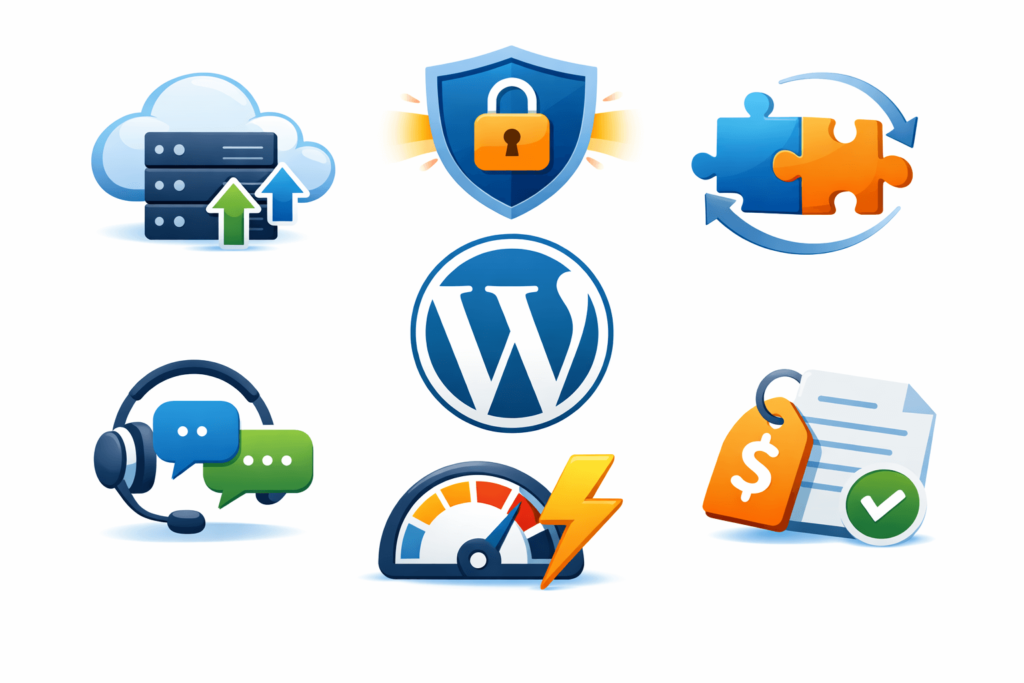
Before you choose, make sure the service includes:
WordPress website maintenance is one of those things that’s easy to put off until it becomes impossible to ignore. A missed update here, a backup that was never tested, a contact form quietly failing for three weeks. These small issues compound into expensive emergencies, often at the worst possible moment and turn the panic mode on for most founders.
For agency founders managing multiple client sites, or WordPress freelancers and developers running their own online presence, neglected maintenance creates risk at every level — from breaching the security of the site to taking a toll on rankings. Slowly, they lead to a nightmare that hurts their business more than they think.
This guide covers the 10 most critical warning signs that your WordPress site needs immediate attention, along with concrete, actionable fixes for each one, so you leave with more than just a checklist.
Page speed has a direct, documented relationship with both user behaviour and Google rankings. Don’t take our words, but Google’s own research shows that as page load time increases from 1 to 3 seconds, the probability of a user bouncing increases by 32%. Beyond 5 seconds, that probability jumps to 90%.
Since 2021, Google has used Core Web Vitals as a confirmed ranking signal.
These three metrics define what “fast” actually means:
How to fix it:
| Pro tip: The Core Web Vitals report in Google Search Console shows real-user data aggregated over 28 days, far more useful than a single PageSpeed score taken at one moment in time. |
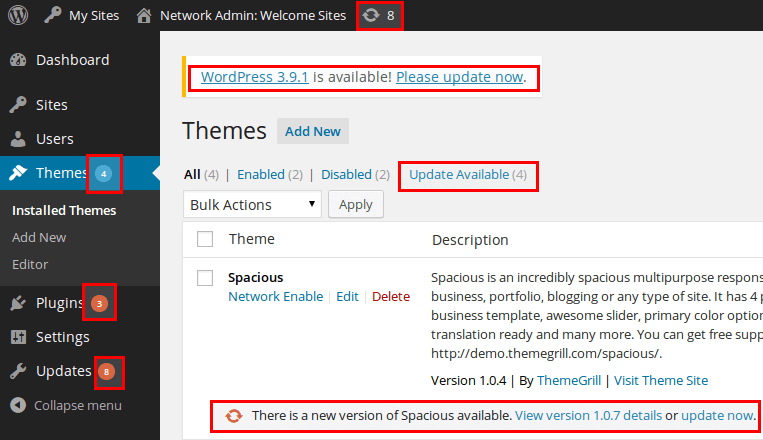
Outdated plugins are consistently the leading attack vector for WordPress compromises. Wordfence’s annual WordPress security report confirms that vulnerable plugins and themes rank as the top attack vector, not brute-force password attacks, not WordPress core vulnerabilities. If your dashboard is showing a queue of pending updates, each unpatched plugin is a potential open door.
That said, blindly updating without a process is its own risk. A plugin update that conflicts with your theme can break your homepage just as effectively as an attacker can. The answer is a reliable update workflow, not avoidance.
How to fix it:
Handle major plugins manually: Auto-updates are acceptable for small, stable plugins. Keep auto-updates off for WooCommerce, page builders (Elementor, Divi), and SEO plugins. Always test those manually on staging first.
| Important: Updating without a staging environment and a tested rollback plan is almost as risky as not updating at all. Both the update and the recovery path matter. |
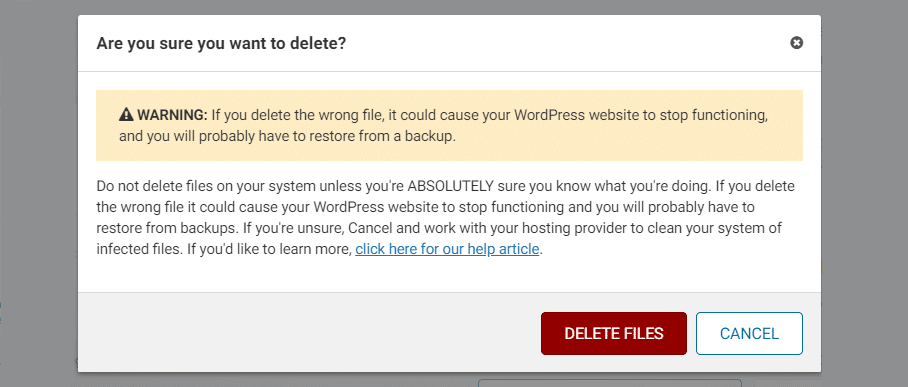
A browser security warning or hosting panel malware alert is not a future risk; it’s an active incident. Every hour your site shows a Google Chrome warning or appears on the Google Safe Browsing blacklist, you are losing visitors, damaging your brand, and potentially affecting your search rankings.
What to look for:
How to fix it:
| Don’t wait on this one: Security warnings are P1 incidents. Every hour counts both for user trust and for your ranking recovery timeline. |
Broken links create a poor experience for visitors and signal to search engines that your site is poorly maintained. More concretely, a pattern of broken links creates crawl waste Google’s crawl budget gets spent on dead ends instead of indexing your real content, particularly on larger sites.
How to fix it:
SEO note: Broken links on high-value pages (homepage, service pages, ranking blog posts) should be fixed immediately. Broken links in old, low-traffic posts are lower priority but worth cleaning quarterly.
Unplanned downtime is one of the most damaging issues in WordPress website maintenance. If your site goes offline and you don’t know about it for hours, you’re losing traffic, leads, and revenue with no way to recover that time.
Common root causes:
How to fix it:
| As of 2025: If you’re running PHP 7.x, your site is operating on end-of-life software that receives zero security patches. This should be treated as a critical maintenance issue, not a nice-to-have upgrade. |
WordPress has no native backup system. None. If you haven’t installed and configured a dedicated backup solution, your site has no recovery path if something goes wrong. And if you have a plugin installed but haven’t tested restoration, you have an assumption, not a backup.
The 3-2-1 backup rule (the industry standard for data protection):
How to fix it:
| Critical: The worst time to discover your backup is broken or incomplete is during a recovery situation. Test it before you need it. |
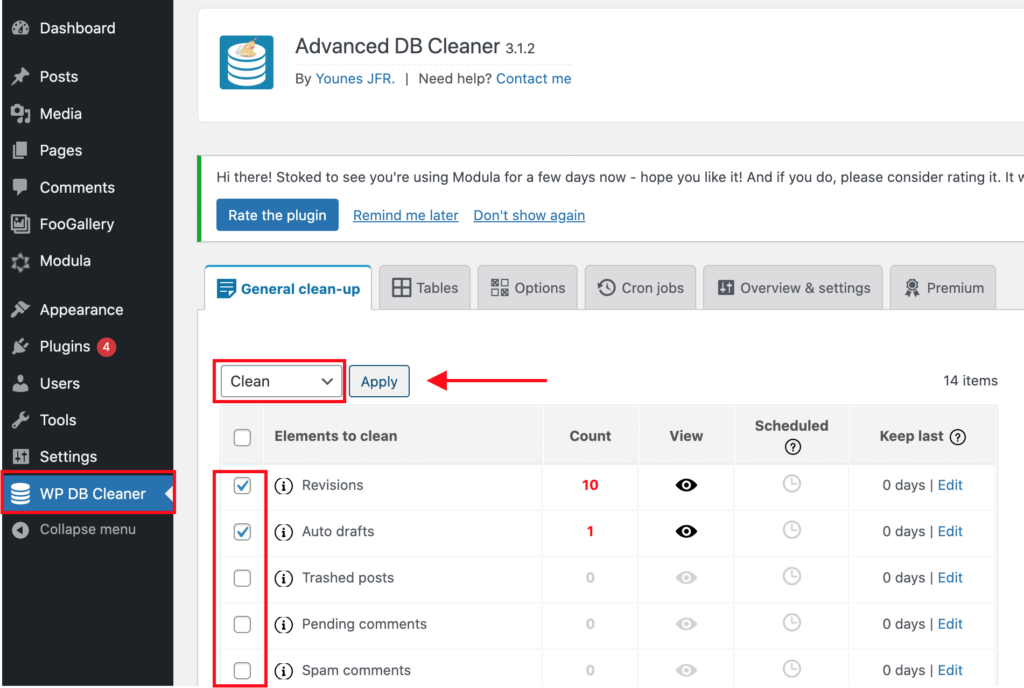
A slow admin panel is a backend symptom of frontend bloat. The same database tables and stored data that slow down your dashboard also affect your site’s performance for visitors. WordPress website maintenance includes keeping the backend just as clean as the frontend.
What causes backend slowness:
How to fix it:
| Agency tip: For client sites on a maintenance retainer, include revision limits and quarterly database cleanups as a standard scope item. It prevents this issue from ever becoming a complaint. |
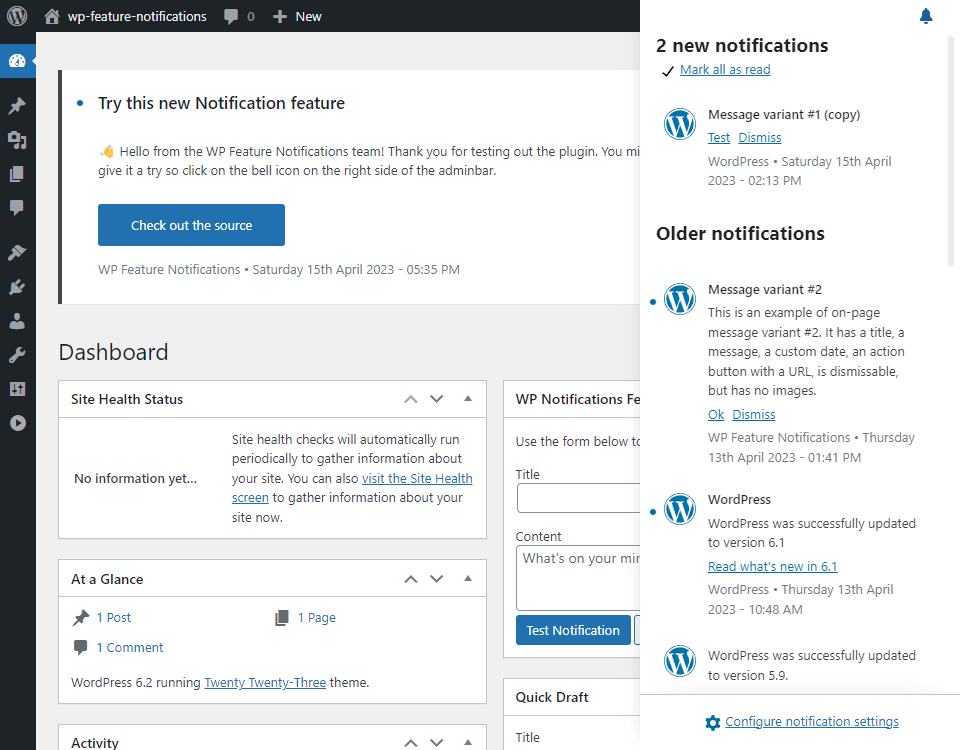
Every WordPress core release changelog is public. This means that the moment a new version is released, anyone can read exactly which security vulnerabilities the previous version contained. Running an outdated WordPress core version is essentially announcing to attackers what your site is vulnerable to.
How to fix it:
| Current status: WordPress 6.x is the current major release line as of 2025. Sites running WordPress 5.x or earlier are not receiving core security patches and should be considered a maintenance emergency. |
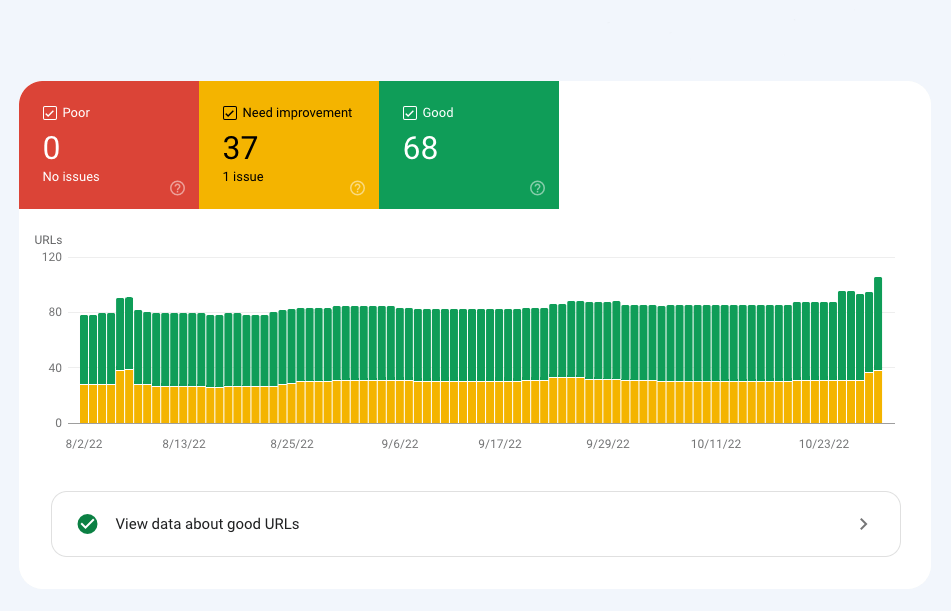
If your rankings are declining without any obvious content change or algorithm announcement, your WordPress website maintenance health is worth examining before you start changing content strategy. Technical issues and SEO performance are deeply connected.
Maintenance issues that directly affect SEO:
How to diagnose and fix it:
| Resource: Google Search Central documentation is the authoritative source for understanding exactly how technical maintenance decisions affect search rankings. It’s free and regularly updated. |
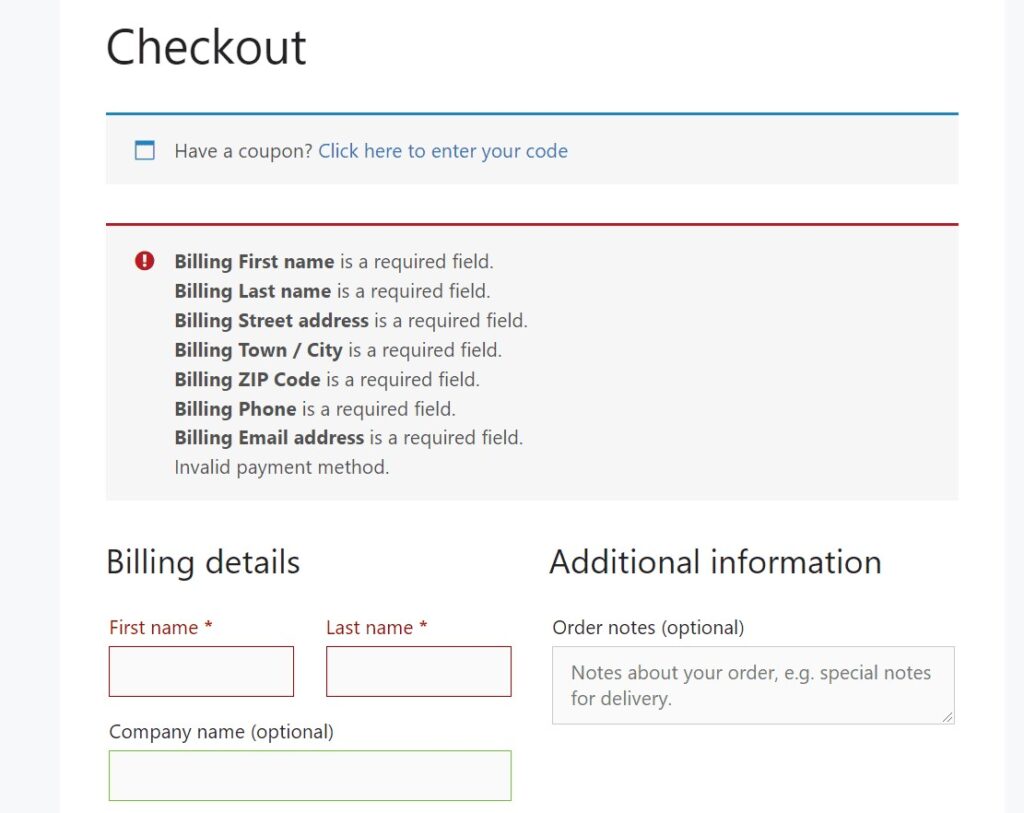
This is the most directly revenue-damaging issue on this list and often the hardest to notice. WordPress doesn’t notify you when a form submission silently fails. Leads can disappear for days or weeks before anyone catches it.
What can break silently:
How to fix and prevent it:
| Revenue impact: A broken contact form during a paid campaign or a failed checkout after a product launch can cost more in a single afternoon than a year’s worth of WordPress website maintenance retainer. |
Gutenberg blocks have become essential tools for building stunning and highly functional WordPress websites with ease. The Gutenberg block editor allows users to create dynamic, visually engaging pages using intuitive drag-and-drop blocks—without any coding. To further enhance this experience, Gutenberg block plugins add powerful features, flexible layouts, and pre-designed blocks, making them some of the most useful WordPress plugins for creating professional websites faster and more efficiently.
In this article, we’ll explore the top 5 Gutenberg block plugins for 2026, highlight their key features, and help you choose the best option to elevate your WordPress site.
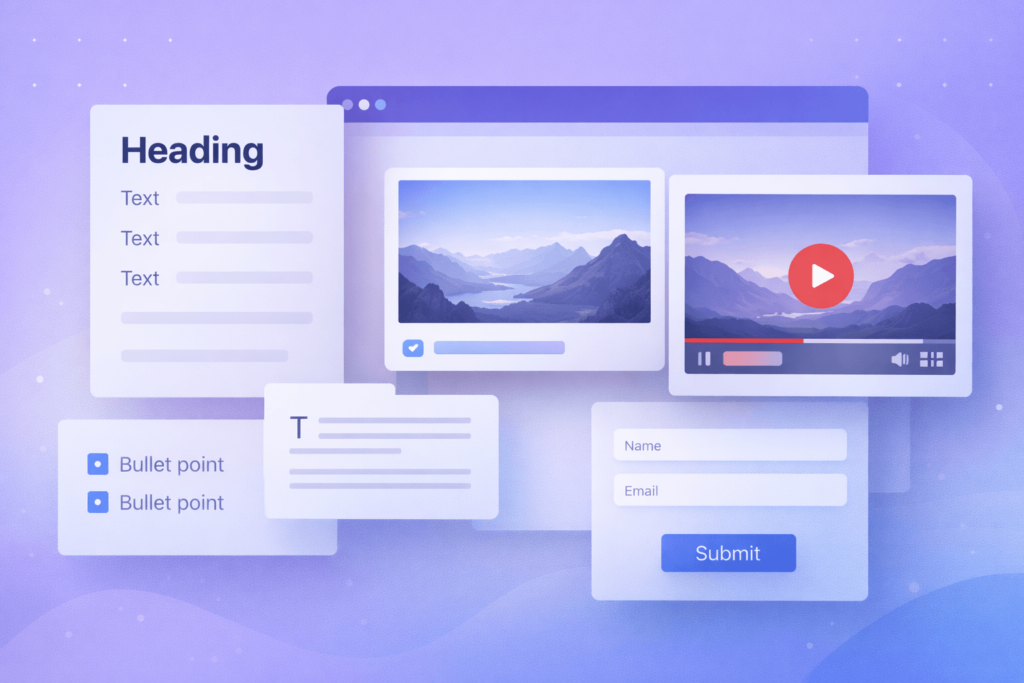
Gutenberg blocks are modular content units within the WordPress editor, allowing you to add images, videos, text, forms, tables, call-to-actions, and more with ease. Unlike the classic editor’s single text box, blocks enable:
This modular approach empowers you to create highly personalised and engaging pages efficiently.
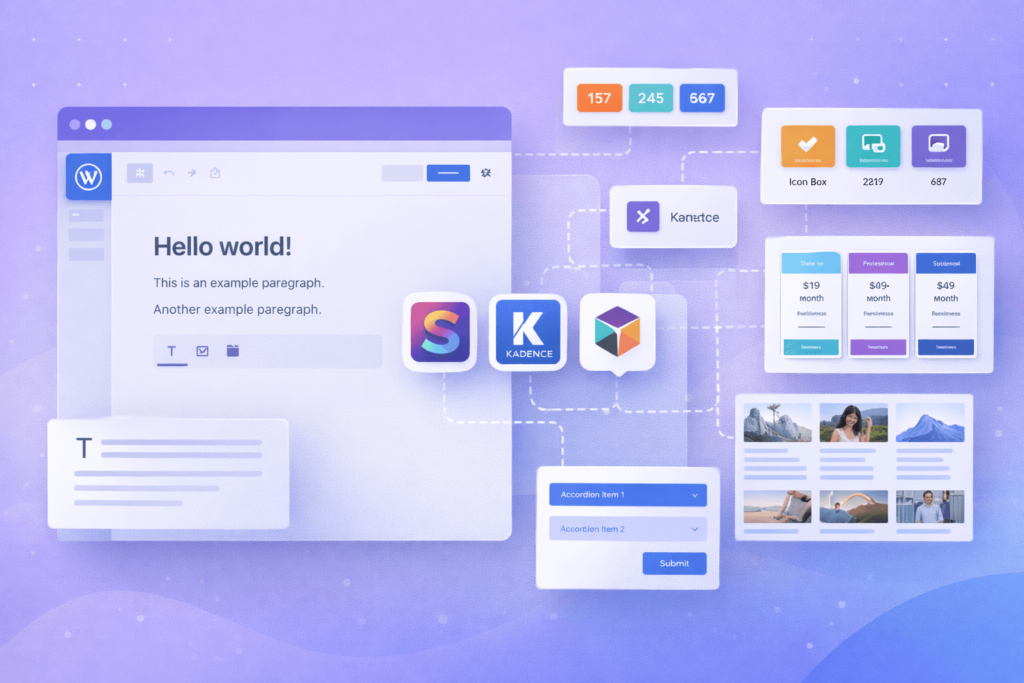
Gutenberg block plugins extend the default editor by adding new blocks or enhancing existing ones. When you install these plugins, you get additional content elements and design tools, including:
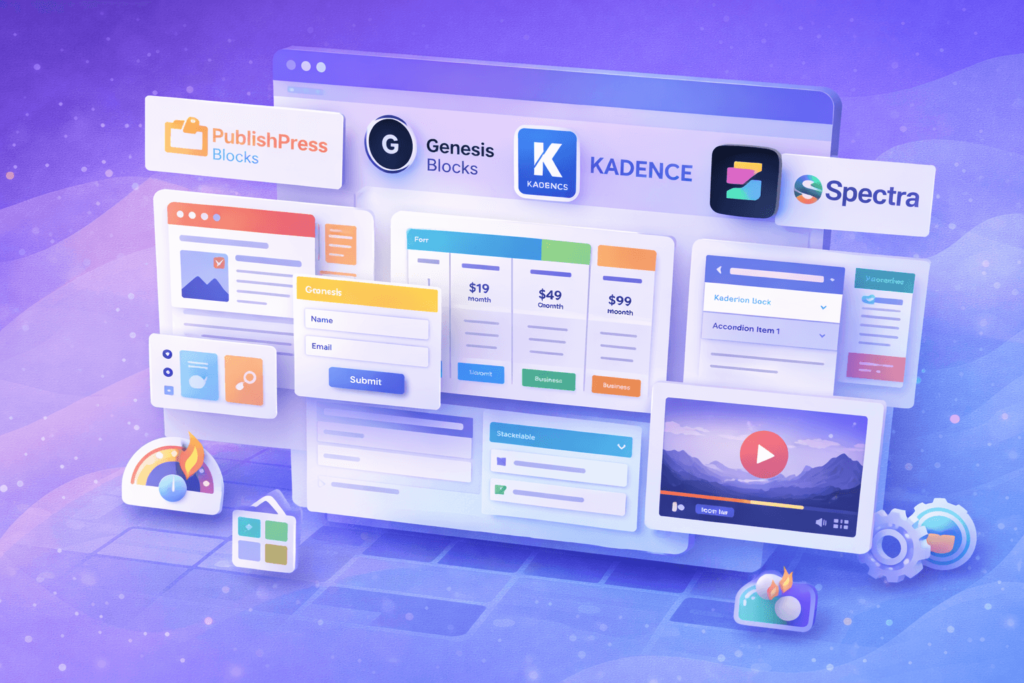
Ideal for: Blogs, magazines, and corporate websites needing advanced layouts.
Features:
Price: Free; Pro version from $49/year.
Ideal for: Users seeking visually appealing, speed-optimised page sections.
Features:
Price: Free; Genesis Pro at $360/year with full theme access.
Ideal for: Designers focused on performance and complex layouts.
Features:
Price: Free; Pro starts at $89/year.
Ideal for: Users wanting a lightweight page builder with design kits.
Features:
Price: Freemium; Premium starts at $49/year.
Ideal for: Users who want advanced design blocks and pre-built templates.
Features:
Price: Free.
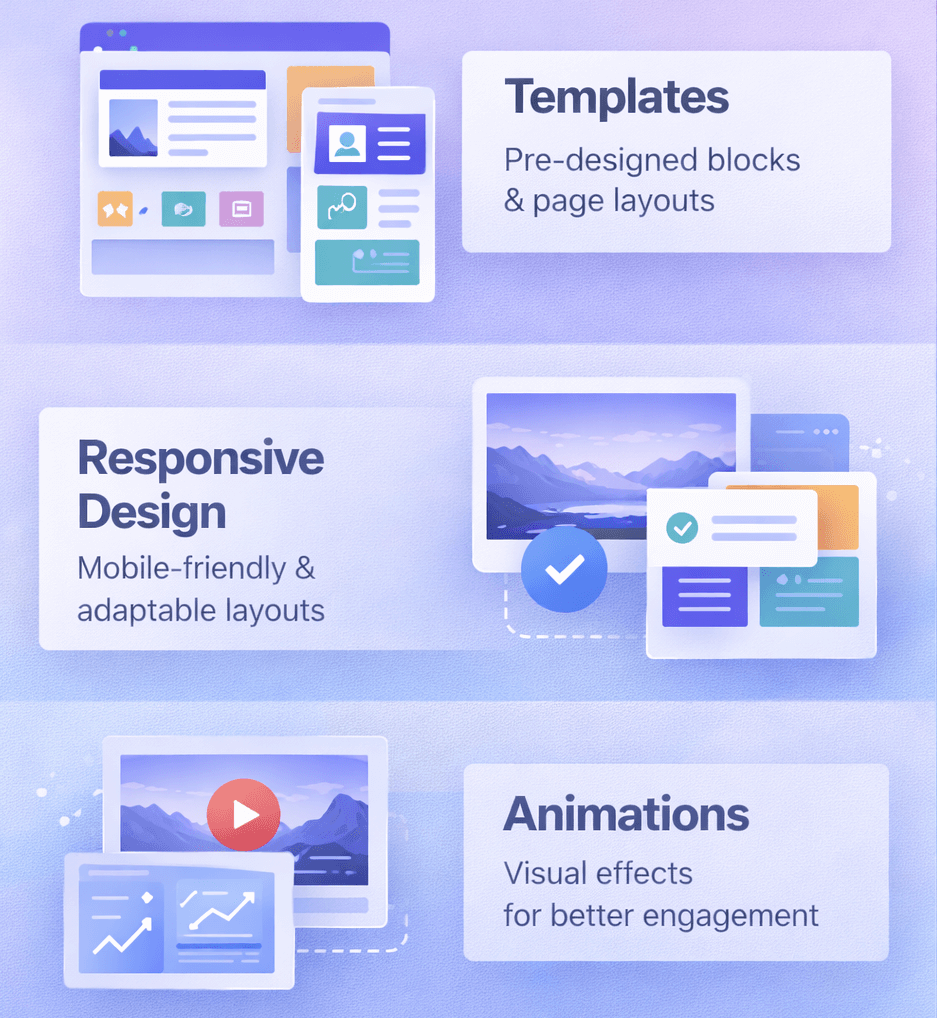
Choosing the right website platform is crucial for your online presence. While WordPress powers over 40% of the web, it’s not the perfect fit for everyone. Whether you’re a beginner looking for simplicity or a business seeking specific features, several excellent WordPress alternatives can help you build a professional website efficiently.
This guide explores the top alternatives in 2026, their features, pricing, and who should use them, so you can make an informed decision.
| Platform | SEO | Speed | SEO Tools | Best For | Starting Price |
|---|---|---|---|---|---|
| Wix | ★★★★☆ | Fast | SEO Wiz, meta tags, redirects | Beginners & small businesses | $16 / month |
| Squarespace | ★★★☆☆ | Moderate | Basic meta tags, XML sitemap | Creatives & portfolios | $16 / month |
| Webflow | ★★★★★ | ⚡ Very Fast | Meta tags, schema, clean code | SEO professionals & developers | $14 / month |
| Shopify | ★★★★☆ | Fast | Canonical URLs, meta editing | Ecommerce websites | $39 / month |
WordPress is a powerful and flexible platform that’s widely used across the web, but many sites suffer from plugin overload and performance issues. However, it does come with a learning curve, requires ongoing maintenance, and involves setting up your own hosting. Some users also move away from WordPress due to security vulnerabilities caused by outdated plugins.
By exploring WordPress alternatives, you can find platforms that:
These options can make building and managing your website more straightforward, depending on what you need.

When exploring WordPress alternatives, Wix stands out as a user-friendly website builder, especially ideal for beginners who want to create a website without any coding knowledge. Its intuitive drag-and-drop editor makes it easy to design professional-looking websites quickly and effortlessly, making it a great choice for those seeking simplicity and speed.
Key Features:
Pros:
Cons:
Pricing Plans (2026):
Who Should Use Wix?
Ideal for users seeking visually attractive websites without coding. Great for portfolios, personal blogs, and small business sites.

Squarespace provides a complete website builder experience with hosting included, ideal for users prioritising design and aesthetics.
Key Features:
Pros:
Cons:
Pricing Plans (2026):
Who Should Use Squarespace?
Perfect for personal brands, small businesses, and creatives who want a polished online presence without technical setup.
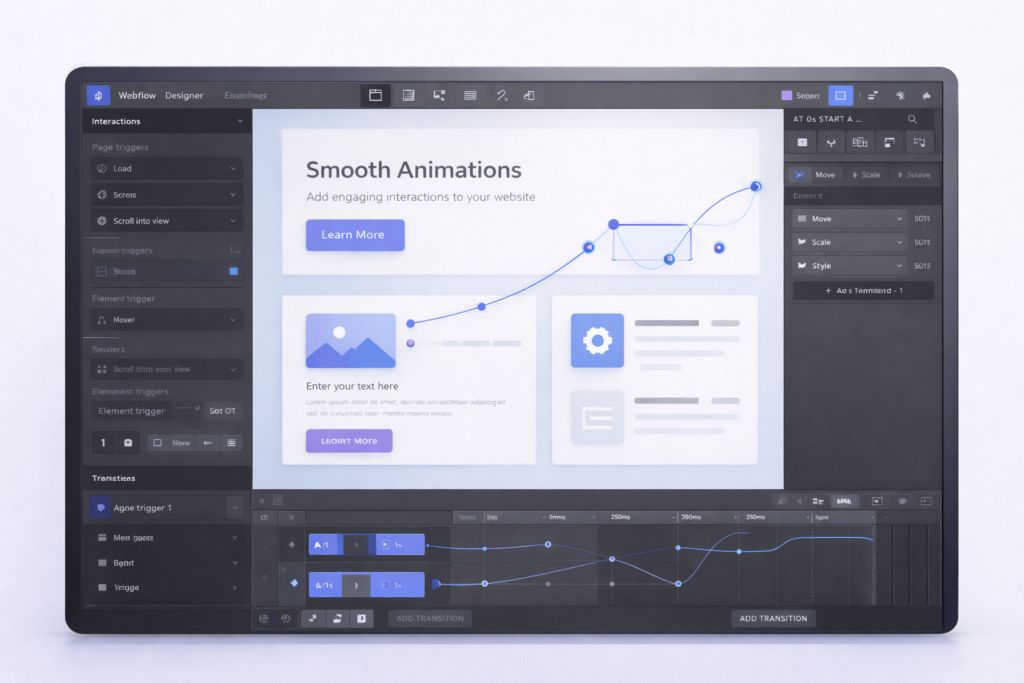
Webflow is a designer-focused platform that blends visual editing with full control over code. It’s ideal for agencies or freelancers who want customizable, responsive, and professional websites.
Key Features:
Pros:
Cons:
Pricing Plans (2026):
Who Should Use Webflow?
Best for designers, agencies, and businesses needing highly customised websites with advanced interactions.
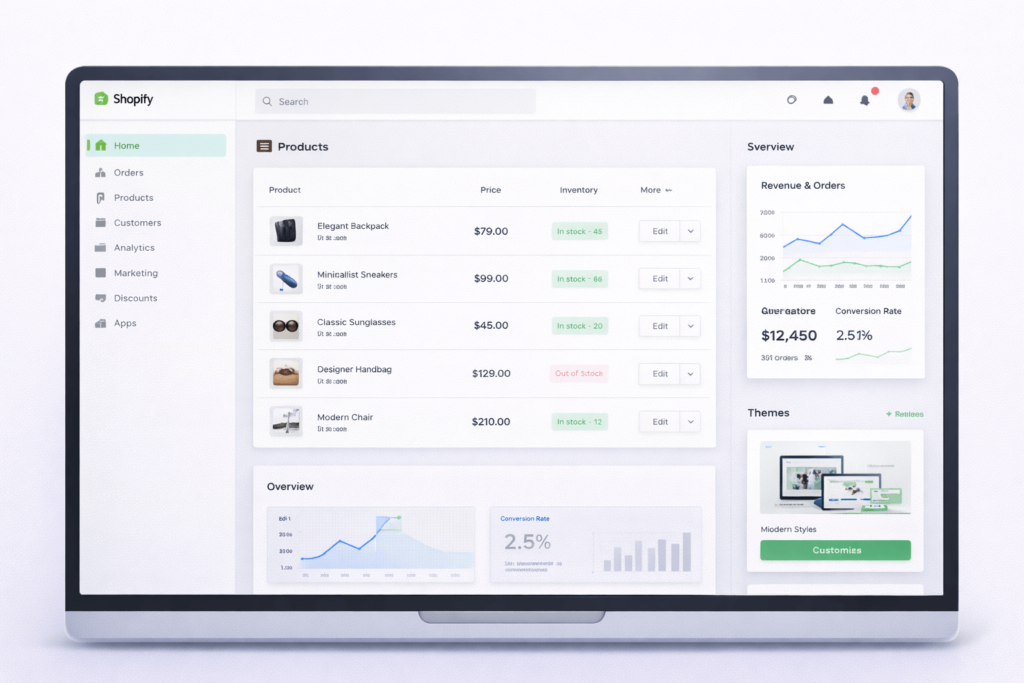
Another strong WordPress alternative is Shopify, the leading e-commerce platform optimised for online stores of all sizes. It offers everything you need—from product management to secure checkout and detailed analytics—making it an excellent choice for businesses focused on selling products online.
Key Features:
Pros:
Cons:
Pricing Plans (2026):
Who Should Use Shopify?
Ideal for online retailers, drop-shippers, and businesses looking for a scalable e-commerce solution.
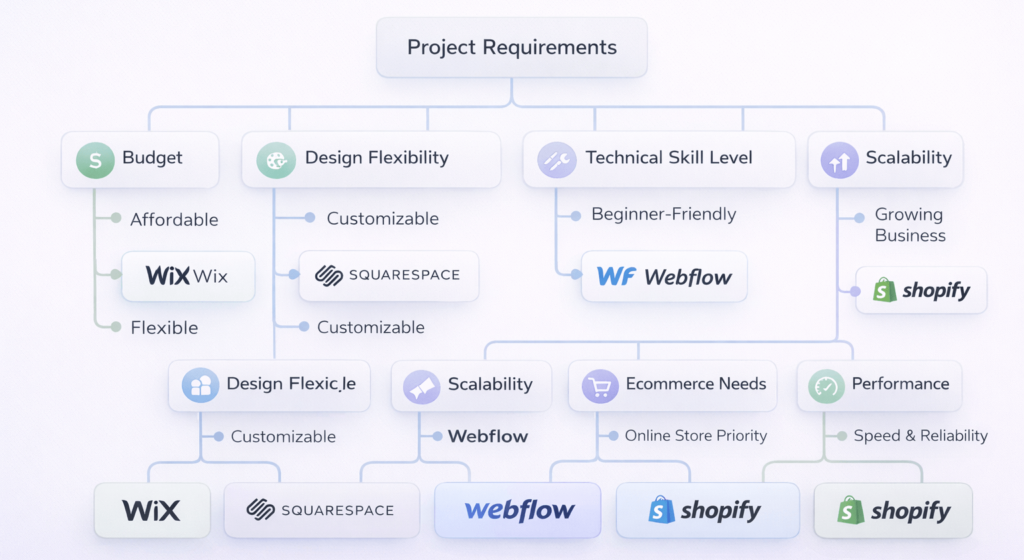
When choosing a WordPress alternative, consider:
Advanced users might combine multiple platforms for marketing, analytics, and e-commerce.
When evaluating different WordPress alternatives, make sure the platform you choose offers:
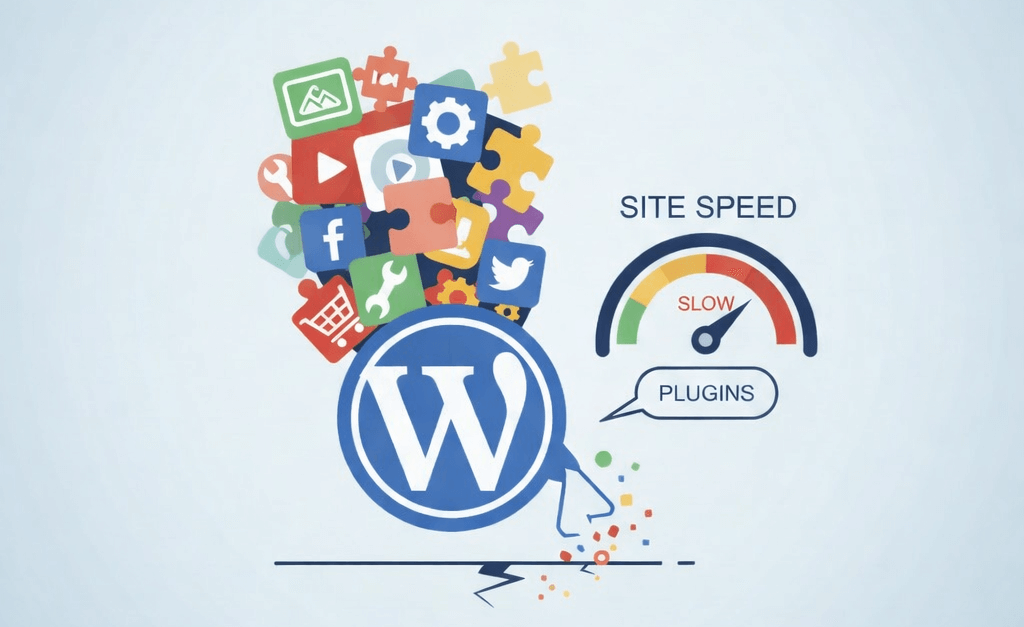
If your WordPress website feels slow, plugins are often the hidden reason. Plugins add powerful features without writing custom code, but too many—or poorly optimized—plugins can seriously hurt performance.
A slow website leads to:
In this guide, you’ll learn why WordPress plugins slow down your site and exact, practical steps to fix the problem, whether you’re a beginner or an advanced user.
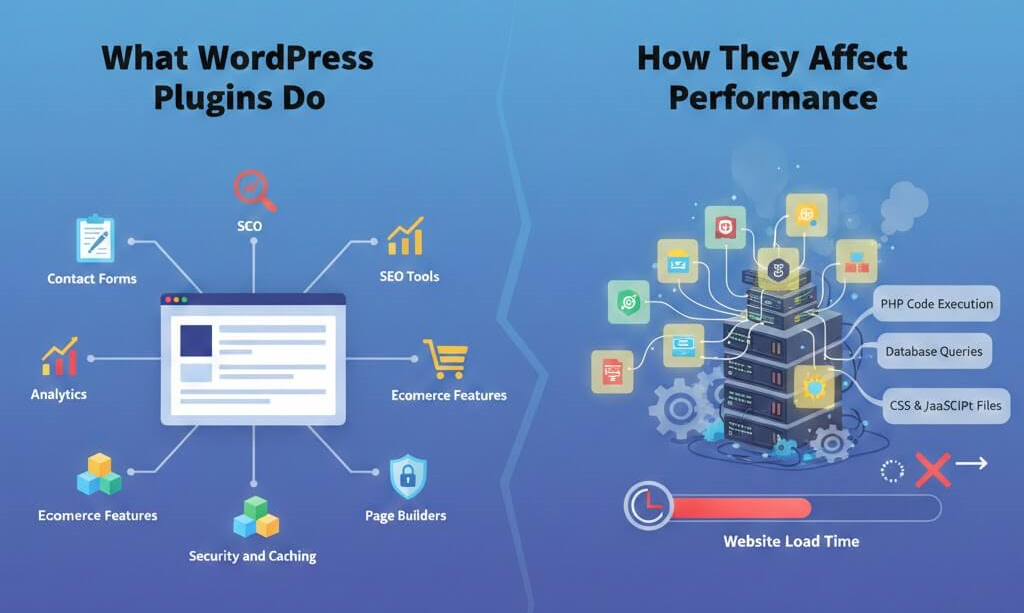
WordPress plugins extend your site’s functionality. They can add:
Each plugin adds:
When multiple plugins load on every page, your server and browser must work harder, increasing load time.
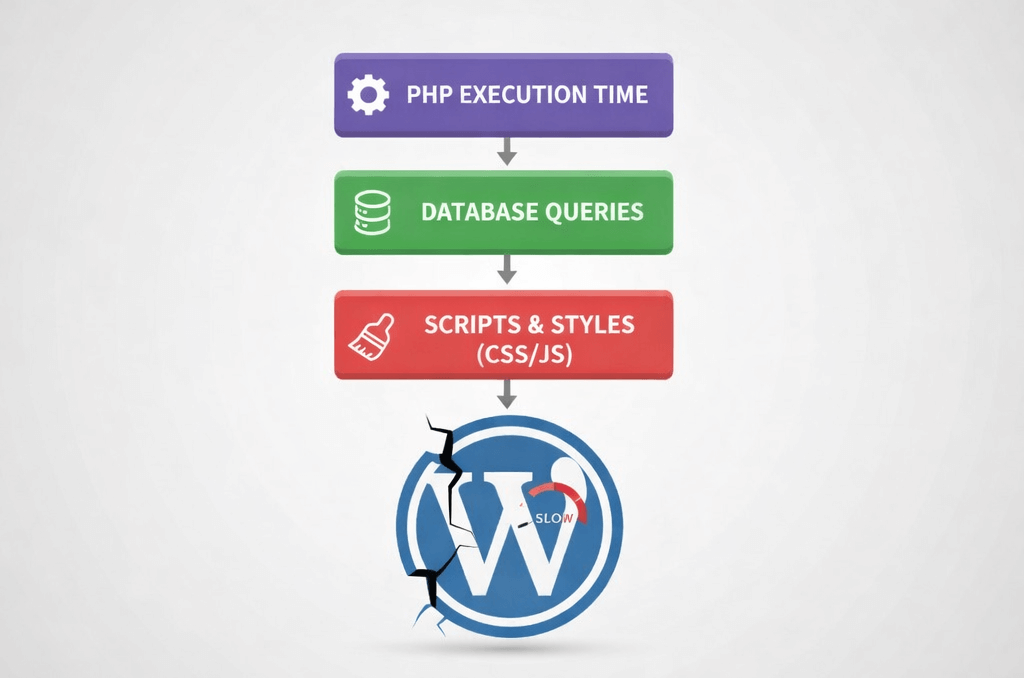
Every active plugin runs PHP code during page load. More plugins = more processing time, especially on shared hosting.
Some plugins make multiple database requests per page. This slows down response time and increases server load.
Many plugins load scripts and styles on every page—even when they’re not needed. This causes:
Plugins may load duplicate libraries or conflict with each other, leading to inefficient execution and errors.
Plugins that aren’t maintained often ignore modern performance standards, making your site slower over time.
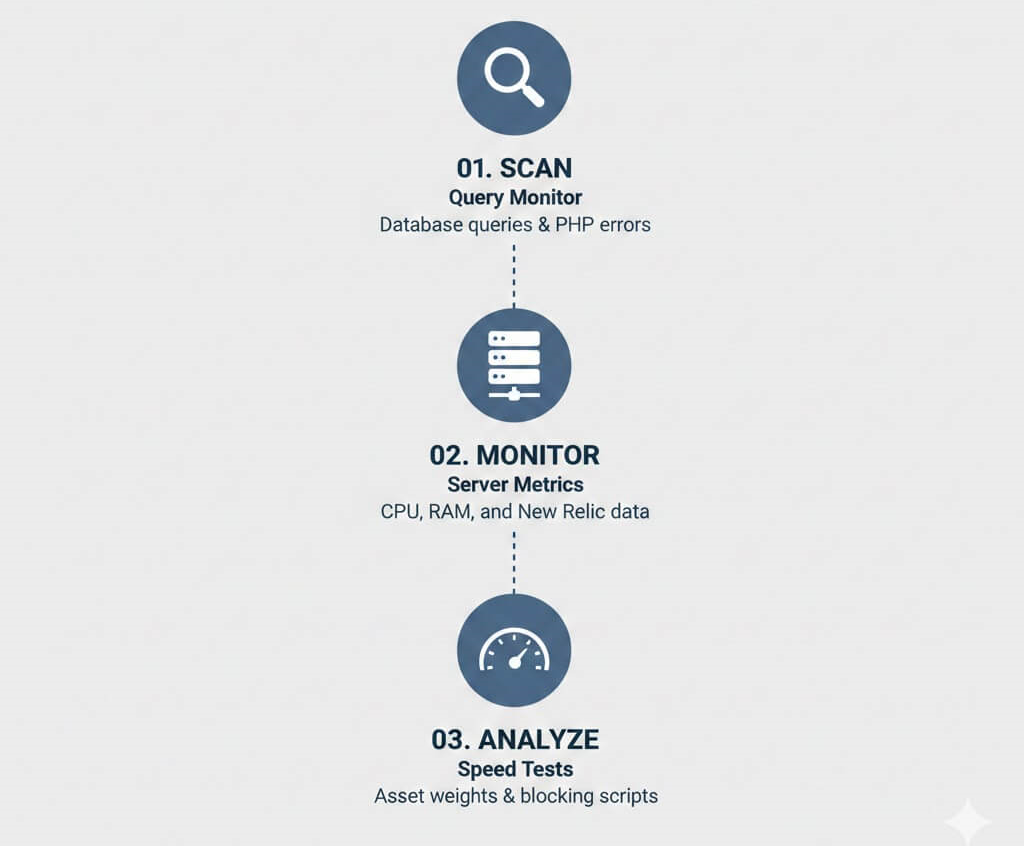
Query Monitor shows:
Tools like New Relic reveal CPU, memory, and slow functions per plugin.
Use GTmetrix, Google PageSpeed Insights, or WebPageTest to identify:
Ask yourself:
Deactivate and delete unused plugins. Fewer plugins mean faster load times.
Examples:
Load plugin assets only on required pages:
Tools like Asset Cleanup or Perfmatters help with conditional loading.
Clean up:
Minify and defer non-critical CSS and JavaScript to improve page rendering speed.
Caching plugins serve static pages instead of running PHP on every request, dramatically improving speed.
Use Redis or Memcached to cache database queries for high-traffic sites.
A CDN serves plugin assets from global locations, reducing latency.
For unique features, custom lightweight code often performs better than generic plugins.
Track performance after every plugin installation or update.
To learn a more comprehensive way to optimise your website, we have written a dedicated article focusing on it. You can read it here.
Every second counts in the digital world. Research shows that a single second of delay in page load time can slash conversions by seven per cent. For WordPress site owners, that’s not just a statistic—it’s money walking out the door while your pages struggle to load.
This wordpress speed optimization checklist is not about chasing perfect test scores or stacking plugins blindly. It is about understanding why WordPress sites slow down, what actually improves performance in 2026, and how to apply each optimization safely and effectively.
This guide is written for:
Google has treated page speed as a ranking factor for over a decade, but modern search goes further. Today, real user experience signals shape visibility across traditional search and AI-powered discovery systems.
Speed affects:
More importantly, users expect instant feedback. Nearly half of visitors will abandon a site that feels slow, and many never return. If you are driving traffic through SEO, ads, or social media, slow performance quietly burns your budget. Speed is not just technical optimisation. It is revenue protection.
WordPress itself is not slow. Poor decisions layered on top of it are.
Most performance issues come from a predictable set of problems:
These issues compound gradually. A site that launched fast can become sluggish within a year if performance is not maintained. This checklist addresses each bottleneck systematically.
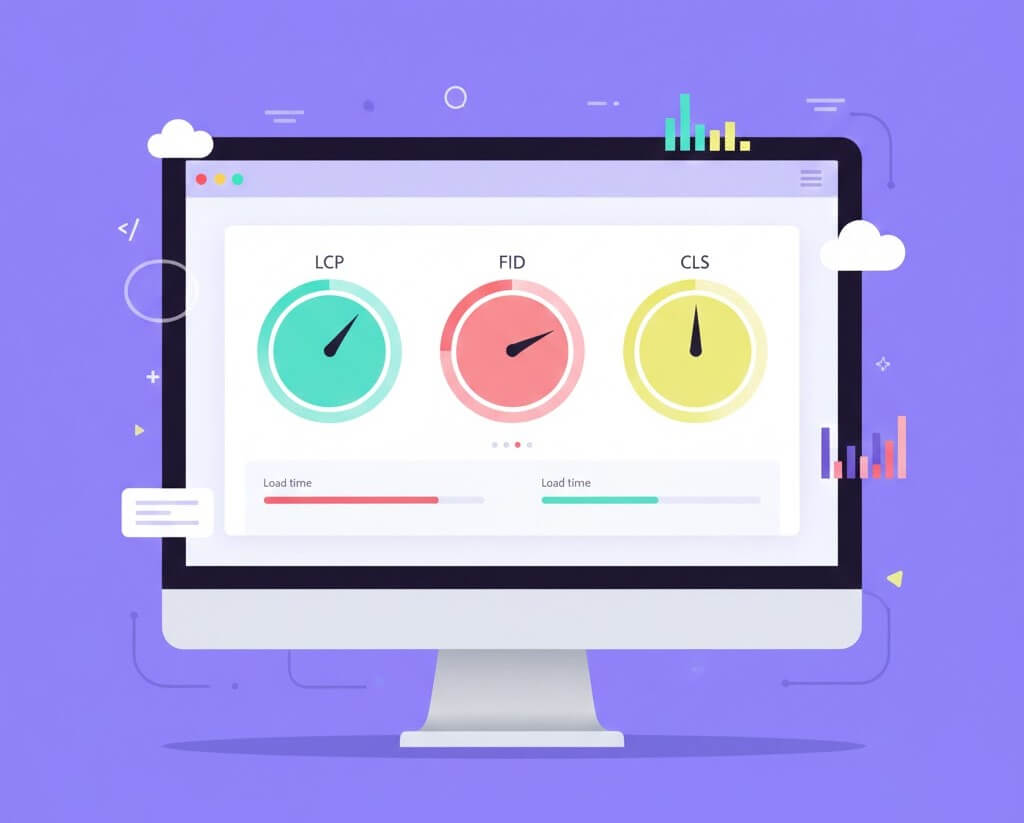
Before optimizing anything, establish a baseline.
Why this matters
Optimising without measurement leads to guesswork. You need proof that changes improve real user experience, not just scores.
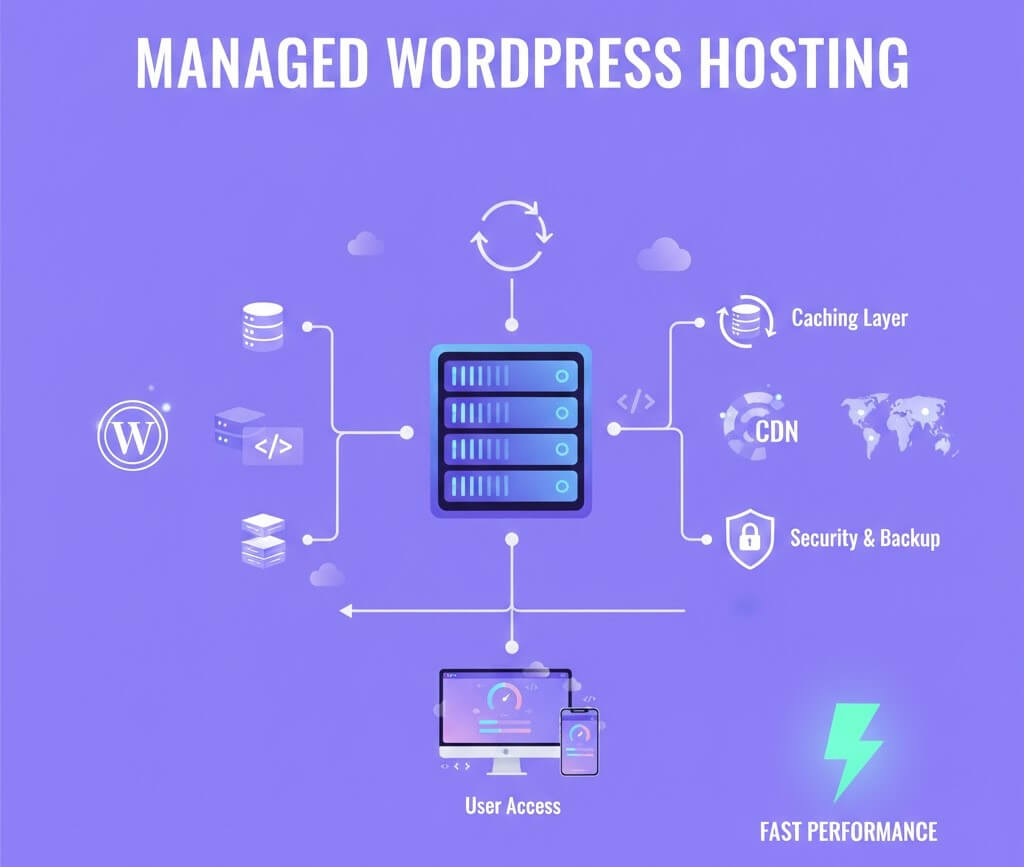
Hosting is the foundation of everything else.
Cheap shared hosting crams hundreds of sites onto one server. When one site spikes traffic or gets compromised, every site slows down.
Managed WordPress hosting often costs more, but it removes infrastructure bottlenecks no plugin can fix.
Why this matters
Hosting alone can account for 30 to 50 per cent of total performance gains.
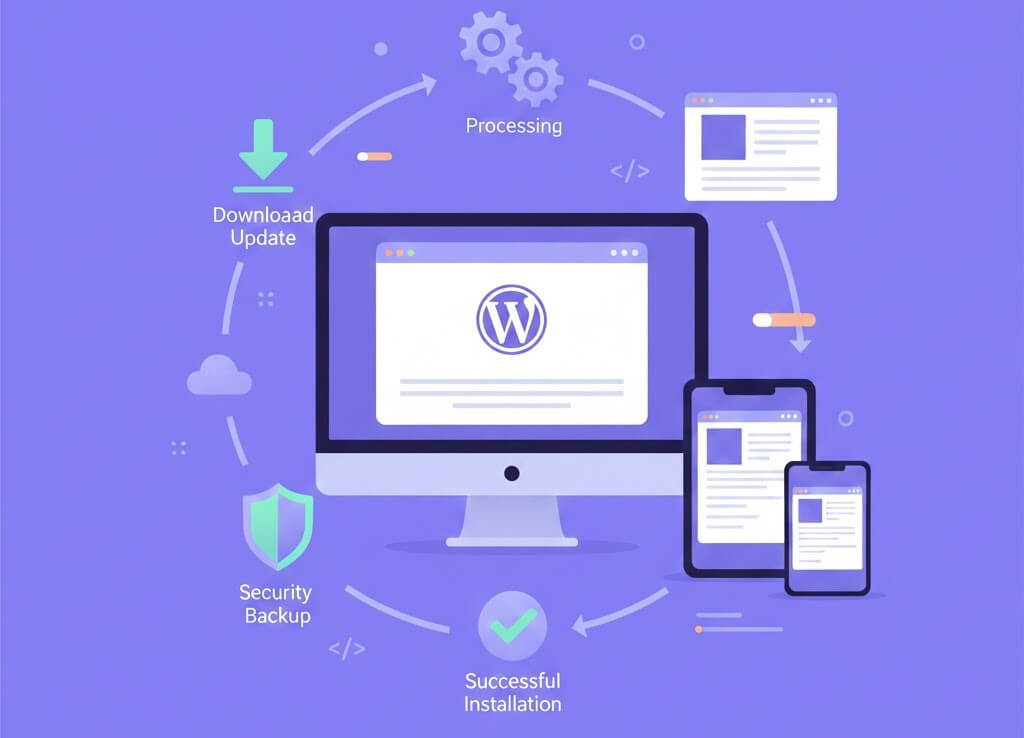
Updates are not just about security.
Modern WordPress updates often include:
Why this matters
Skipping updates means missing free performance improvements baked into newer versions. If you want a deeper look at the telltale signs that your WordPress website needs maintenance, we have put together an in-depth blog on the topic. Happy reading!
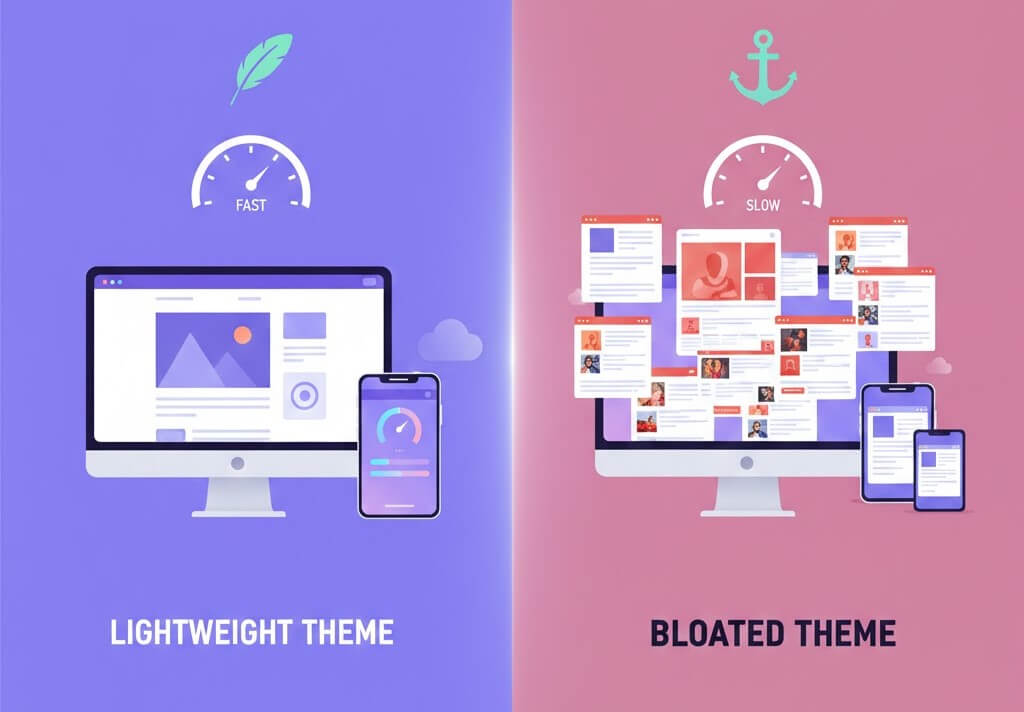
Your theme controls how much code loads on every page.
Themes marketed as “all-in-one” often load scripts, sliders, animations, and layout systems you never use.
If a theme demo scores poorly on mobile speed tests, your production site will perform worse.
Why this matters
A heavy theme adds weight to every page, regardless of content.
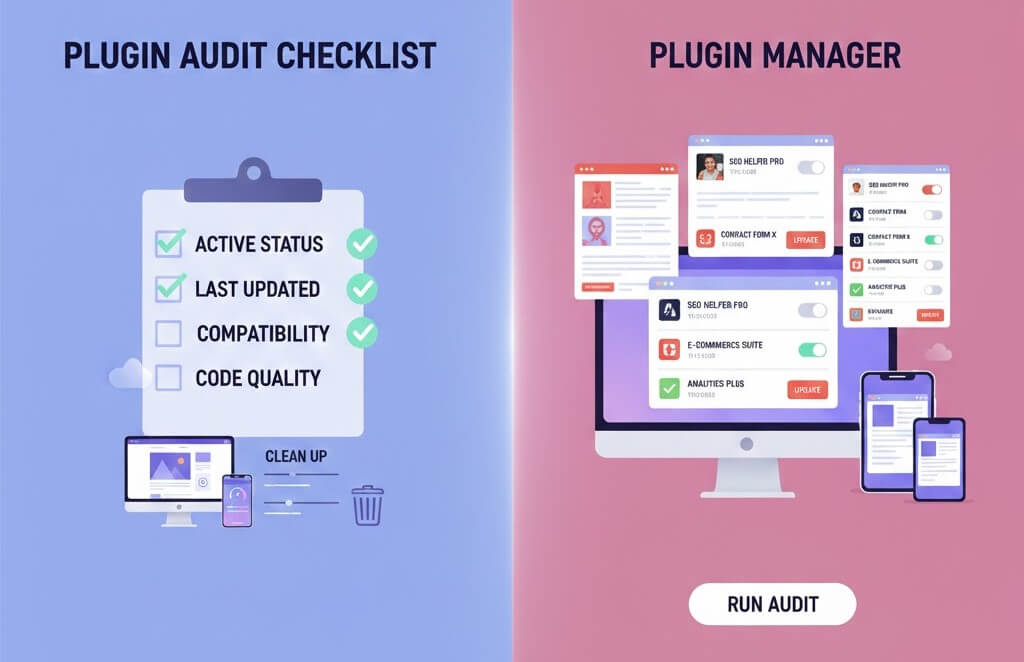
Plugins are powerful but dangerous when unmanaged.
Why this matters
Each plugin adds overhead. Fewer, better plugins improve speed and stability.
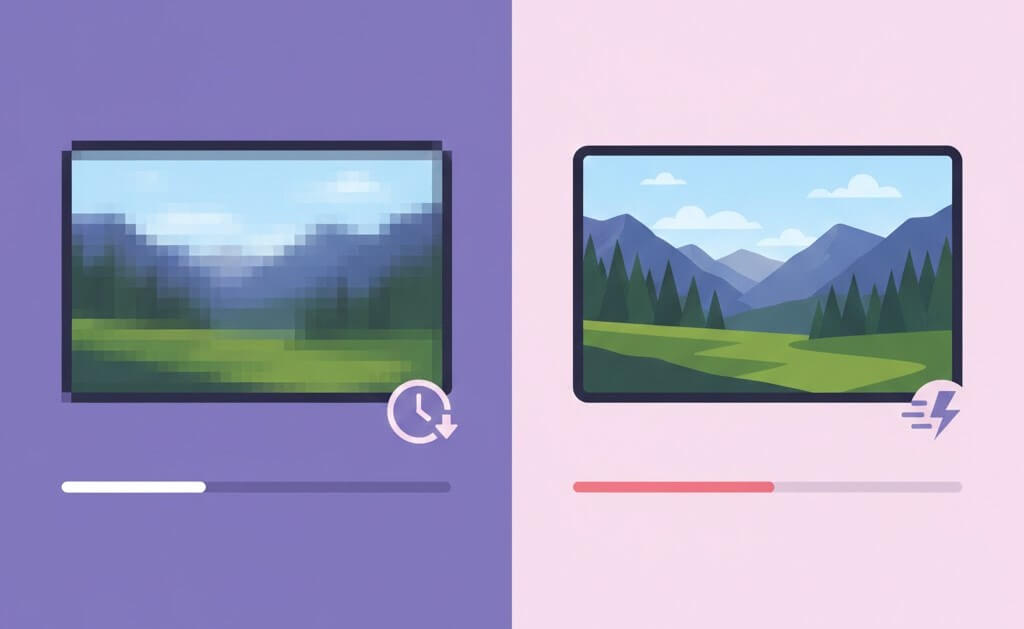
Images are usually the largest files on a page.
Uploading camera-sized images and relying on WordPress to scale them wastes bandwidth and hurts LCP scores.
Why this matters
Image optimization alone often produces the biggest immediate speed gains.
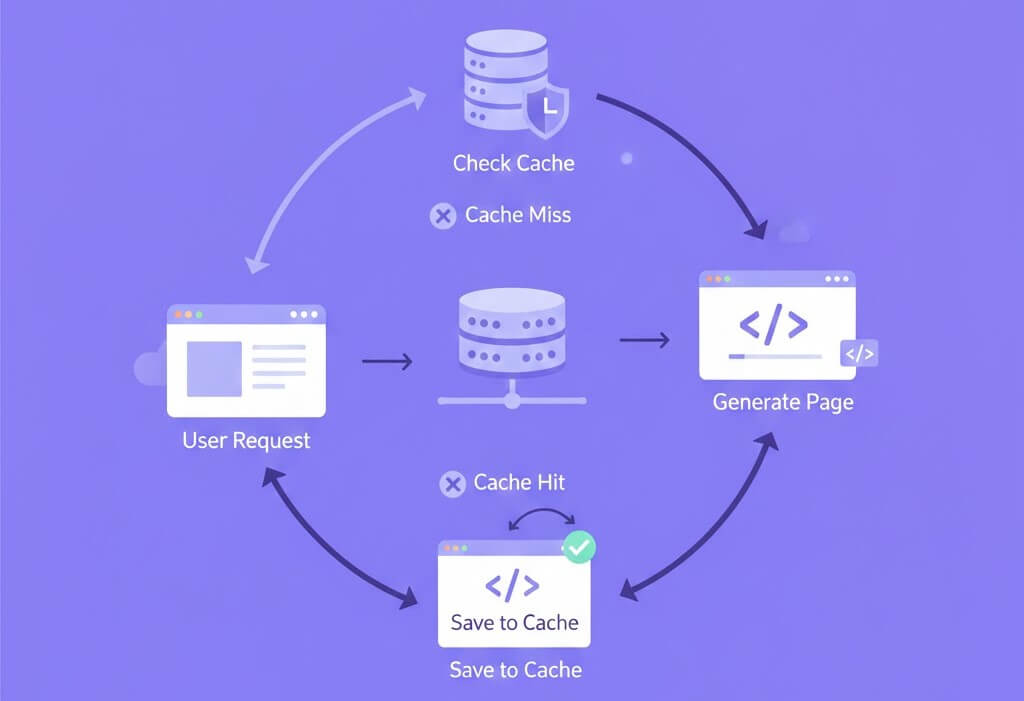
Caching prevents WordPress from rebuilding pages on every visit.
Why this matters
Caching can reduce server response times by an order of magnitude.
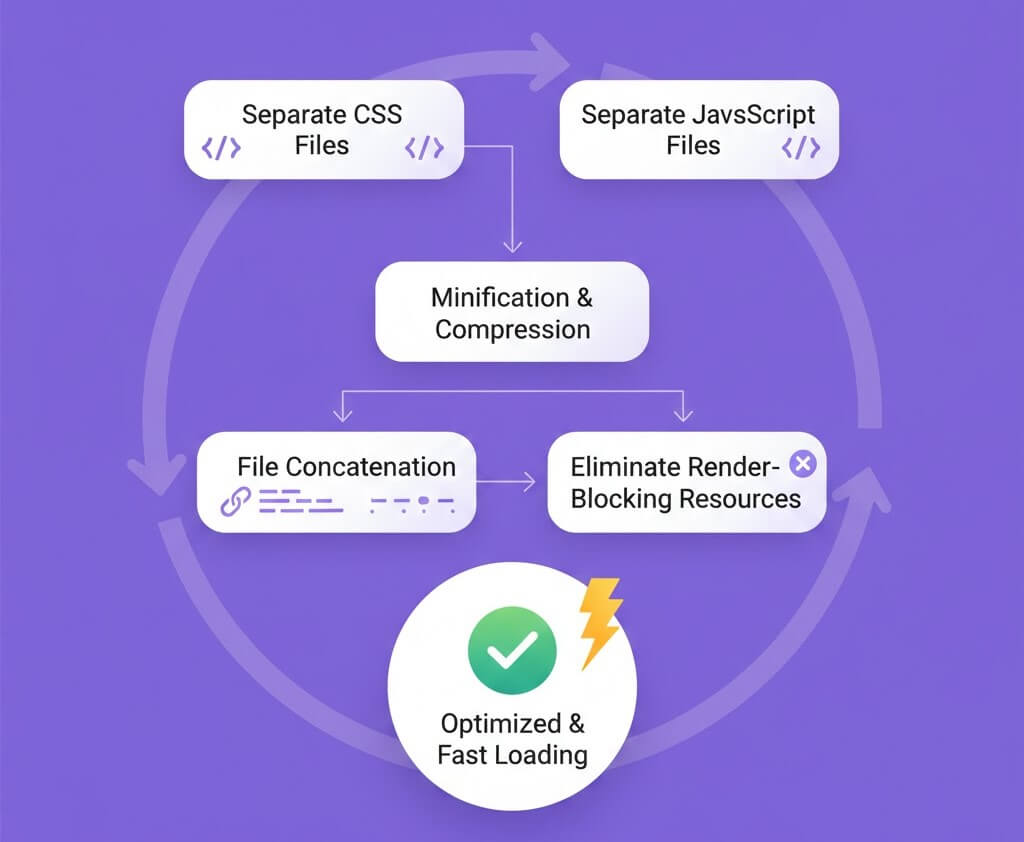
Asset optimisation must be deliberate.
Why this matters
Poorly configured optimization causes layout shifts, broken features, and a worse user experience.
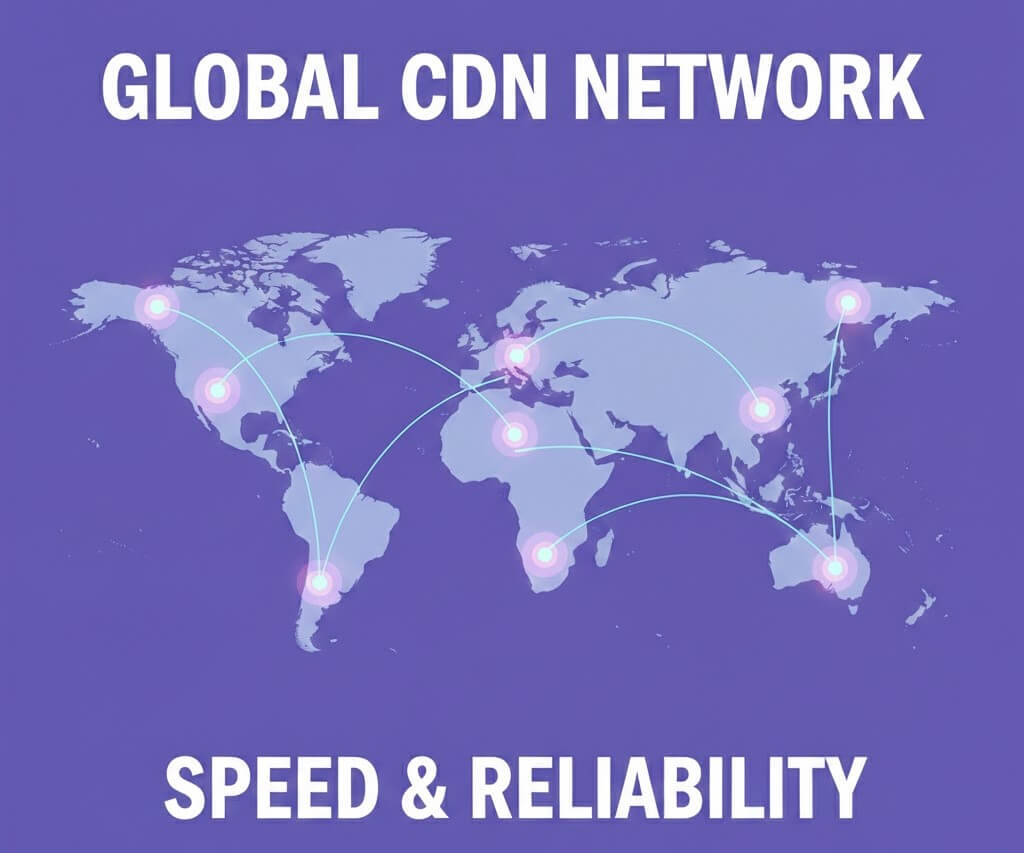
A Content Delivery Network reduces latency for global visitors.
Why this matters
Distance creates delay. CDNs bring content closer to users.
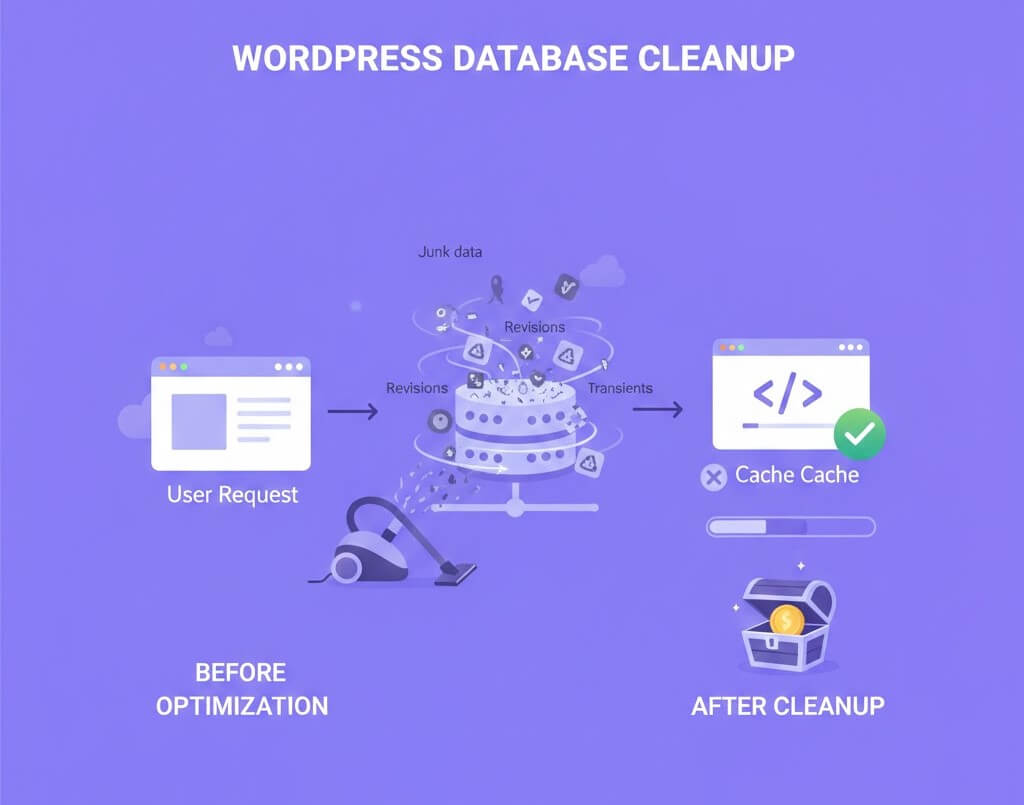
Databases accumulate clutter silently.
Why this matters
A lean database improves both front-end and admin performance. To know more about best practices to keep your wordpress website secure, you would love reading this article we wrote a while ago.
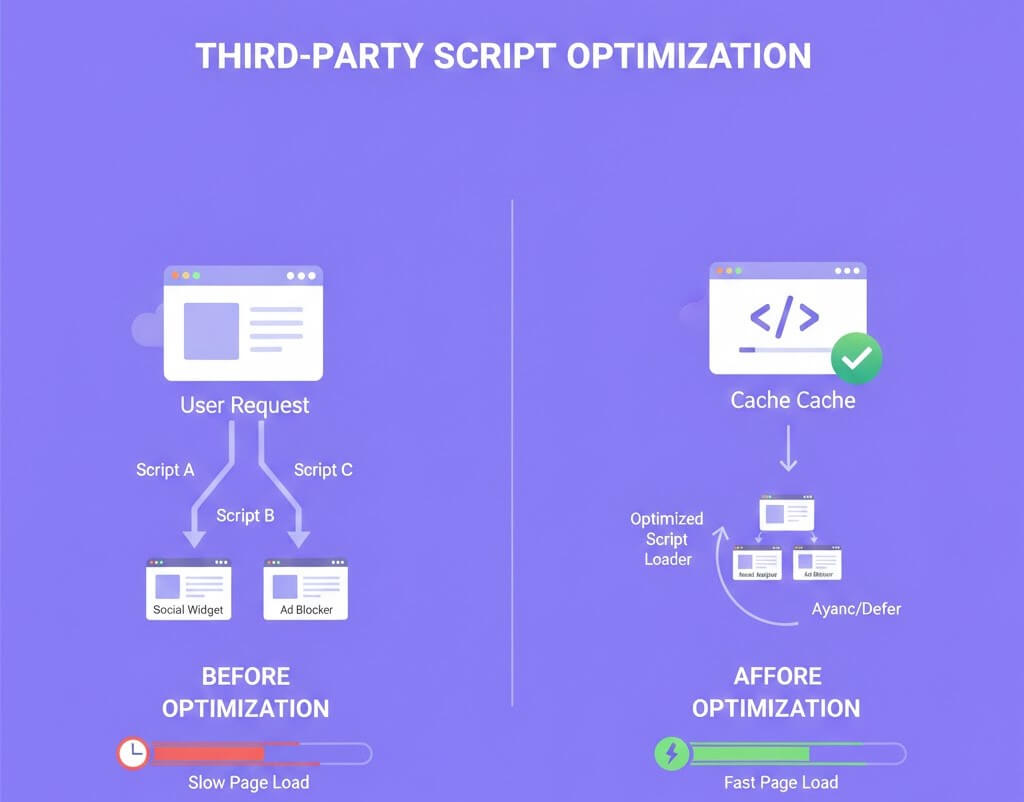
Every external script adds risk and delay.
Why this matters
Third-party requests block rendering and are outside your control.
Once fundamentals are in place, advanced strategies can deliver further gains:
These techniques require testing but scale well for competitive sites.
WordPress security remains one of the most critical concerns for website owners and agencies alike. WordPress powers a huge percentage of the internet, which also makes it a prime target for automated attacks, malware injections, and credential abuse.
While WordPress core itself is secure, most successful breaches happen due to outdated plugins, weak access controls, poor hosting environments, or overlooked areas like staging websites.
In 2026, WordPress website security is no longer about installing a plugin and hoping for the best.
Attacks are AI-driven, continuous, and often invisible. Many site owners only realise something is wrong after traffic drops, SEO spam appears, or their hosting provider suspends the site.
This guide is written for:
It focuses on WordPress security best practices that deliver real-world protection without unnecessary complexity.
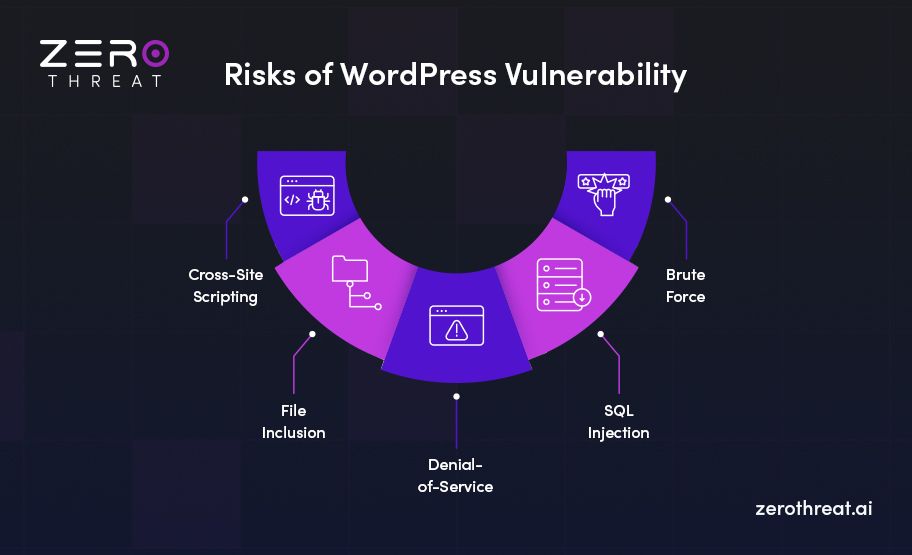
Understanding how WordPress sites get hacked helps you focus on prevention instead of damage control.
Modern WordPress attacks commonly involve:
For solo site owners, one missed update can be enough to compromise the site.
For agencies, a single vulnerable client website can damage trust and reputation.
Effective WordPress security in 2026 relies on layered protection and early detection.
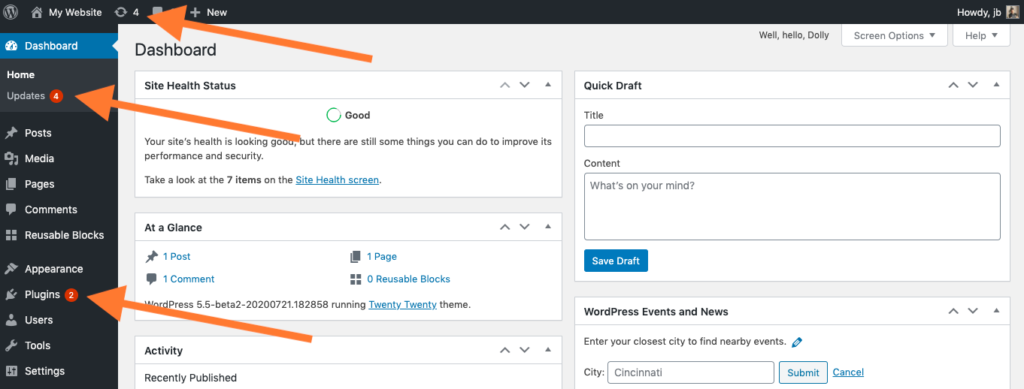
Outdated software remains the most common cause of a hacked WordPress site.
Attackers actively scan for known vulnerabilities in older versions. If your site is behind, it becomes an easy target.
Best practices:
For individuals, set a monthly maintenance reminder.
For agencies, standardise update workflows across all client sites.
Your hosting provider plays a major role in WordPress website security.
A secure host should provide:
Cheap shared hosting often lacks these protections. For agencies, poor hosting choices lead to recurring security incidents and support overhead.
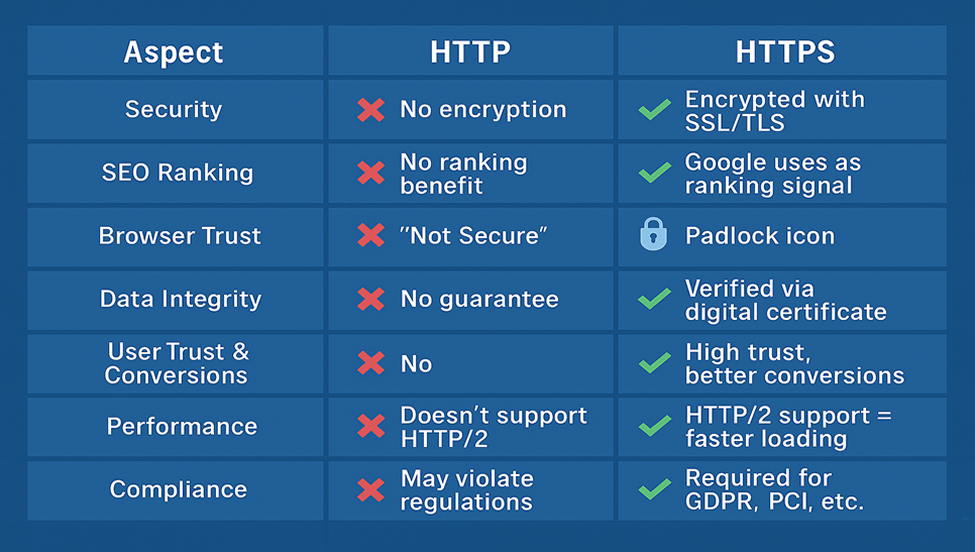
HTTPS protects:
Ensure HTTPS is enforced across your entire site, including wp-admin and wp-login. Fix mixed content issues to avoid weakening security.
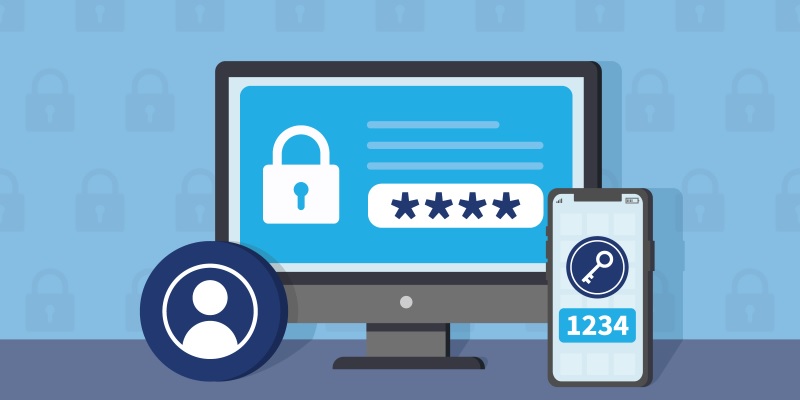
Passwords alone are no longer sufficient for WordPress security.
Modern attacks use leaked credentials from other platforms. Even strong passwords fail when reused.
What to implement:
This protects solo users from account takeover and agencies from costly client mistakes.
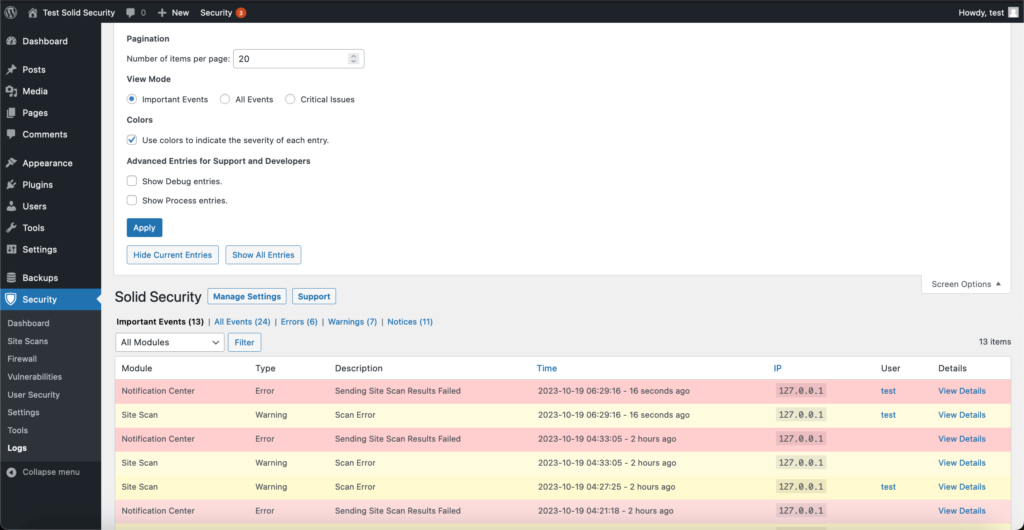
Limiting login attempts helps, but behaviour monitoring is far more effective.
Watch for:
Early detection prevents WordPress malware from spreading silently.
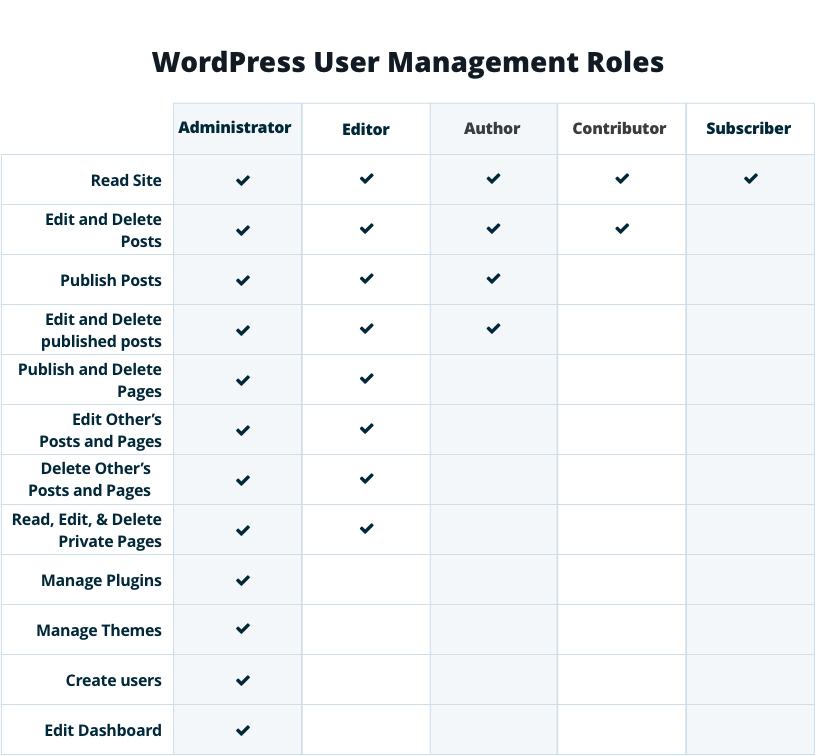
Many WordPress sites fail because everyone has admin access.
Best practices:
For agencies, this minimises risk from internal access and contractors.
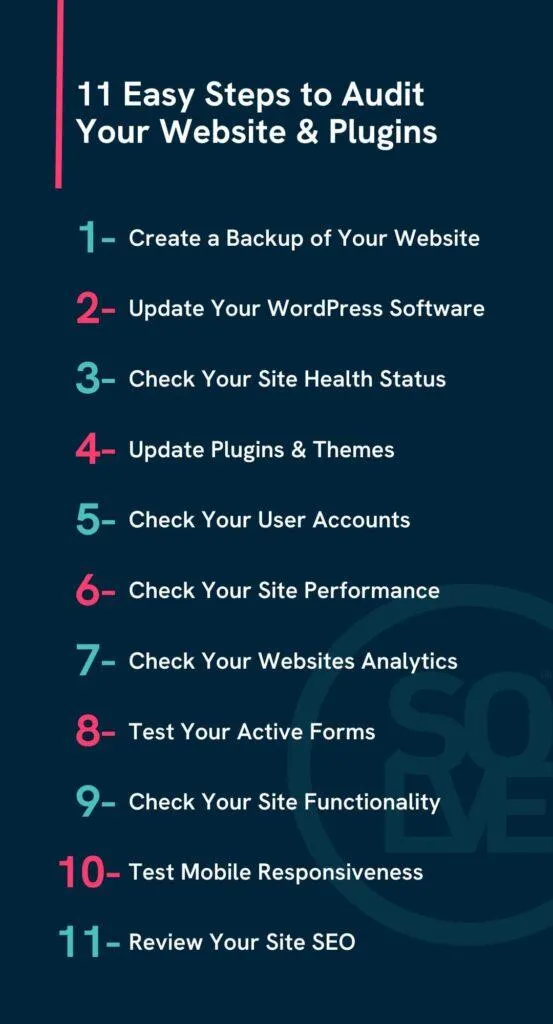
Plugins are powerful but remain the biggest WordPress security risk.
Before installing:
After installation:
Better plugins matter more than fewer plugins.
Inactive plugins and themes can still be exploited.
If you’re not using something, delete it. This includes default themes left unused.
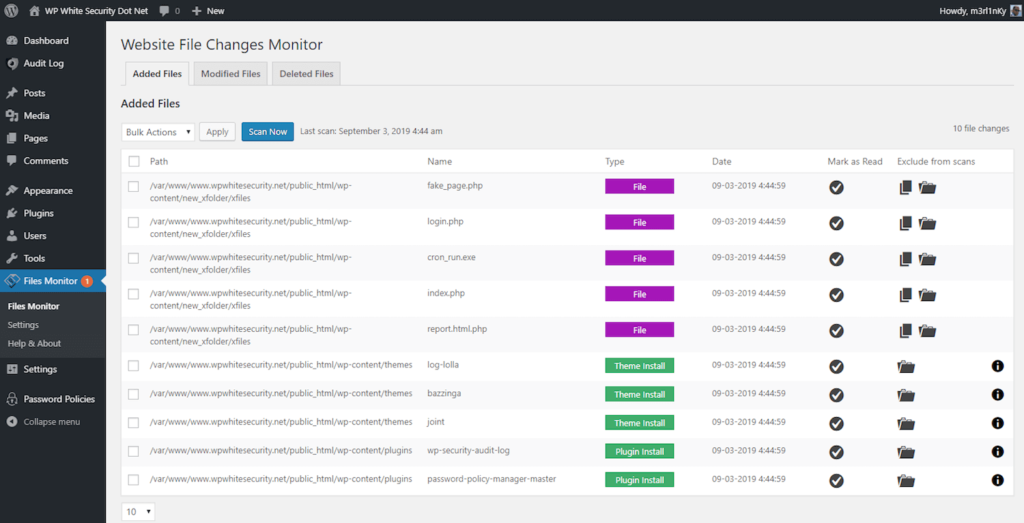
Many hacks do not cause immediate damage. Files are quietly modified over time.
File integrity monitoring helps:
Security logs should be reviewed proactively, not only after incidents.
Backups are essential, but not all backups are secure.
Your WordPress backup strategy should include:
Ransomware attacks increasingly target backups first.
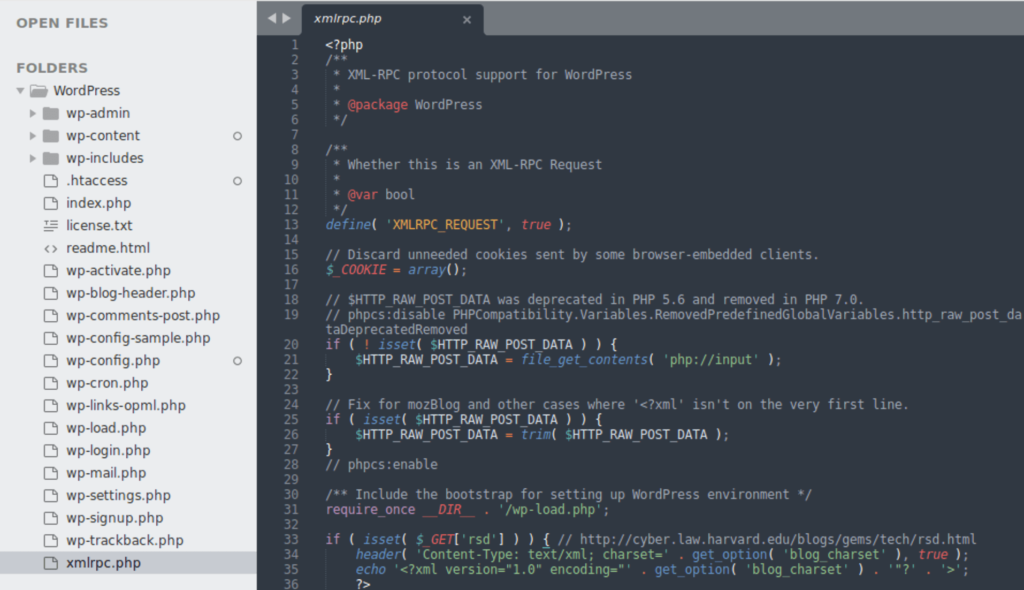
Often missed but highly effective:
These steps significantly reduce silent attack vectors.
Imagine never having to renew your website address again in your lifetime. WordPress has made this possible with its new 100-year domain registration offer.
This game-changing service lets you secure your online home for generations. No more yearly renewals or the risk of losing your domain due to forgotten expiration dates.
WordPress now offers domain registration that lasts a full century. Pay once, and your domain stays yours for the next 100 years.
The cost? $2,000 for a century of ownership—significantly cheaper than WordPress’s earlier package, which included hosting and cost nearly $38,000.
This offer applies to popular domain extensions like .com, .org, .net, and .blog. Each domain is placed in a trust account that you control, ensuring long-term ownership.
Have you ever lost a domain because you forgot to renew it? That nightmare scenario disappears with this offer.
Once registered, your domain remains yours until the 22nd century—no renewal notices, no unexpected expirations, no headaches.
Who Should Consider It?
– Families can preserve their name online for future generations. Think of it as a digital family heirloom.
– Businesses can secure their brand names permanently, eliminating the risk of competitors taking their web addresses.
– Museums, libraries, and historical organizations** can create permanent online archives that remain accessible to researchers and the public.
How It Works?
WordPress manages these century-long domains through a trust system, ensuring protection even if WordPress itself changes hands in the future.
The trust format guarantees ownership stability, giving you peace of mind no matter what happens to WordPress.com over the next 100 years.
Additionally, dedicated support is included throughout the entire registration period—so even your great-grandkids can get assistance if needed.
Owning a domain for 100 years transforms it from a rental into a long-term asset—more like real estate than a temporary lease.
Consider this: the internet is just over 30 years old. These domains will outlast the current age of the web by more than three times.
The Big Picture
As our lives become increasingly digital, securing a permanent online presence is more important than ever. WordPress recognizes this shift and is leading the way in long-term domain ownership.
This move puts WordPress ahead of competitors still tied to the traditional yearly renewal model, effectively creating a form of digital real estate that spans generations.
For those serious about their long-term online identity, this offer is worth considering.
Would you invest $2,000 to secure your digital address until the year 2125?


