




Introduction
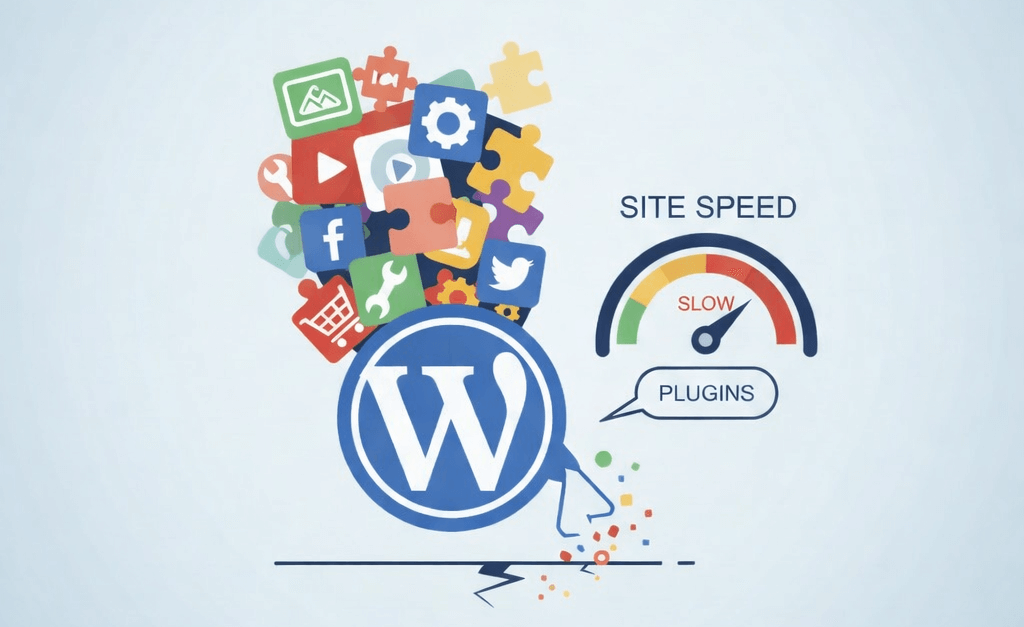
If your WordPress website feels slow, plugins are often the hidden reason. Plugins add powerful features without writing custom code, but too many—or poorly optimized—plugins can seriously hurt performance.
A slow website leads to:
- Higher bounce rates
- Poor user experience
- Lower Google rankings
In this guide, you’ll learn why WordPress plugins slow down your site and exact, practical steps to fix the problem, whether you’re a beginner or an advanced user.
How WordPress Plugins Slowing Site Performance And Speed
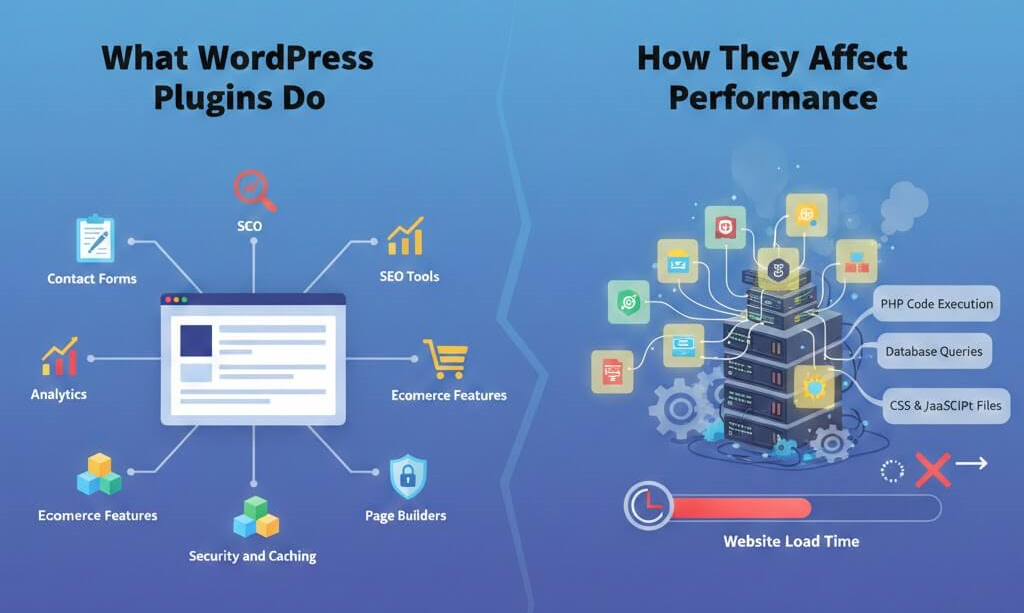
WordPress plugins extend your site’s functionality. They can add:
- Contact forms
- SEO tools
- Analytics
- E-commerce features
- Page builders
- Security and caching
Each plugin adds:
- PHP code execution
- Database queries
- CSS and JavaScript files
When multiple plugins load on every page, your server and browser must work harder, increasing load time.
Why Plugins Cause WordPress Site Slowdowns?
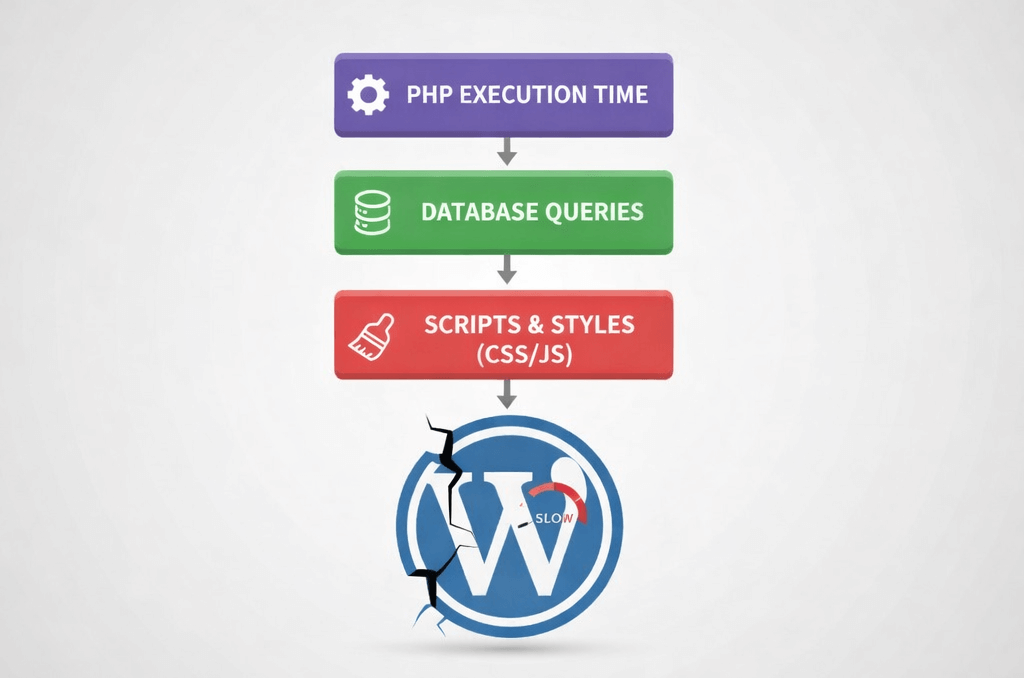
1. Extra PHP Processing
Every active plugin runs PHP code during page load. More plugins = more processing time, especially on shared hosting.
2. Excessive Database Queries
Some plugins make multiple database requests per page. This slows down response time and increases server load.
3. CSS and JavaScript Bloat
Many plugins load scripts and styles on every page—even when they’re not needed. This causes:
- Larger page size
- More HTTP requests
- Render-blocking resources
4. Plugin Conflicts
Plugins may load duplicate libraries or conflict with each other, leading to inefficient execution and errors.
5. Outdated or Poorly Coded Plugins
Plugins that aren’t maintained often ignore modern performance standards, making your site slower over time.
How to Diagnose Plugin Performance Issues?
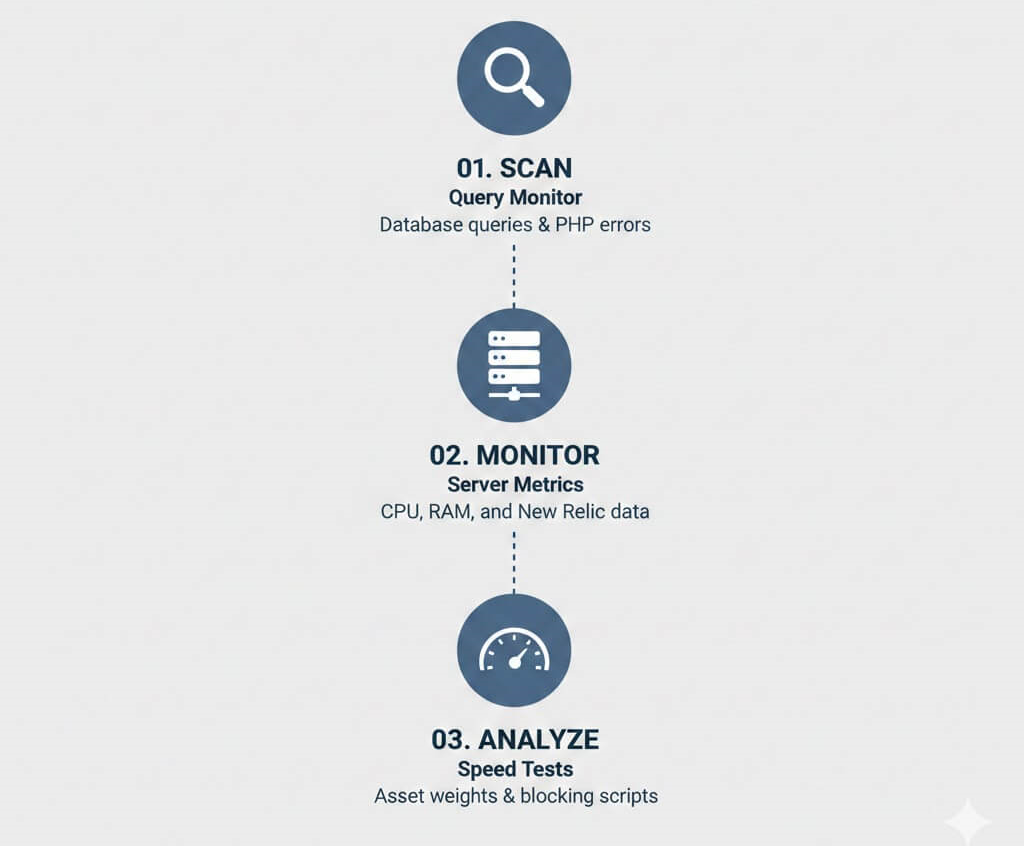
1. Use Query Monitor
Query Monitor shows:
- Slow database queries
- PHP errors
- Plugins causing performance bottlenecks
2. Server-Level Monitoring
Tools like New Relic reveal CPU, memory, and slow functions per plugin.
3. Run Speed Tests
Use GTmetrix, Google PageSpeed Insights, or WebPageTest to identify:
- Heavy assets
- Blocking scripts
- Plugin-generated files
Practical Fixes to Speed Up Your WordPress Site
1. Remove Unnecessary Plugins
Ask yourself:
- Is this plugin essential?
- Do I actually use its features?
Deactivate and delete unused plugins. Fewer plugins mean faster load times.
2. Replace Heavy Plugins with Lightweight Alternatives
Examples:
- Use the WordPress block editor instead of heavy page builders
- Replace complex sliders with optimized image galleries
3. Load Plugins Only Where Needed
Load plugin assets only on required pages:
- Contact form scripts only on form pages
- Avoid global loading
Tools like Asset Cleanup or Perfmatters help with conditional loading.
4. Optimize Your Database
Clean up:
- Post revisions
- Transients
- Orphaned plugin tables
5. Combine and Defer Scripts
Minify and defer non-critical CSS and JavaScript to improve page rendering speed.
6. Enable Caching
Caching plugins serve static pages instead of running PHP on every request, dramatically improving speed.
Advanced Optimisation Strategies
1. Object Caching
Use Redis or Memcached to cache database queries for high-traffic sites.
2. Use a Content Delivery Network (CDN)
A CDN serves plugin assets from global locations, reducing latency.
3. Custom Development Over Plugins
For unique features, custom lightweight code often performs better than generic plugins.
4. Monitor Performance Regularly
Track performance after every plugin installation or update.
To learn a more comprehensive way to optimise your website, we have written a dedicated article focusing on it. You can read it here.
WordPress Plugin Performance Checklist
- Keep only the plugins you truly need. Deactivate and delete anything that does not directly support your site’s goals.
- Replace heavy plugins with lighter alternatives that do the same job using fewer resources.
- Load scripts only where they are needed instead of site-wide to reduce unnecessary load.
- Optimise your database once a month to remove clutter and improve performance.
- Enable caching to reduce server load and speed up page delivery.
- Set up a CDN so your content loads faster for visitors in different locations.
- Run a PageSpeed Insights test monthly to track performance and catch new issues early.
Frequently Asked Questions
1. What are the most common reasons WordPress plugins slow down a website?
WordPress plugins have been known to slow down a site due to excess HTTP requests, heavy database queries, conflicting functionalities, code bloat, some redundant plugins, poor coding, and old versions. These issues strain the server since they take loads of time to load.
2. How often should WordPress plugins be updated to maintain site speed?
The main purpose of keeping WordPress plugins up-to-date is the application of performance enhancements, bug fixes, and security patches. The update of plugins reduces possible vulnerabilities and ensures that the plugins will continue working successfully.
But in order not to cause any conflicts affecting its performance, it’s extremely important to have backups and test updates within a staging environment.
3. Can too many plugins create a security risk for a WordPress site?
Yes, the more you install, the more security risks will be associated with those poorly coded or outdated plugins. The attackers basically use the vulnerabilities within the plugins as a weapon. Thus, to ensure that there is no security breach, audits and updates should always be done regularly and using trusted plugins.
4. What should be done if plugin conflicts are encountered on a WordPress site?
If you experience conflicts with plugins, it’s a good policy to disable all the plugins and gradually enable them one at a time so you can trace out which one creates the conflict. Once identified, check whether there’s an update available or replace it with another for the purpose of the resolution.
5. Is it possible to improve a WordPress site’s speed without removing plugins?
Indeed, site speed can be improved by optimizing the setting up of the plugins, implementing caching techniques, and reducing the size of CSS/JS files among others. Additionally, implementing lazy loading, optimizing the database, and utilizing a Content Delivery Network (CDN) can enhance performance without the need to remove plugins.
6. How can it be determined if a plugin is causing a WordPress site to run slow?
Performance profiling tools, such as Query Monitor or P3 Plugin Performance Profiler, can scan resource usage by plugins. Such a monitoring tool would point out which of the plugins are the most resource-intensive and thus which could be slowing down the site.
Conclusion
WordPress plugins add power, but too many or poorly optimized ones can slow your site. By keeping only what you need, optimizing asset loading, and using caching, you can boost speed, improve user experience, and strengthen SEO—making your site faster, smarter, and more reliable.