




Over 90,000 WordPress sites are attacked every single day. If your site is not running a deliberate wordpress security strategy, you are already behind the curve.
This guide gives you a practical, step-by-step framework to lock down your site before attackers find their way in. From hardening your login page to running a wordpress vulnerability scanner, every action here is specific and ready to implement today.
No scare tactics, no vague tips — just a clear sequence of moves that separates secured sites from the ones quietly waiting to be compromised
Step 1: Harden Your Login Page
The login page is the most targeted entry point on any WordPress site. Brute-force bots hammer it constantly, trying thousands of username and password combinations per minute – and they are not picky about which site they hit.
Add these three things to your login page:
- Limit Login Attempts: Stops brute-force attacks by limiting failed login attempts and temporarily blocking suspended IP addresses.
- Enable Two-Factor Authentication: Double your defenses so a stolen password alone can’t compromise your security.
- Rename the default admin username from “admin” to something unique. This simple change will limit automated login attacks.
Restrict /wp-admin Access by IP
If your IP address is static or rarely changes, block every other IP from accessing /wp-admin using your .htaccess file or hosting control panel. It takes ten minutes and cuts a significant volume of automated attack traffic immediately.
| Quick Check: Try logging into your WordPress site right now using “admin” as the username. If the username field accepts it without an error, that account exists and needs to be renamed or deleted before you do anything else. |
Step 2: Keep Everything Updated
Outdated website is the number one cause of WordPress breaches. Most attacks do not rely on sophisticated zero-days – they exploit well-documented vulnerabilities in plugins and themes that site owners simply never patched.
Enable auto-updates for minor WordPress core releases. For major version upgrades, test on a staging environment first to avoid breaking anything in production.
Delete every plugin and theme you aren’t actively using. If it’s sitting idle on your server, it’s still a target for hackers.
| Developer Tip: Run the WP-CLI command wp plugin list –status=inactive to instantly see which idle plugins are cluttering your server and exposing you to risk. |
Step 3: Scan your WordPress site for vulnerabilities
A vulnerability scanner checks your site against databases of known security weaknesses. Running one consistently is the difference between catching a problem early and dealing with a full breach after the fact.
Below are best plugins for this task:
- Wordfence Security: built-in scanner that checks your core files, plugins, and themes against a real-time threat intelligence database. Excellent for non-technical users.
- WPScan: a command-line tool that pulls from a dedicated wordpress security vulnerability database. Preferred by developers who want deeper, scriptable scans.
- Sucuri SiteCheck: a free online tool that lets you scan wordpress site for malware, check blacklist status across major security authorities, and flag outdated software.
Set up a full weekly scan to catch malware early. Prioritize server-side tools (especially on shared hosting), as basic front-end scans can’t detect threats hidden deep in your file system.
Step 4: Monitor for Malware Before It Becomes a Crisis
Reactive wordpress malware removal is expensive, stressful, and damaging to SEO. Google actively blacklists sites serving malware, which means lost traffic and lost trust land on top of the clean-up bill.
Set up automated monitoring so you know about problems before your visitors do:
- MalCare: Runs daily automated scans and sends instant email alerts when something suspicious is detected
- iThemes Security Pro: Scheduled scanning combined with real-time file change detection
- Sucuri: Continuous monitoring with a professional wordpress malware removal team on call when incidents escalate
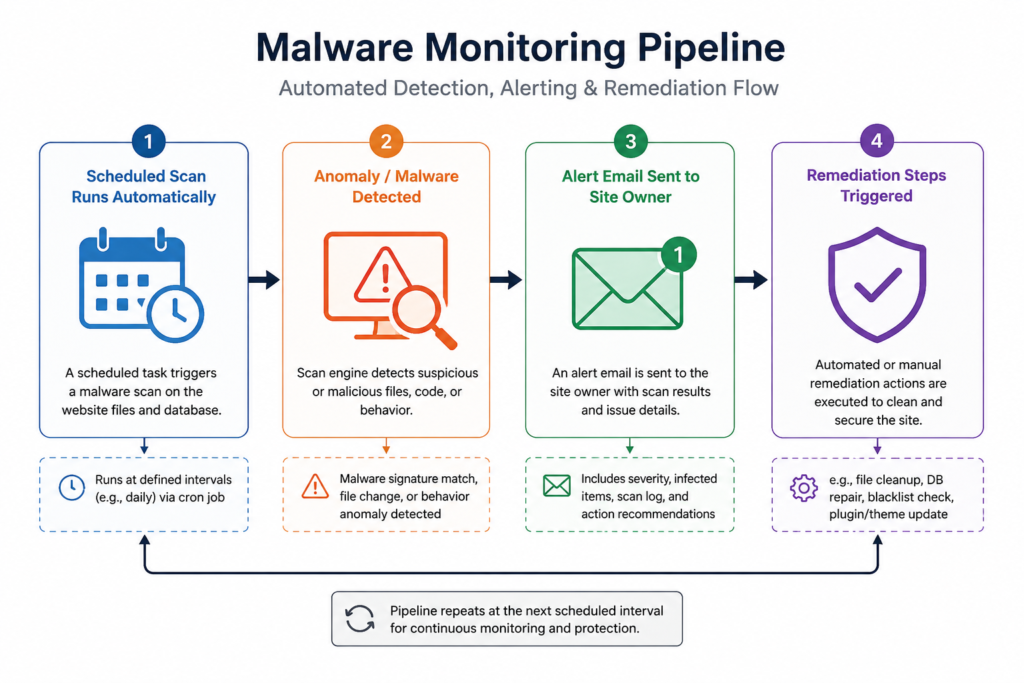
Don’t forget to configure email alerts from whichever plugins or tools you choose. Monitoring that runs silently and never reports anything is not a security tool — it is a false sense of security.
Step 5: Lock Down File Permissions and Disable File Editing
Secure Your File Permissions: Incorrect permissions are an easy-to-miss loophole. When settings are wrong, unauthorized users can read, change, or run files they shouldn’t be able to touch.
Lock down your server using these standard settings:
- Folders: 755
- Files: 644
- wp-config.php: 440 or 400 (your most sensitive file)
Also disable the built-in WordPress theme and plugin file editor. If an attacker gains admin access, that editor lets them inject malicious code directly into your live site. Add this single line to wp-config.php:
define('DISALLOW_FILE_EDIT', true);Important: Add this code directly to your wp-config.php file, not through a plugin. If a plugin handles this and gets deactivated—either by accident or by a hacker—the editor will instantly open right back up. |
Step 6: Add a Web Application Firewall (WAF)
A Web application firewall sits between your site and incoming traffic, filtering out malicious requests before WordPress ever processes them. Think of it as a bodyguard who checks credentials at the door rather than after someone has already walked into the venue.
Recommend Firewall options:
- Cloudflare: Offers a great free tier with strong DDoS protection and bot filtering—making it an excellent first layer of defense for any website.
- Sucuri WAF: Built specifically for WordPress. Its “virtual patching” protects your site from known security flaws, even if you haven’t installed the official plugin updates yet.
- Wordfence: The most beginner-friendly option on the list, combining a powerful firewall and a WordPress vulnerability scanner into a single plugin.
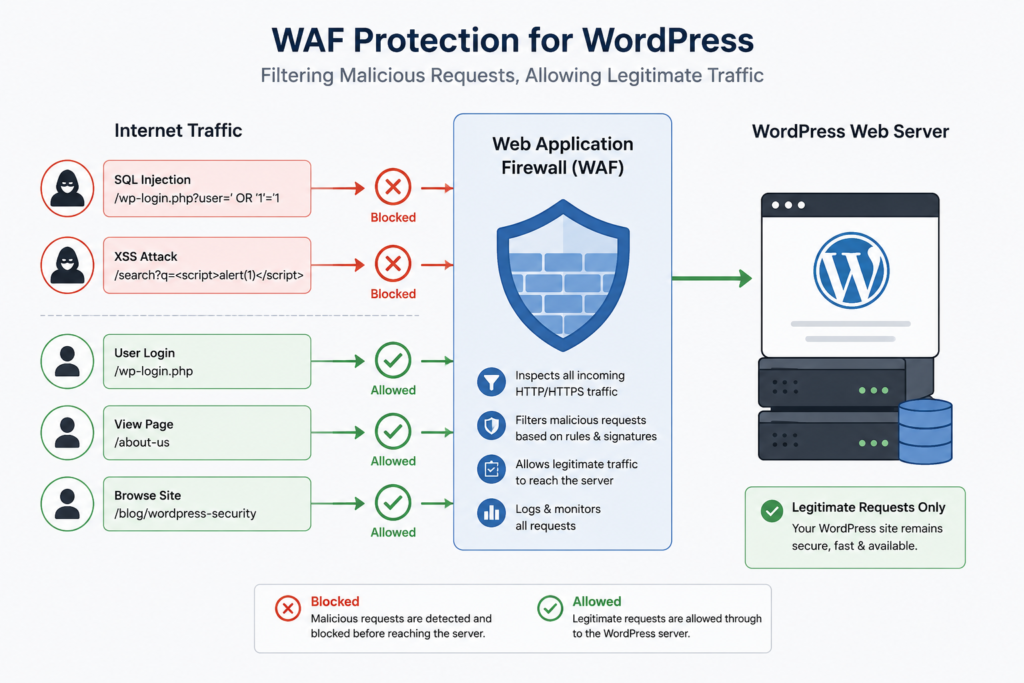
A WAF paired with consistent wordpress security scanning covers the vast majority of common attack vectors. For sites handling user data, payments, or personal information, this combination is not optional.
When Should You Call in a Professional?
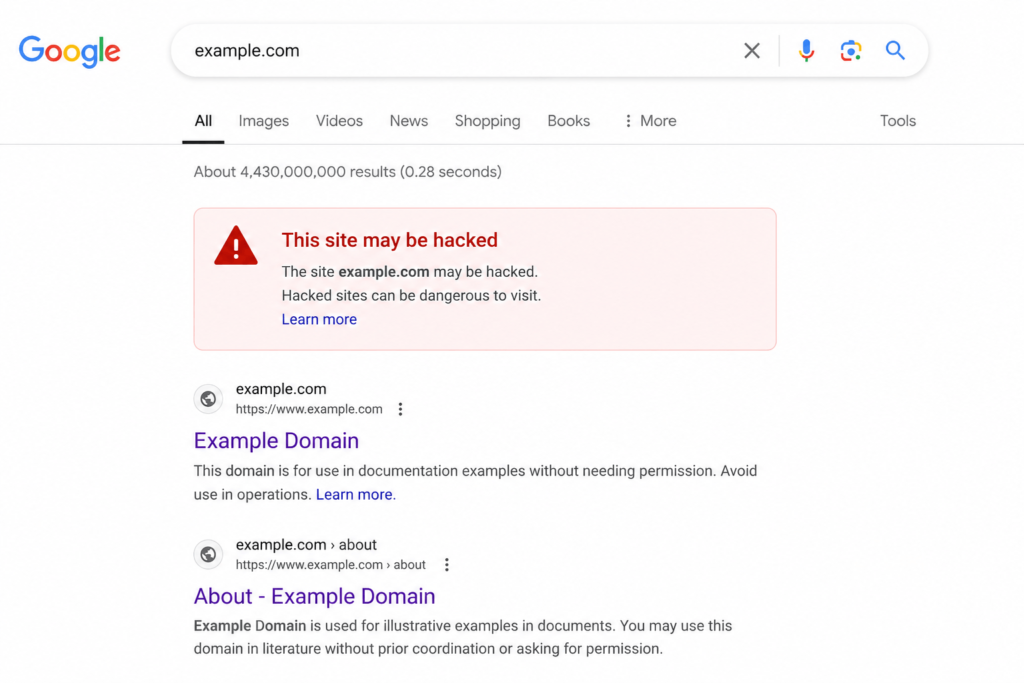
Managing wordpress security in-house is absolutely doable with the right toolset. But if your site is already showing signs of compromise – unexpected redirects, unknown admin accounts, or a Google warning “site may be hacked”, professional help is worth every cent.
The same applies if you simply do not have the bandwidth to stay on top of updates, scans, and monitoring every single week.
Letting these habits slip is precisely how sites get into serious trouble.
| Need Professional Help? Codecaste offers expert WordPress security audits, ongoing monitoring, and professional malware removal. If you would rather leave the heavy lifting to a dedicated team, get in touch with our experts now |
Frequently Asked Questions
1. How do I know if my WordPress site has been hacked?
Common signs include unexpected redirects, unfamiliar admin accounts, sudden drops in search traffic, or Google flagging your site in search results. The quickest way to confirm is to scan wordpress site for malware using Sucuri SiteCheck which gives you results in under a minute.
2. How often should I scan my WordPress site for malware?
At minimum, once a week. If your site processes transactions, stores user data, or handles sensitive information, daily automated scans are a better baseline. Most dedicated security plugins make scheduling these scans straightforward, so there is no reason to skip them.
3. What is the best WordPress vulnerability scanner?
Wordfence and WPScan are the most widely used. Wordfence suits non-technical users with its dashboard-driven interface; WPScan is better for developers who prefer command-line tools and want to integrate scanning into automated pipelines. Both pull from reputable, continuously updated vulnerability databases.
4. Can I do WordPress malware removal myself?
Minor infections can sometimes be cleaned manually by comparing your files against a fresh WordPress installation and removing injected code. However, complex infections — particularly those involving backdoors — should be handled by a professional. Missing even a single backdoor means the attacker can regain access immediately. Professional wordpress malware removal services are thorough where manual clean-up often is not.
5. Does keeping WordPress updated actually prevent hacks?
Yes, consistently. A significant share of WordPress breaches exploit vulnerabilities in plugins and themes that already had patches available — patches the site owner never installed. Staying current is the single highest-return wordpress security habit you can build, and it costs nothing beyond a few minutes of maintenance time.
The Bottom Line
- Harden your login page and restrict admin access. This takes under an hour and immediately cuts exposure to a large class of automated attacks.
- Run a scan on your WordPress website at least weekly. Catching a weakness before an attacker does is the entire game.
- Set up automated monitoring so wordpress malware stays out of your emergency budget. Prevention is always cheaper than remediation.
- Keep everything updated and add a WAF. These two habits alone neutralise the vast majority of common wordpress security issues
A secure WordPress site is not a one-time setup – it is an ongoing set of habits, and the tools to build those habits have never been more accessible or affordable.
Need Professional Help?
Codecaste offers expert WordPress security audits, ongoing monitoring, and professional malware removal. If you would rather leave the heavy lifting to a dedicated team, get in touch with our team now