






A one-second delay in page load time reduces conversions by 7%. If your site is dragging, that is not a tech problem – it is a revenue problem. Getting serious about wordpress speed optimization is one of the highest-ROI things you can do for your website in 2026.
This guide covers every practical lever you can pull to improve wordpress speed optimization, including hosting, themes, caching, images, and Core Web Vitals.
Step 1: Start With the Right Hosting
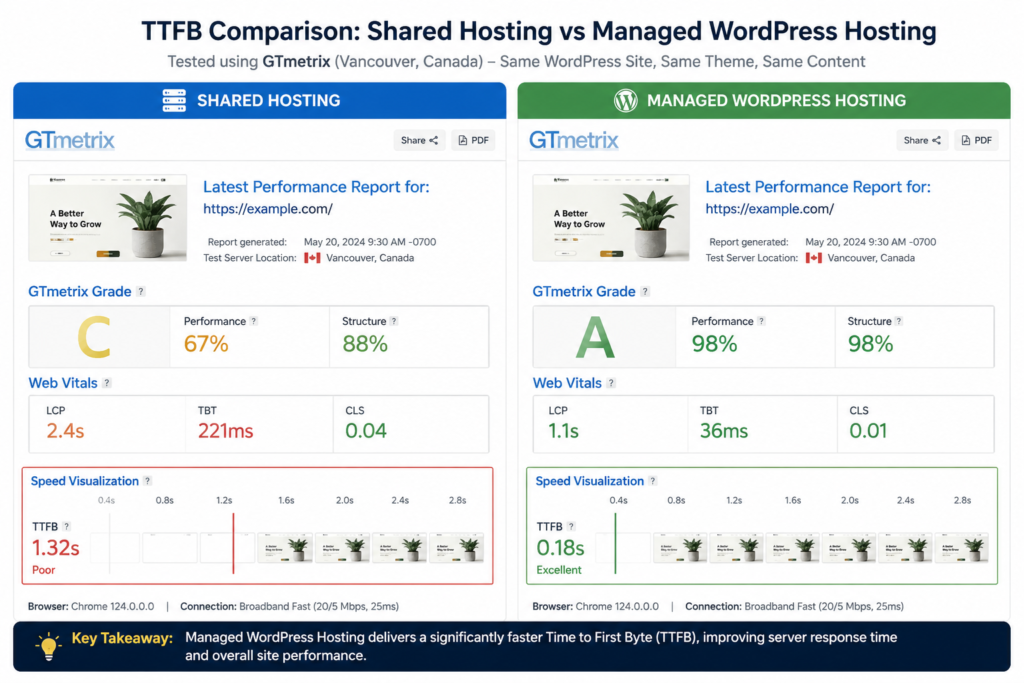
Bad hosting is the single biggest reason WordPress sites crawl. Shared hosting puts your site on a server with hundreds of others. When your neighbours get busy, your performance tanks.
For proper wordpress optimization, switch to managed WordPress hosting. Providers like Kinsta, WP Engine, and Cloudways are built specifically for WordPress and offer server-level caching, PHP 8.2+, and CDN integration by default.
What to look for in a host:
- PHP 8.1 or higher (required for modern WordPress performance)
- Built-in server caching – not just a plugin, but a server-level cache layer
- A CDN (Content Delivery Network) to serve static assets from locations close to your visitors
- NVMe or SSD storage for faster read/write speeds
Step 2: Choose a Lightweight Theme for WordPress Speed Optimization
Your theme is loaded on every single page request. A bloated theme with dozens of bundled scripts and stylesheets adds seconds to your load time before you have added a single plugin.
Stick with performance-focused themes like GeneratePress, Kadence, or Blocksy. They ship lean and let you add functionality only where you actually need it.
| Quick Check Run your site through GTmetrix or PageSpeed Insights. If your theme is loading 20+ scripts and stylesheets, that is a red flag. A well-optimised theme should load fewer than 10 assets on a clean install. |
Step 3: Install a Caching Plugin for WordPress Speed Optimization
Caching saves a pre-built version of your pages so WordPress does not rebuild them from scratch on every visit. This one change alone can cut load times by 50% or more.
Top caching options for speed optimization:
- WP Rocket (paid) – easiest to configure; handles page cache, browser cache, and preloading out of the box
- LiteSpeed Cache (free) – best option if your host runs LiteSpeed servers
- W3 Total Cache (free) – powerful but requires more setup time
WP Rocket is worth the annual fee if you are not technical. You install it, run through the setup wizard, and you are done in 15 minutes.
Step 4: Optimise Images Before They Go Live
Images are typically the heaviest assets on any page. Uploading a 4MB hero image and expecting WordPress to handle the rest is how you end up with a 10-second load time.
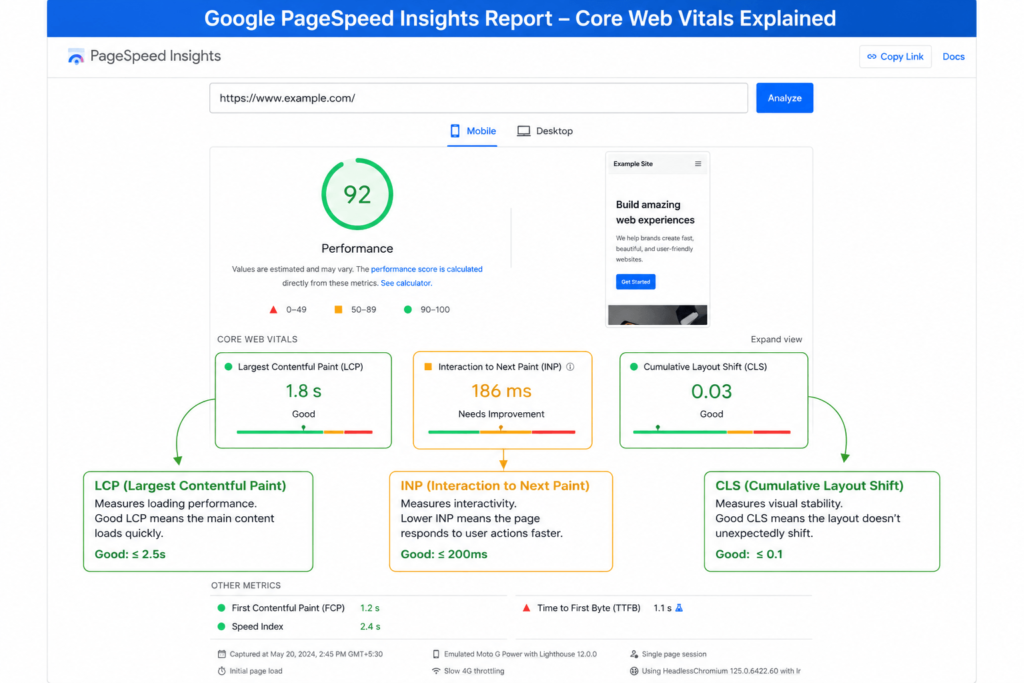
LCP (Largest Contentful Paint)
How fast the biggest visible element on screen loads. Aim for under 2.5 seconds. The most common culprit for a poor LCP is a large, unoptimised hero image.
CLS (Cumulative Layout Shift)
How much your page visually jumps around as it loads. Keep CLS below 0.1 by setting explicit width and height attributes on all images and embed elements.
INP (Interaction to Next Paint)
How quickly your site responds to a user clicking, tapping, or typing. Heavy JavaScript and too many third-party scripts are the usual offenders. Trim them.
| Developer Tip Never lazy-load your LCP image. The LCP element needs to load as fast as possible, so lazy loading it directly hurts your core web vitals score. Use the fetchpriority=”high” attribute on your hero image instead. |
Step 6: Minify CSS, JS, and HTML
Every script and stylesheet your site loads adds an HTTP request and file weight. Minification strips out unnecessary whitespace, comments, and characters to make those files smaller and faster to transfer.
Most caching plugins handle this built-in. WP Rocket and LiteSpeed Cache both include minification settings. For standalone control, Autoptimize is a free plugin that handles CSS and JS minification independently.
| Important Always test your site after enabling minification. Some themes and plugins break when their scripts are combined or minified. Enable one setting at a time and check your site immediately after each change before moving on. |
Step 7: Professional Help for WordPress Speed Optimization
Sometimes wordpress speed optimization is not a plugin problem. If you have done the basics and the site is still slow, the issue is likely deeper: unoptimised database queries, render-blocking scripts from a custom build, or a poorly coded plugin dragging everything down.
Signs you need a developer rather than another plugin:
- Your PageSpeed score is below 40 after enabling caching and image optimisation
- Your TTFB (Time to First Byte) is above 800ms even on a good host
- Scripts from custom or third-party code are flagged as render-blocking
| Need a faster WordPress site without the guesswork? The team at CodeCaste audits and optimises WordPress sites for peak performance. We identify exactly what is slowing you down and fix it – no generic advice, no guessing. Get in touch here: https://www.codecaste.com/contact-us |
Frequently Asked Questions
1. How do I check my WordPress site speed?
Use Google PageSpeed Insights, GTmetrix, or Pingdom Tools – all free. Run tests from multiple locations to get an accurate baseline. PageSpeed Insights also shows your core web vitals scores directly.
2. What is a good page load time for a WordPress site?
Aim for under 3 seconds for standard pages and under 2 seconds for landing pages or product pages. Under 1 second is excellent and achievable on a well-configured managed host with proper speed optimization in place.
3. Do WordPress plugins slow down my site?
Yes, particularly plugins that load scripts and stylesheets on every page whether they are needed or not. Audit your plugin list regularly and remove anything you are not actively using. The Contact Form 7 and WooCommerce review sliders are common offenders.
4. Does hosting affect Core Web Vitals scores?
Absolutely. Server response time, called TTFB (Time to First Byte), directly affects your LCP score, which is one of the three core web vitals metrics. Good hosting is the foundation; no amount of plugin tweaking fully compensates for a slow server.
5. Is WP Rocket worth buying for WordPress optimization?
For most non-technical site owners, yes. It handles caching, minification, image lazy loading, and CDN integration in one well-supported plugin. The time saved in setup and troubleshooting justifies the annual cost for the majority of WordPress sites.
The Bottom Line
Here are the four things to take away from this guide:
- Start at infrastructure level – fix your hosting and theme before touching plugins. Poor hosting is the root cause of most wordpress speed optimization problems.
- Caching and image optimisation deliver the biggest speed improvements in the least time. Do these first for immediate gains.
- Core web vitals are not just a metric exercise – they are a direct Google ranking signal. A 10-point improvement in LCP can move the needle on organic traffic.
- If you have done the basics and are still stuck, invest in a professional audit rather than keep experimenting. Speed problems with unknown causes rarely fix themselves.
Successful wordpress speed optimization is not just a technical improvement – it is a competitive business advantage.
Want us to handle this for you?
CodeCaste specialises in WordPress performance optimisation. We audit your site, identify exactly what is holding back your scores, and implement the fixes – so you can focus on running your business.
Contact us today: https://www.codecaste.com/contact-us