




Right now, while you’re reading this, automated bots are scanning WordPress sites for outdated plugins, weak login pages, and misconfigured file permissions. Yours included!
That’s not paranoia, it’s just how the internet works when you’re the most popular CMS on the planet.
WordPress runs 43% of the web, and that scale makes it a permanent fixture on every attacker’s checklist. Not because WordPress is broken, but because math favours the attacker when there are half a billion sites to sweep through.
That’s exactly what WordPress security plugins are designed to do. This article cuts through the marketing noise, shows you what these tools actually protect against, and helps you pick the one that fits your site without turning into a full-time sysadmin.
| Important Note: No security plugin is a magic shield. Plugins significantly reduce your risk, but they work best as part of a broader strategy: keeping WordPress core and plugins updated, using strong passwords, and hosting with a reputable provider. Think of a security plugin as your best line of defence, not your only one. |
Why Most WordPress Sites Get Hacked?
Before you can pick the right tool, it helps to understand what you’re actually protecting against. Most WordPress hacks don’t involve some shadowy figure typing furiously in a dark room. They’re automated, opportunistic, and fast.
The Most Common Attack Vectors
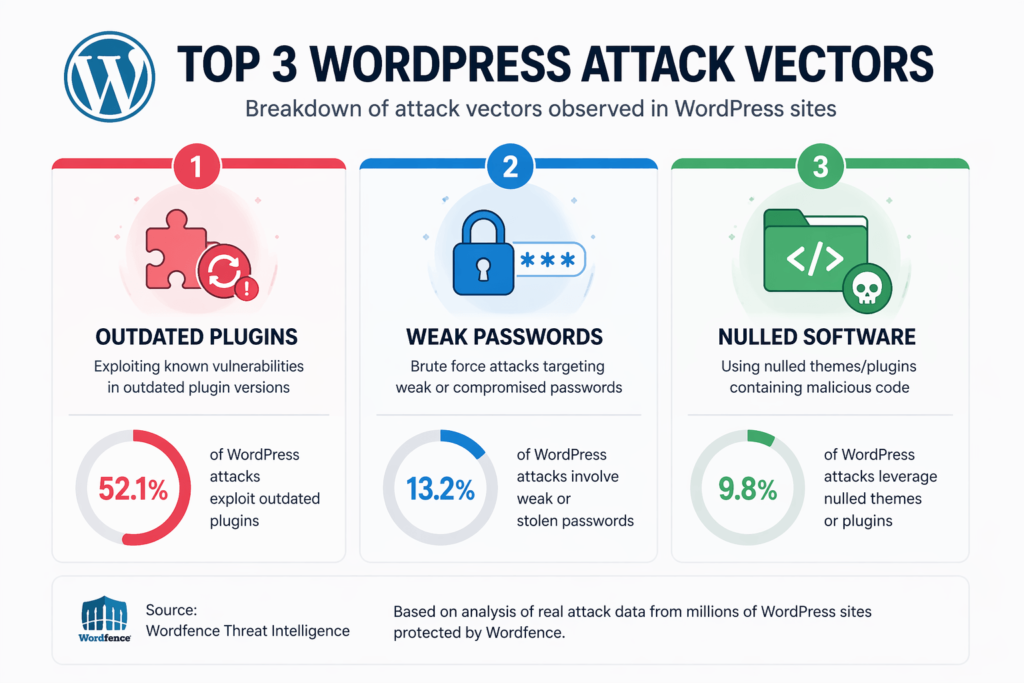
Attackers typically exploit one of three things:
- Outdated plugins and themes — Vulnerable code in plugins or themes is by far the most common entry point. A 2023 Patchstack report found that 97% of WordPress security vulnerabilities came from plugins, not WordPress core itself.
- Weak or reused passwords — Brute force attacks run automated login attempts around the clock. If your password is “admin123”, you might as well leave a key under the mat.
- Nulled themes and plugins — Free versions of premium software downloaded from shady sites. These almost always come pre-loaded with malware. A bargain that will cost you dearly.
Understanding these attack patterns matters because the best WordPress protection plugins are built to address all three of them: patching known vulnerabilities, limiting login attempts, and scanning for malicious code.
What Good WordPress Security Tools Actually Do?
Not all WordPress security tools are built the same. Some are genuinely comprehensive. Others are basically a checklist app with a “scan now” button that gives you false confidence.
Here’s what the legitimate tools cover, and what each feature actually means in plain English:
1. Web Application Firewall (WAF)
A WordPress firewall plugin sits between your site and incoming traffic. It inspects requests in real time and blocks anything that looks malicious — SQL injection attempts, cross-site scripting (XSS), and known exploit patterns.
There are two types: endpoint firewalls (which run on your server) and DNS-level firewalls (which intercept traffic before it even reaches your server). DNS-level is generally more powerful but costs more.
2. Malware Scanning
A malware scanner checks your WordPress files against known clean versions and flags anything that’s been modified or injected. Good WordPress malware protection tools scan on a schedule, not just when you remember to click the button.
3. Login Protection
This includes two-factor authentication (2FA), CAPTCHA on the login page, and limits on failed login attempts. Brute force attacks are easy to block if you have the right settings in place. Without them, attackers can try thousands of passwords per minute.
4. Hardening and Vulnerability Detection
Good WordPress vulnerability protection tools audit your configuration: are file permissions set correctly? Is XML-RPC exposed? Is your wp-config.php accessible? These are the kinds of things that don’t require a hack to be a problem — they just need to be fixed.
| Developer Tip: XML-RPC is a WordPress feature that’s frequently exploited for brute force attacks and DDoS amplification. Unless you’re specifically using it for something (like the Jetpack plugin or the WordPress mobile app), disable it. Most modern security plugins can do this in one click. |
The Top WordPress Security Plugins Compared
Let’s get into the actual comparison.
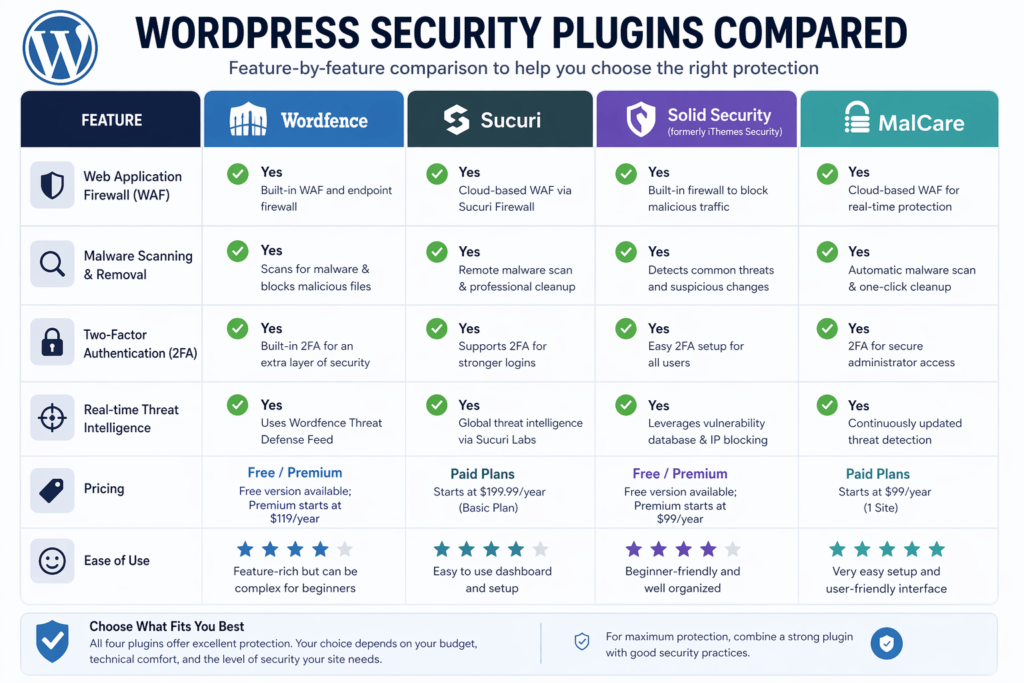
These are the most widely used options, each with a different approach and a different price point.
Wordfence Security
Best for: Sites that want robust free-tier protection with detailed attack data
Wordfence is the most installed WordPress security plugin in existence, with over 5 million active installs. The free version includes an endpoint firewall, malware scanner, login security, and real-time traffic monitoring. That’s a lot for free.
The scanner compares your files against the WordPress.org repository to detect modifications. The firewall uses a rules database that’s updated in real time for premium users (free users get the rules with a 30-day delay — which is worth knowing).
- Strengths: Detailed attack logs, live traffic view, two-factor authentication, excellent documentation
- Weaknesses: Can slow down shared hosting environments; firewall runs at plugin level, not DNS level
- Free / Premium: Free plan available; premium from $99/year per site
Sucuri Security
Best for: Sites that need a DNS-level firewall and professional clean-up services
Sucuri operates differently. Its free WordPress plugin that handles monitoring and hardening, but the real power comes from the paid Website Firewall, which is a DNS-level WordPress firewall plugin that routes all traffic through Sucuri’s CDN before it touches your server.
This means attacks are blocked at the network edge — your server never even sees the bad traffic. It also means your site loads faster in some configurations because of the CDN layer. Sucuri also includes professional malware removal as part of its plans, which is genuinely valuable if things go wrong.
- Strengths: DNS-level firewall, CDN included, professional removal service, excellent for high-traffic sites
- Weaknesses: Free plugin has limited features; full protection requires a paid plan from $199/year
- Free / Premium: Free plugin; firewall from $199/year
Solid Security (formerly iThemes Security)
Best for: Beginners who want guided setup without technical knowledge
Solid Security rebranded from iThemes Security in 2023 and came out significantly improved. It focuses heavily on usability — there’s a setup wizard that walks you through the most important configurations without requiring you to understand what each setting does. Good for site owners who just want it handled.
It covers login protection, WordPress vulnerability protection via a patchwork database, two-factor authentication, and file change detection. It also integrates with the Patchstack vulnerability database to flag at-risk plugins in real time.
- Strengths: Easy setup, good vulnerability database integration, clean dashboard
- Weaknesses: No built-in DNS-level firewall; malware scanning less comprehensive than Wordfence
- Free / Premium: Free plan available; premium from $99/year
MalCare Security
Best for: Sites that want cloud-based scanning without impacting server performance
MalCare is smart about where it puts its processing load. Rather than scanning your server’s files locally (which can spike CPU usage), it copies the scan data to MalCare’s own cloud servers and does the heavy lifting there. Your site barely notices it’s being scanned.
It excels at deep WordPress malware protection, detecting obfuscated and zero-day malware that signature-based scanners miss. One-click malware removal is included in paid plans, which is a significant time-saver.
- Strengths: Cloud-based scanning, excellent malware detection, minimal performance impact
- Weaknesses: Free plan doesn’t include malware removal; firewall not as robust as Sucuri’s
- Free / Premium: Free plan with scanning; premium from $99/year
Free vs. Premium: Is Paying for WordPress Security Worth It?
This question comes up constantly, and the honest answer is: it depends on what you’re protecting.
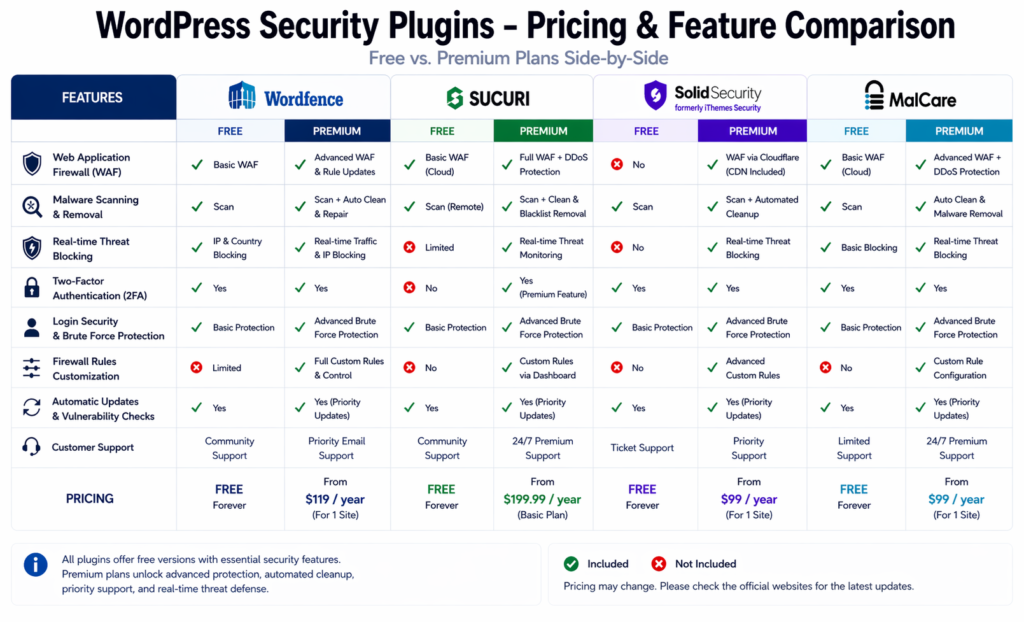
For a personal blog or a simple portfolio site, the free tier of Wordfence or Solid Security will give you decent coverage of WordPress protection plugins. Login protection, basic scanning, and hardening are all available for free.
For an e-commerce site, a membership platform, or anything that handles payment data or personal user information, the free tier is a floor, not a ceiling. The 30-day firewall rule delay in Wordfence’s free tier is a real gap — new vulnerabilities are most actively exploited in that first month.
| Ask yourself: if your site went down tomorrow and came back up with malware, what would the actual cost be? Count lost revenue, client relationships, SEO recovery time, and clean-up hours. If that number is more than $200, a premium security plan is already justified. |
Sucuri’s paid plan includes professional malware removal with no time limit and no extra charge. For a hacked site, that alone can be worth thousands in saved hours.
How to Set Up Your WordPress Security Plugin the Right Way?
Installing a WordPress security plugin and leaving it on default settings is better than nothing — but not by much. Here’s how to actually configure it for real protection.
- Run a full scan immediately after installation — Before changing any settings, run an initial malware scan, so you have a clean baseline. If the scanner finds something, deal with it before adding more complexity.
- Enable two-factor authentication on your admin account — This single step prevents most brute force attacks. Every major WordPress security plugin in this list supports 2FA. There is genuinely no excuse not to set it up.
- Limit login attempts — Set a lockout after 3 to 5 failed login attempts. Most plugins call this “brute force protection” in their settings. Find it and turn it on.
- Enable the firewall at maximum protection — Some plugins, like Wordfence, ask you to add code to your .htaccess or wp-config.php file for the firewall to run before WordPress loads. Do this step. It makes a meaningful difference to how much the firewall can block.
- Configure security hardening options — Disable XML-RPC if you’re not using it, hide your WordPress version number, remove the readme.html file, and restrict access to the wp-admin directory by IP address if possible. These are small changes that close meaningful doors.
- Set up email alerts — Make sure you get notified if the scanner detects file changes, new admin accounts are created, or there’s a spike in failed logins. You want to know about problems before your visitors do.
- Schedule automatic scans — Daily is ideal. Weekly is acceptable. “Whenever I remember” is not a strategy.
| Important Note: If you’re using multiple security plugins at the same time, stop. Running two firewalls or two scanners simultaneously causes conflicts, slows your site down, and can produce confusing errors. Pick one comprehensive plugin and configure it properly. |
When to Call in a Professional to Secure Your WordPress Site?
There’s no shame in admitting when something is beyond your comfort zone. Security configuration done incorrectly can lock you out of your own site, break plugins, or create new vulnerabilities. Here are the signs it’s time to hand it over:
- Your site has already been hacked, and you’re not confident the infection is fully removed
- You’re running an e-commerce or membership site with user payment data
- Your plugin scanner is flagging files, but you don’t know which ones to clean vs. delete
- You’re seeing unknown admin accounts or suspicious users in your dashboard
- Your host has suspended your account due to malware or outbound spam
Knowing how to prevent WordPress hacks and knowing how to clean one up after the fact are two very different skill sets. Getting an expert involved early is almost always cheaper than dealing with the fallout of a prolonged compromise.
| Need a Hand Securing Your Site? Configuring security plugins correctly takes time, and the wrong settings can slow your site down or create gaps. If you’d rather not do it yourself, Codecaste can handle the full setup, audit, and ongoing monitoring for you. |
Frequently Asked Questions
1. Which WordPress security plugin is best for beginners?
Solid Security (formerly iThemes Security) is generally the friendliest for beginners because of its guided setup wizard. Wordfence is also a strong choice — its free tier is generous and the interface, while detailed, is well-documented. Both offer meaningful protection without requiring you to understand the technical details of every setting.
2. Can I use more than one WordPress security plugin at the same time?
It’s not recommended. Running two security plugins simultaneously — especially two with firewalls or two with malware scanners — often causes conflicts that slow your site down or break functionality. Pick one comprehensive plugin and configure it well. If you want an extra layer, a dedicated login protection tool (like WP Limit Login Attempts) can work alongside a main security plugin without conflict, but always test after installing.
3. Do WordPress security plugins slow down my site?
Some do, and it depends heavily on your hosting environment. Wordfence’s malware scanner can spike CPU usage on shared hosting during a scan. MalCare specifically addresses this by running its processing in the cloud rather than on your server. If performance is a concern, schedule scans during off-peak hours and choose a cloud-based scanner. A well-configured plugin on good hosting should have negligible impact on day-to-day performance.
4. Is the free version of Wordfence enough?
For a simple personal or low-traffic site, yes. For a business site, probably not. The key limitation is the 30-day delay on firewall rules — new vulnerabilities are most aggressively targeted in the first few weeks after discovery. Premium users get rules in real time. If your site generates revenue or stores user data, the $99/year premium cost is worth it.
5. What's the difference between an endpoint firewall and a DNS-level firewall?
An endpoint firewall (like Wordfence) runs as a plugin on your server. It inspects traffic after it arrives at your server but before WordPress processes it. A DNS-level firewall (like Sucuri’s WAF) intercepts traffic before it ever reaches your server — it routes all requests through a third-party network that filters malicious traffic first. DNS-level firewalls are generally more effective and also provide CDN benefits, but they cost more and require changing your domain’s DNS settings.
6. How do I know if my WordPress site has already been hacked?
Common signs include: unexpected admin users in your dashboard, Google Search Console flagging your site for malware, your host sending suspension notices, unusual spikes in outbound traffic, pages redirecting to spam sites, or your login page showing unfamiliar content. Running a scan with a tool like Wordfence or MalCare will usually surface injected code or modified files. If you’re in doubt, assume something is wrong and investigate.
7. Does having a security plugin mean I don't need to update my plugins and themes?
No, and this is a common misconception. Security plugins add layers of protection, but they don’t make it safe to run outdated software. An unpatched plugin vulnerability is a known exploit — attackers will find it. Keeping your plugins, themes, and WordPress core updated is the single most important thing you can do for site security. The plugin just backs you up when something slips through.
8. What is WordPress vulnerability protection and how does it work?
WordPress vulnerability protection refers to features that detect and respond to known security flaws in WordPress core, plugins, and themes. Tools like Solid Security and Patchstack maintain databases of disclosed vulnerabilities and alert you when a plugin you’re running has a known issue. Some tools also apply ‘virtual patches’ — firewall rules that block attempts to exploit a vulnerability even before you’ve updated the plugin itself. This gives you a window to update safely without being actively at risk.
The Bottom Line
Security isn’t the most exciting part of running a WordPress site. Nobody gets a dopamine hit from configuring a firewall. But the 48 hours after a successful hack — explaining it to clients, cleaning files, recovering SEO rankings, rebuilding trust — is far less fun. Getting the right WordPress security plugins in place before that happens is one of the most practical things you can do.
Here’s a quick recap of what matters:
- Pick one solid plugin — Wordfence for free-tier depth, Sucuri for DNS-level firewall, Solid Security for beginners, MalCare for cloud-based scanning. Don’t stack them.
- Configure it properly — Default settings do not provide full protection. Enable 2FA, set up your firewall correctly, and schedule automatic scans.
- Keep everything updated — WordPress vulnerability protection plugins can help, but nothing replaces a current, patched installation.
- Know when to get help — If your site has been compromised or you’re running something business-critical, bring in an expert. The cost is almost always lower than the alternative.
- Treat security as ongoing— it’s not a one-time setup. Check your scan reports, stay on top of updates, and revisit your configuration every few months.
The right setup won’t make your site unhackable — nothing does. But it will make you a significantly less appealing target, which in the world of automated attacks is often all it takes to stay safe.
Want a Security Setup That Actually Works?
Security is not a one-time checkbox. It’s an ongoing process, and getting it right from the start saves enormous headaches later. Codecaste offers WordPress security audits, plugin configuration, and monthly hardening reviews so your site stays protected without you having to think about it.
Get in touch: https://www.codecaste.com/contact-us — we’ll help secure and optimise your website for peak performance